Getting startedChapter 1
Connecting and first start
What to connect before you power the device on, and what the touchscreen shows after start-up.
What it is for
TimerProBOX is a ready-made device: connect the power, the speaker screen and the licence USB stick — after a few seconds the program is ready. There is nothing to install.
Who can use it
Operator at the device (touchscreen).
Where to find it
The device itself — the touchscreen on the case.
Step 1
Connect the cables
- Licence USB stick — into a USB port. It must stay connected at all times, also while working; without it the program will not start (see Licence).
- Monitor, TV or projector for the speaker — into HDMI 1. A second screen (e.g. for the director) — into HDMI 2 (see Second monitor and two HDMI outputs).
- Network (optional) — LAN cable or WiFi, if you want to control the timer from a phone, a tablet or vMix / OBS.
- Stream Deck (optional) — into a USB port.
- Power supply — connect it last. The device switches on by itself.
Note
Use the power supply delivered with the device. A weaker one (e.g. a laptop charger) may give too low a voltage — the second screen loses its picture or the device does not see the licence stick.
Step 2
Mode selection screen
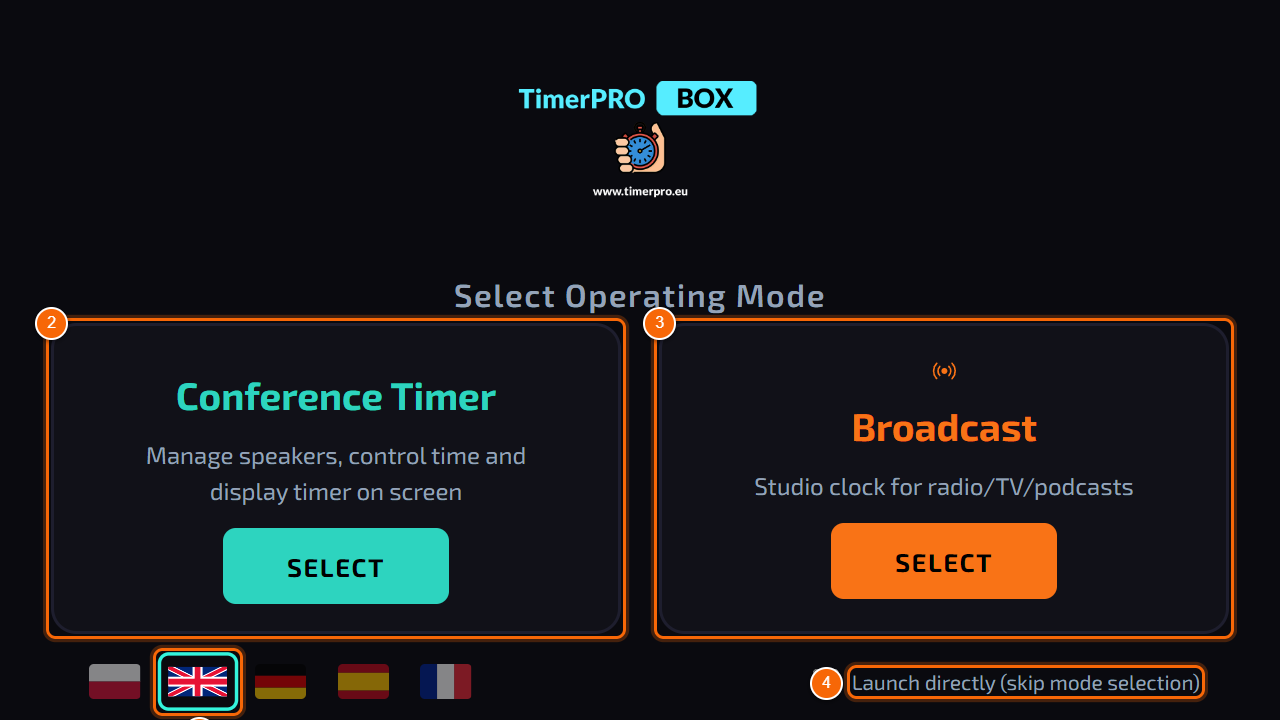
- After start-up the touchscreen shows the mode selection:
- 1 Program language — tap a flag: Polish, English, German, Spanish or French. The change is immediate.
- 2 Conference Timer — speakers, countdown of talks, messages on the screen (chapters 4–17).
- 3 Broadcast — studio clock for radio, TV and podcasts: ON AIR and show time (chapters 18–20).
- 4 Launch directly — tick it and the device will skip this screen on the next start and open the last selected mode.
Result: Tapping SELECT opens the chosen mode. You can change the mode at any time (see Choosing the operating mode).
Good to know
The first start after connecting the power takes a few seconds — the TimerPRO BOX logo is shown meanwhile.
All settings are stored in the device and stay after the power is switched off.
Getting startedChapter 2
Main screen
What the conference timer screen on the device consists of and what each part is for.
What it is for
The main screen is the operator’s workplace: it shows exactly what the speaker sees, and from here you start, stop and adjust the time with a single tap.
Who can use it
Operator at the device. The same functions are also in the browser panel (see Browser panel).
Where to find it
Device touchscreen → Conference Timer mode.
Step 1
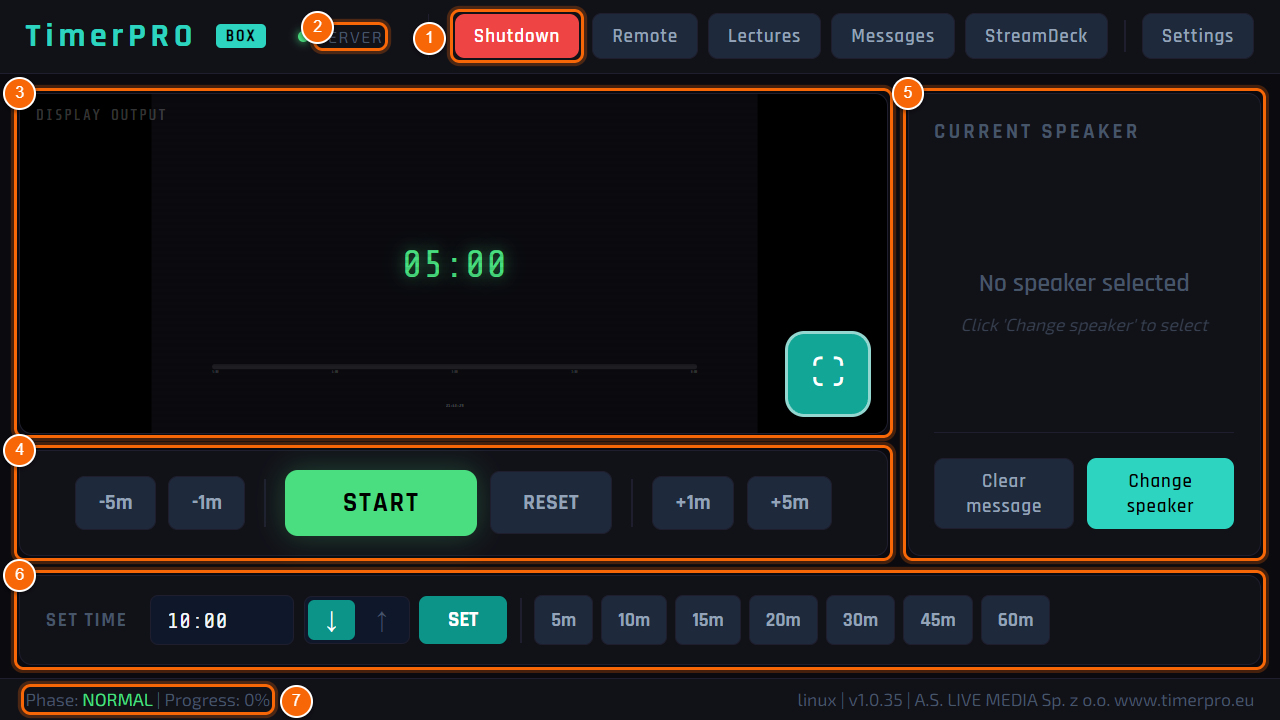
The whole screen
- 1 Menu — all program functions (see step 2).
- 2 SERVER — green dot: the browser panel, vMix / OBS and Stream Deck over the network can connect.
- 3 Display output — live preview of what the speaker sees on the HDMI screen.
- 4 Time controls — START / PAUSE, RESET and quick corrections -5m -1m +1m +5m (see Time controls).
- 5 Current speaker — who is speaking now; Change speaker picks the next person from the lecture list.
- 6 Set timer — type a time, choose the counting direction (down / up) and quick times 5m … 60m.
- 7 Status bar — time Phase (normal, warning, danger, overtime — see Time controls), Progress in percent and program version.
- 8 Starred messages — up to three buttons with messages marked with a star; one tap sends the message to the speaker screen (see Messages). Without stars this row is not shown.
Step 2
Menu
- 1 Shutdown — safe shutdown of the device (see Shutting down and restarting).
- 2 Remote — addresses and QR codes for control from a phone, tablet, vMix / OBS.
- 3 Lectures — speaker list and the event programme.
- 4 Messages — messages sent to the speaker screen.
- 5 StreamDeck — Elgato Stream Deck keys.
- 6 Settings — appearance, sounds, network, language, updates and all other options.
Step 3
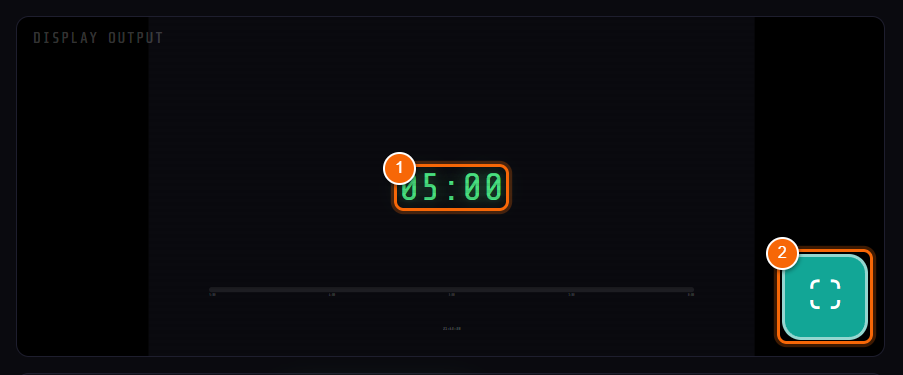
Output preview
- 1 Time — exactly as on the speaker screen. The thin line below is the progress bar of the talk: towards the end it turns yellow and red.
- 2 Enlarge — preview on the whole touchscreen; tap again to go back.
Tip
The preview also shows messages, the background image and the clock — everything you set in Display. Before you send something to the room, you see the result here.
Good to know
Menu labels are in the language chosen on the start screen or in Settings → Language.
Getting startedChapter 3
Choosing the operating mode
How to switch the device between the conference timer and the Broadcast studio clock.
What it is for
One device has two modes: Conference Timer (speakers and talk times) and Broadcast (studio clock, ON AIR, show time). You choose the mode at start-up and can change it at any time.
Who can use it
Operator at the device.
Where to find it
Settings → System → Change mode.
Step 1
Changing the mode in the settings
- In the menu tap Settings, then the System tab at the top of the window. Scroll the list down.
- 1 Application mode → Change mode — the device returns to the mode selection screen (see Connecting and first start).
Result: On the selection screen tap SELECT under the other mode. The settings of both modes are stored separately — nothing is deleted.
Step 2
Start directly in the chosen mode
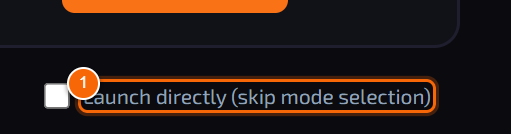
- 1 On the selection screen tick Launch directly (skip selection screen).
- From now on the device opens the last used mode right after power-on. To see the selection again, use Change mode from step 1.
Tip
For permanent installations (e.g. a conference room or a radio studio) tick this option — the device is ready to work right after power-on.
Conference timerChapter 4
Time controls
How to set the length of a talk, start it, stop it and adjust it on the fly.
What it is for
Every talk has its own time. You set it with one tap, start it and, if needed, add or remove minutes without stopping the countdown.
Who can use it
Operator at the device, the browser panel and Stream Deck — all three control the same time.
Where to find it
Main screen — middle and bottom.
Step 1
Start, pause and corrections
- 1 -5m -1m — take off 5 or 1 minute.
- 2 START — starts the countdown. While running the button turns into PAUSE: tap to stop and again to resume from the same point.
- 3 RESET — back to the set time (the timer stops).
- 4 +1m +5m — add 1 or 5 minutes.
Tip
Corrections also work while running and do not stop the countdown. The time already passed stays — only the end of the talk moves.
Step 2
Setting the time
- 1 Time field — tap and type on the on-screen keyboard. Minutes alone are enough (25 = 25:00), or minutes and seconds (7:30).
- 2 Direction — ↓ counts down (time left: 25:00 → 00:00), ↑ counts up (time passed: 00:00 → 25:00).
- 3 SET — loads the typed time into the timer.
- 4 Quick times 5m … 60m — one tap sets the time. Change the list in Settings → Presets.
Result: The new time is visible at once in the preview and on the speaker screen. The timer waits for START.
Step 3
Time colours — phases
The program tracks how much time is left and goes through four phases. On the speaker screen the colour of the digits changes and the progress bar runs from blue to red:
- normal — more than 20% of the time left: green digits.
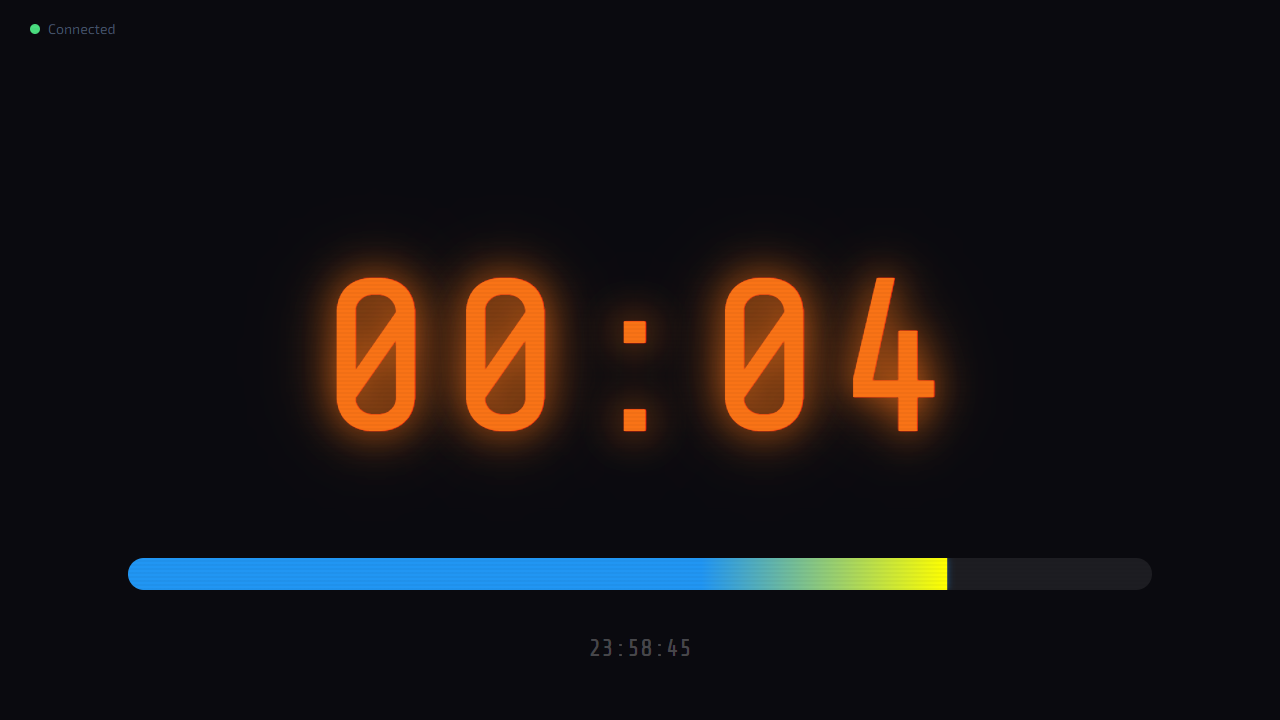
- warning — 20% of the time or less left: orange digits (first screenshot).
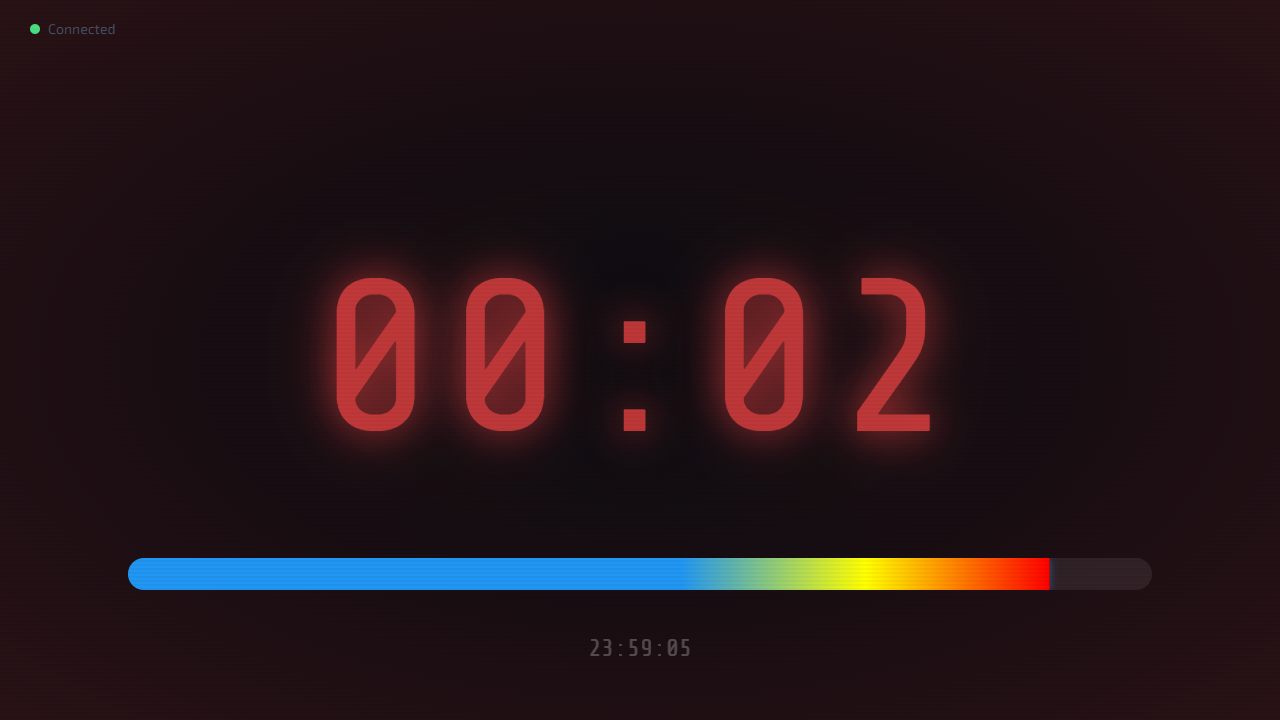
- danger — 10% of the time or less left: red digits, the background turns slightly red (second screenshot).
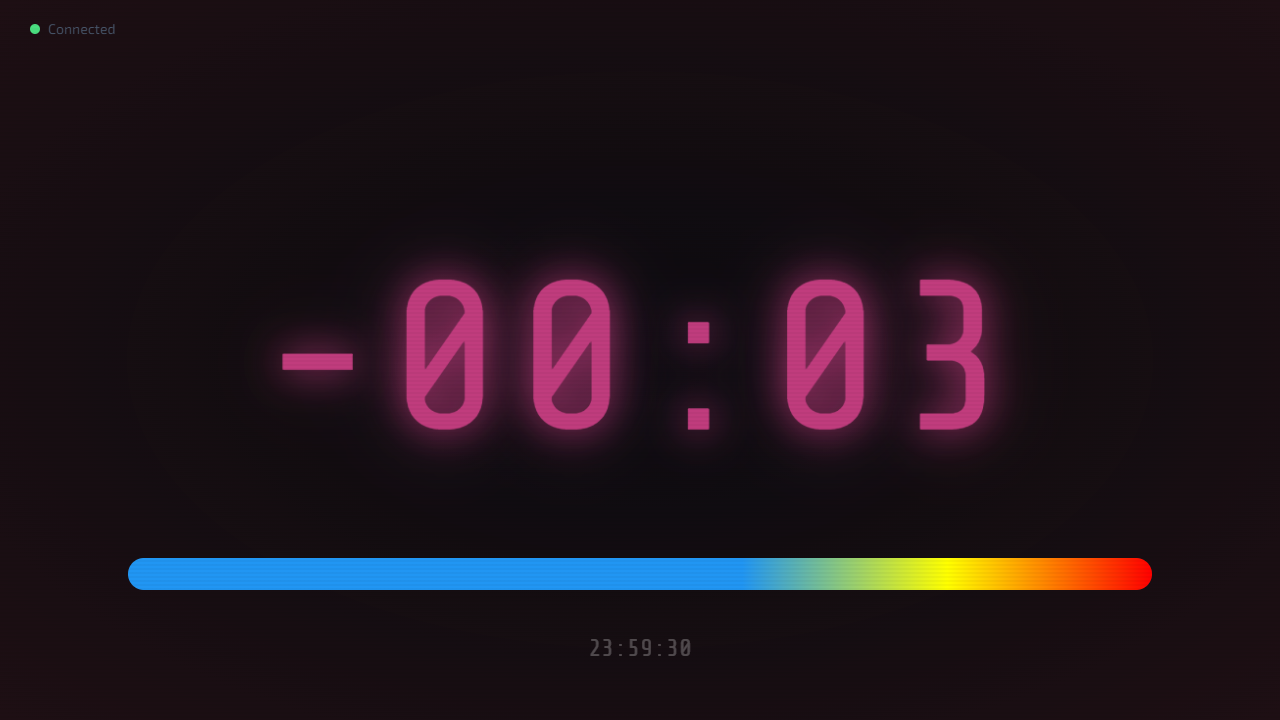
- overtime — after the time: the timer keeps counting the overrun with a minus sign, the digits are pink and flash (third screenshot).
- The name of the current phase is also in the status bar at the bottom of the device screen.
- The preview on the device screen shows exactly the same as the speaker screen: the same time format, phase colours and blinking. Set the strength and speed of blinking after zero in Display.
Tip
Prefer the timer to stop exactly at zero instead of counting the overrun? Turn on Stop when the target is reached in Settings → Display (see Display).
Conference timerChapter 5
Speakers and the event programme
How to prepare the speaker list, load it from a file and run the event item by item.
What it is for
The event programme is a list of talks: who, about what, how many minutes and (optionally) at what time. With the list, one tap loads the next person’s time, and the panel on the main screen shows who is speaking now, who is next and whether the event is running late.
Who can use it
Operator at the device.
Where to find it
Menu → Lectures; settings: Settings → Program.
Step 1
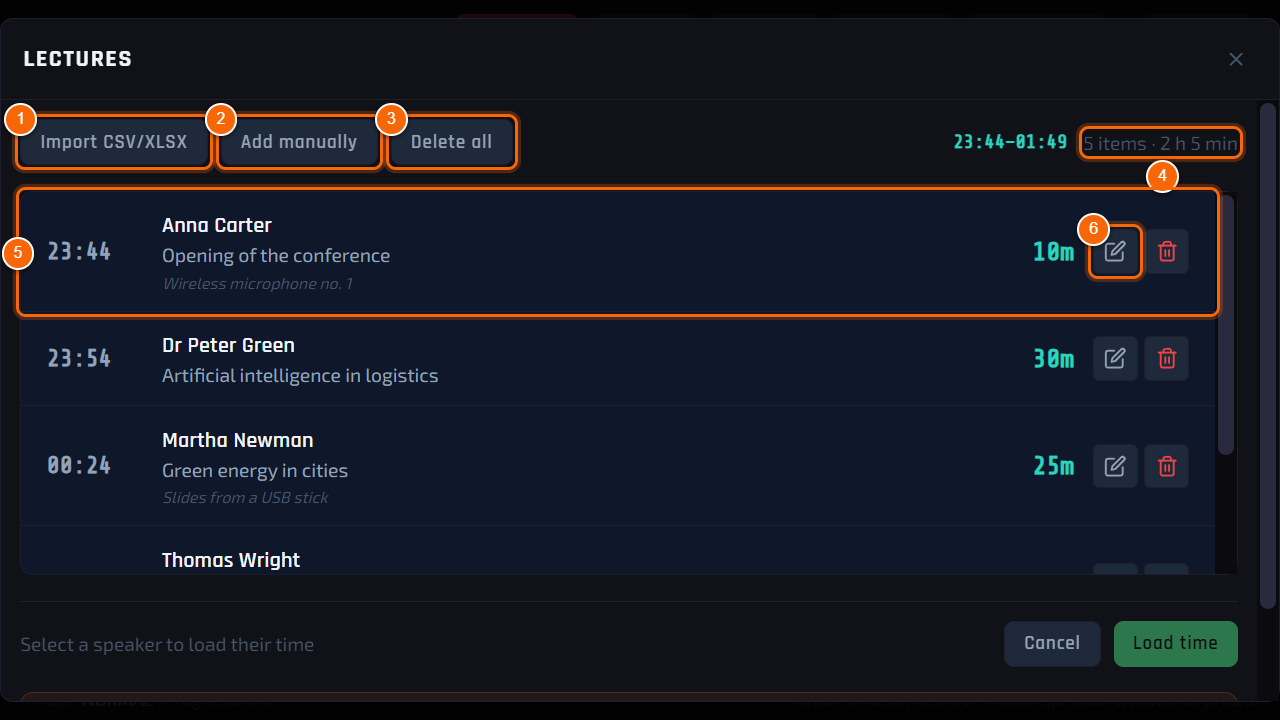
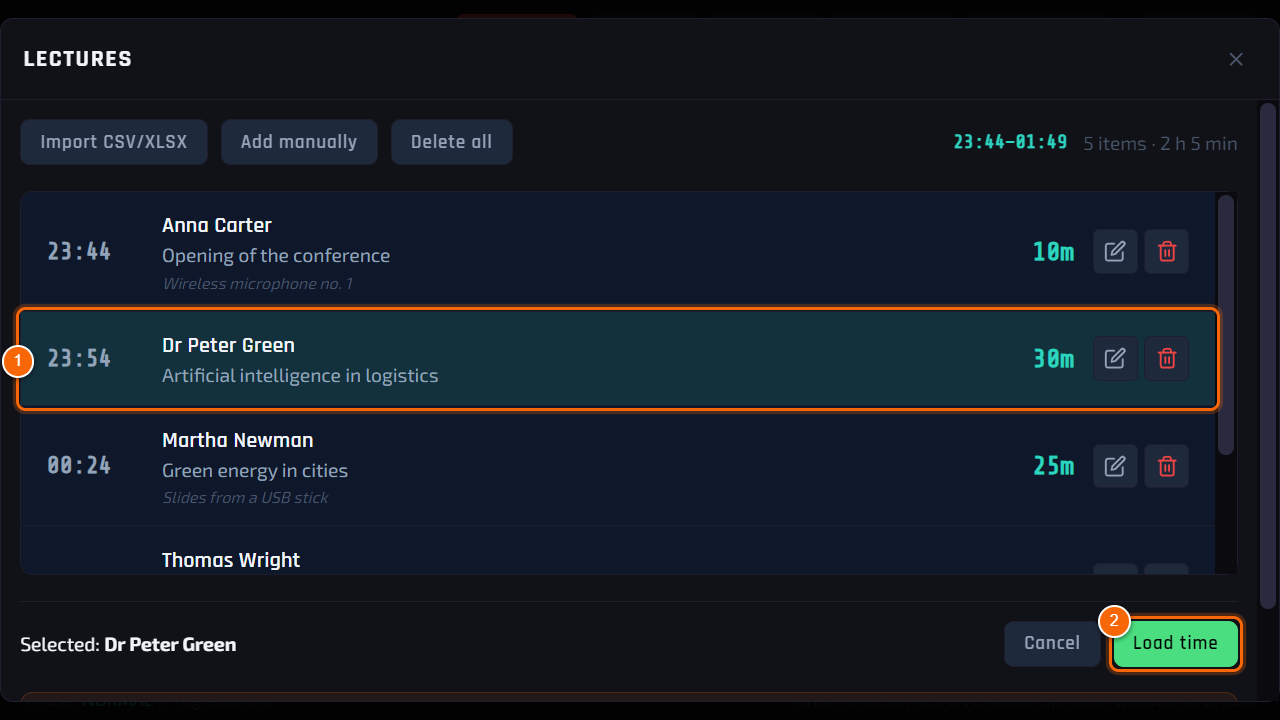
Talk list
- 1 Import CSV/XLSX — load the whole list from a file (step 4).
- 2 Add manually — add a single talk (step 3).
- 3 Delete all — clears the list (the program asks for confirmation).
- 4 Summary — time from–to, number of items and total time.
- 5 Talk — time, speaker, topic, notes and length. Tap to select.
- 6 Edit / Delete — change or remove a single talk.
Step 2
Loading a speaker’s time
- 1 Tap a talk — it gets selected.
- 2 Load time — the time of this talk goes to the timer and the window closes.
Result: The timer shows the speaker’s time and waits for START. The programme never starts or stops the countdown by itself.
Step 3
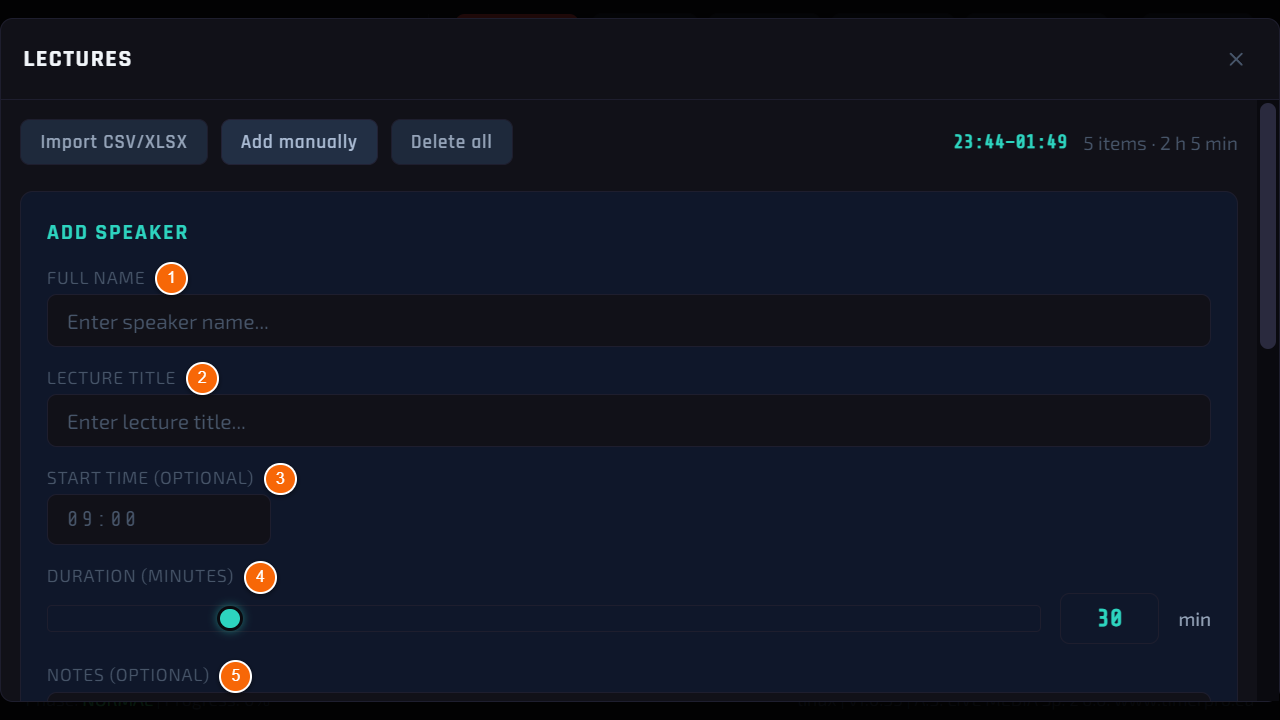
Adding a talk
- 1 Full name — who is speaking.
- 2 Lecture title — topic of the talk.
- 3 Start time (optional) — planned time; without it the item works normally, it just does not count towards the delay.
- 4 Duration (minutes) — 1 to 120 minutes.
- 5 Notes (optional) — e.g. microphone number, technical remarks.
- At the bottom of the form tap Save — the talk is added to the list.
Tip
Text fields are filled on the on-screen keyboard that appears when you tap a field.
Step 4
Import from a CSV or Excel (XLSX) file
Prepare the whole agenda on a computer in Excel and load it from a USB stick. The first row of the sheet holds the column headers — the program recognises them by name, in any order:
- start (or: hour, start time) — planned start time, e.g. 09:40. Optional column.
- name (or: speaker) — who is speaking.
- title (or: topic) — topic of the talk.
- duration (or: time, minutes, min) — length in minutes.
- notes (or: comments) — any text. Optional column.
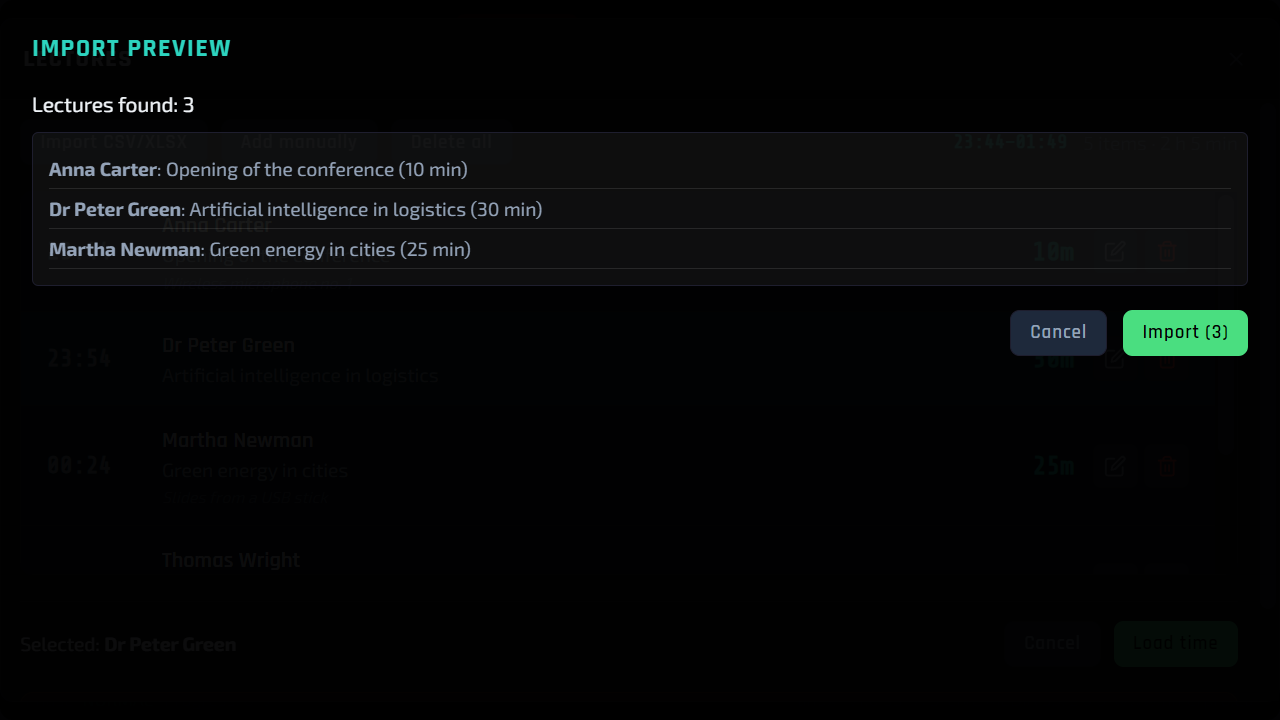
- Connect the USB stick, tap Import CSV/XLSX and pick the file. The program shows Import preview — check the list and tap Import.
Note
Import adds the talks from the file to the list. If you are starting a new event, first use Delete all.
The file can be an Excel workbook (.xlsx) or a CSV file — also one saved in Notepad or Google Sheets. The program reads accented letters in the headers by itself, whatever the file encoding.
Step 5
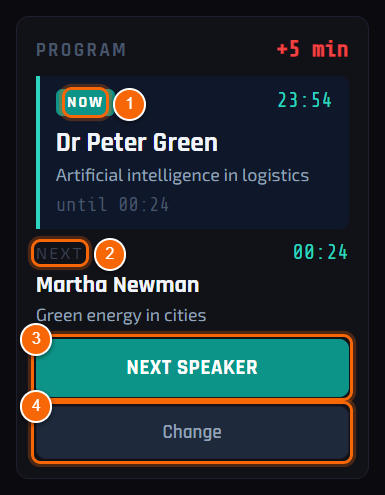
Programme panel on the main screen
- 1 NOW — the talk in progress. It flashes red when the speaker has run over time.
- 2 NEXT — who comes on next and at what time.
- 3 NEXT SPEAKER — loads the next person’s time with one tap.
- 4 Change — opens the list to pick another speaker.
Tip
When the talks have start times, the delay against the plan appears next to PROGRAM: red when the event is running late, green when it is ahead of schedule.
Step 6
Programme settings
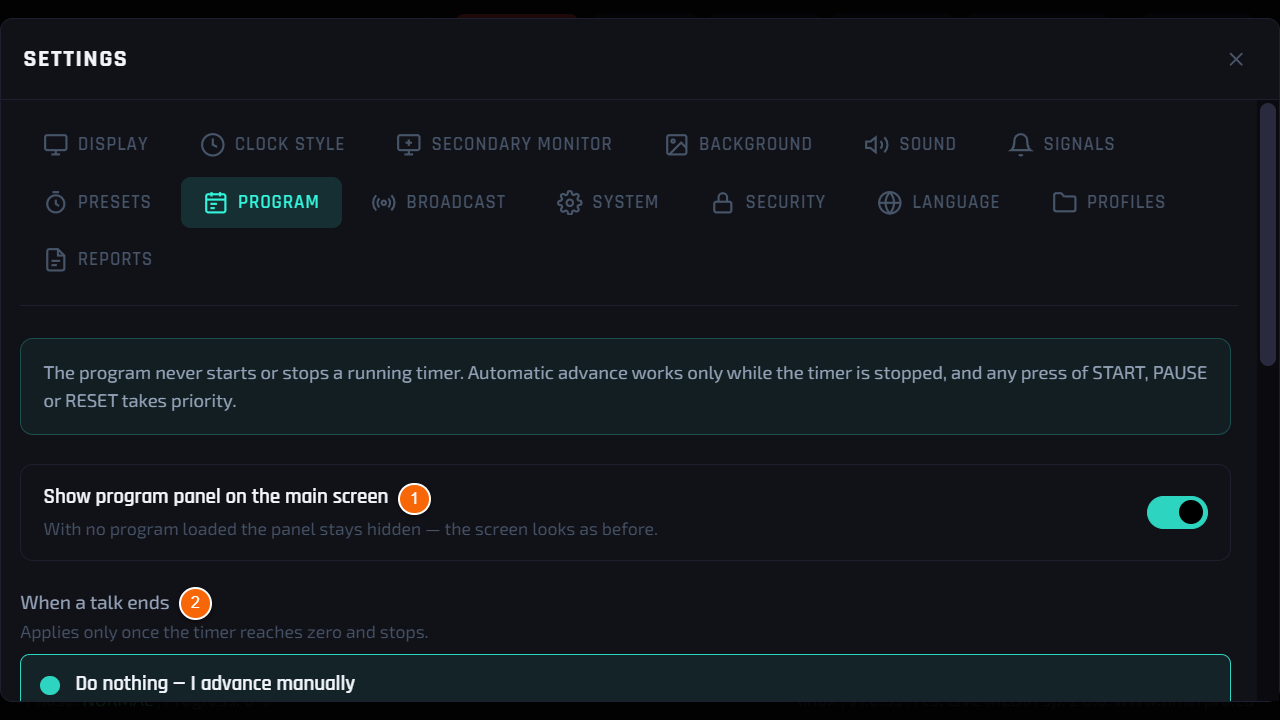
- 1 Show program panel on the main screen — turn off if you do not want the panel on the main screen.
- 2 When a talk ends — what to do when the talk time is over and the timer stands still: nothing, load the next one, or load and start.
Step 7
Programme settings — button and times
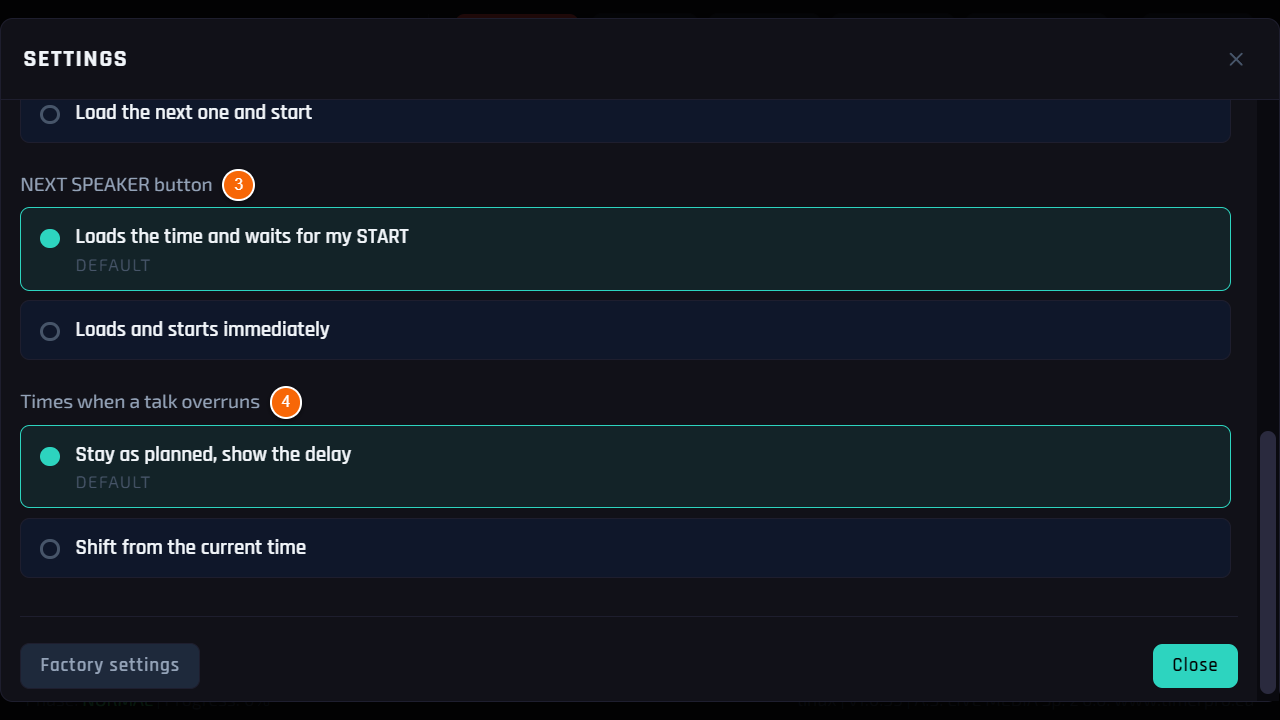
- 3 NEXT SPEAKER button — whether the button only loads the time or starts it at once.
- 4 Times when a talk overruns — times stay as planned (the delay is shown) or shift from the current time.
Good to know
The list is stored in the device — it stays after the power is switched off and is included in a settings profile.
The post-event report shows how long each talk actually took (see Post-event report).
Conference timerChapter 6
Messages for the speaker
How to send the speaker a message on the screen — a ready one from the list or your own.
What it is for
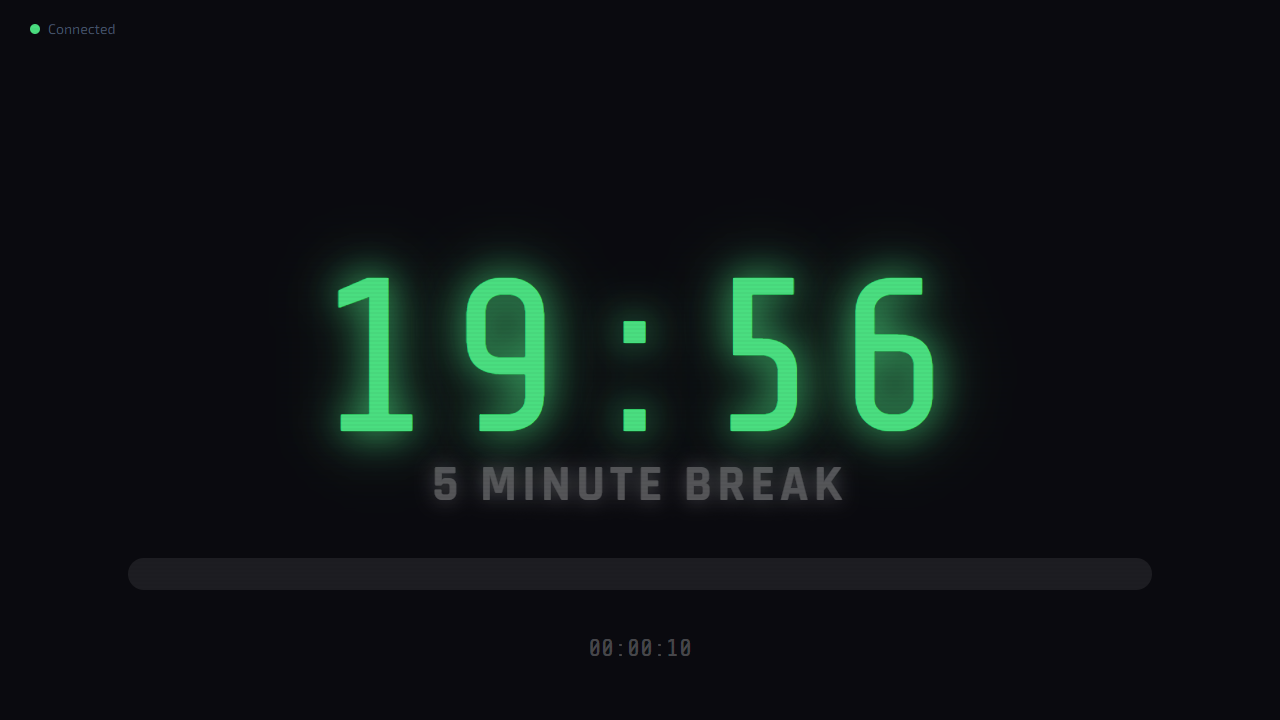
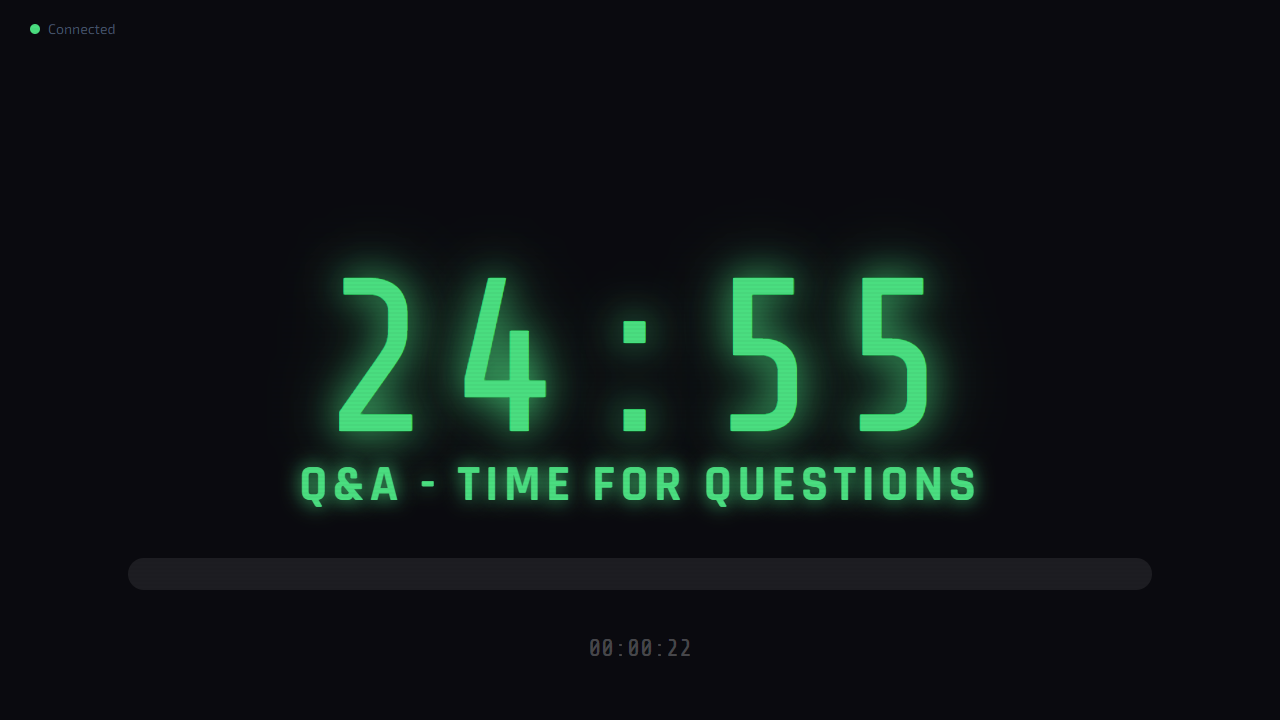
The speaker does not see the room the way you do. A short message under the time — “5 minute break”, “Time for questions” — passes on information without interrupting the talk.
Who can use it
Operator at the device, the browser panel and Stream Deck.
Where to find it
Menu → Messages.
Step 1
Message list
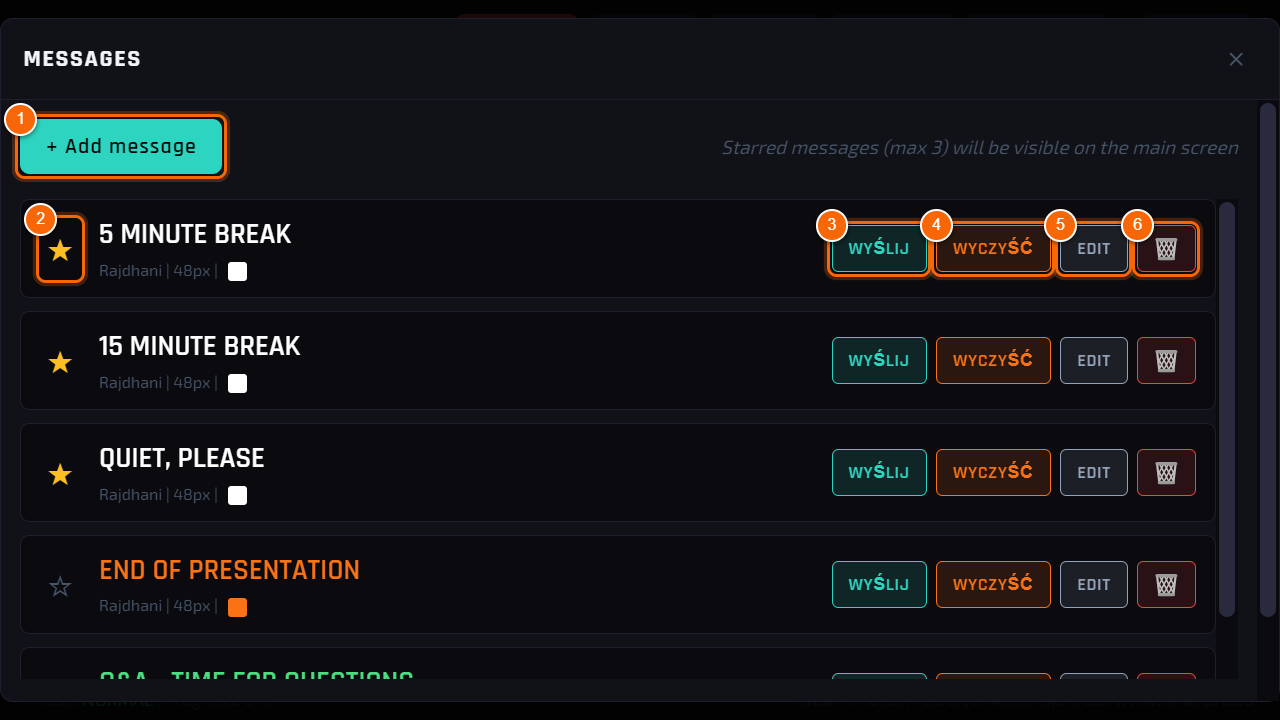
- 1 Add message — a new message on the list (step 2).
- 2 Star — marks favourite messages (three at most). Starred messages appear as buttons on the main screen, under the speaker panel (see Main screen), and first in the browser panel.
- 3 Send — the message appears at once on the speaker screen and in the preview.
- 4 Clear — takes the message off the screen.
- 5 Edit — change the text, font, size and colour.
- 6 Bin — deletes the message from the list.
Step 2
New message
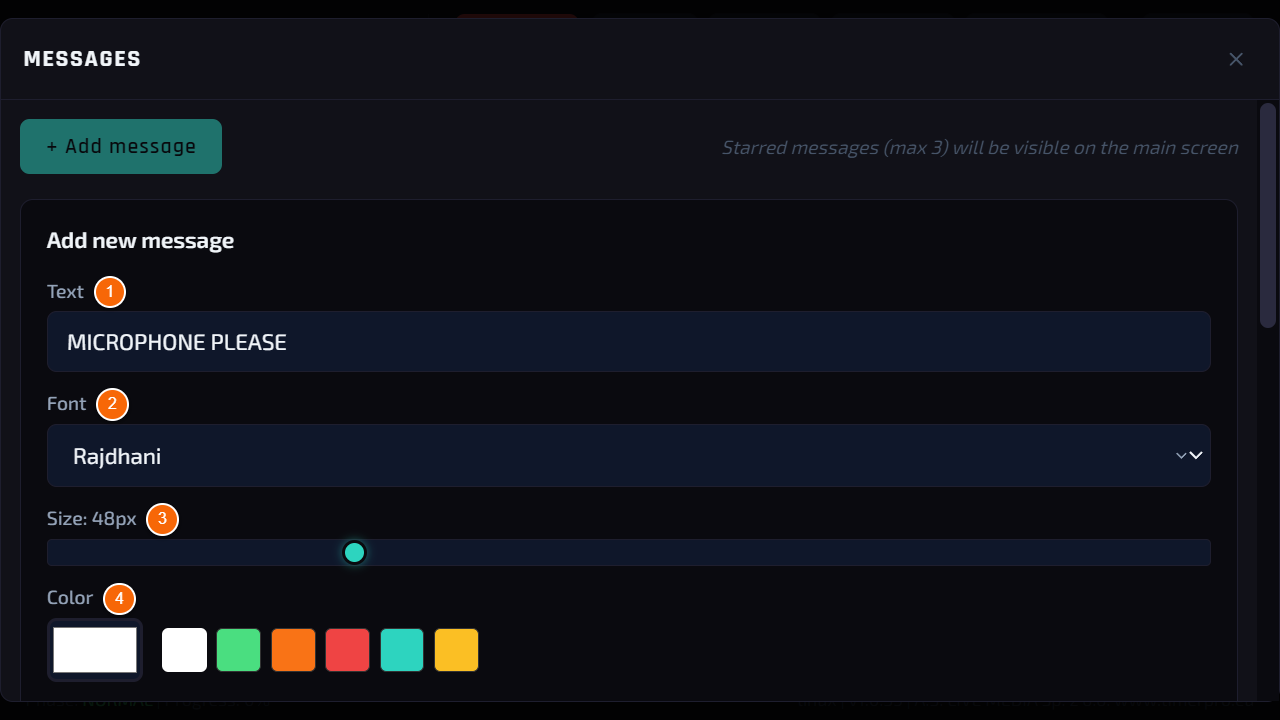
- 1 Text — the content, typed on the on-screen keyboard. Keep it short: a few words work best.
- 2 Font — typeface on the speaker screen. The same 21 fonts as in Clock style and Display.
- 3 Size — text size (move the slider).
- 4 Color — text colour: ready colours or any from the picker.
- Below is Preview — how the message will look on the screen.
Result: At the bottom of the window Save adds the message to the list. Send it with Send from step 1.
Step 3
Message on the screen
- This is how the speaker sees the message on their screen (HDMI): under the time, in large letters. The preview on the device shows the same, smaller.
- To take the message off, tap Clear message on the main screen or Clear in the message list.
Tip
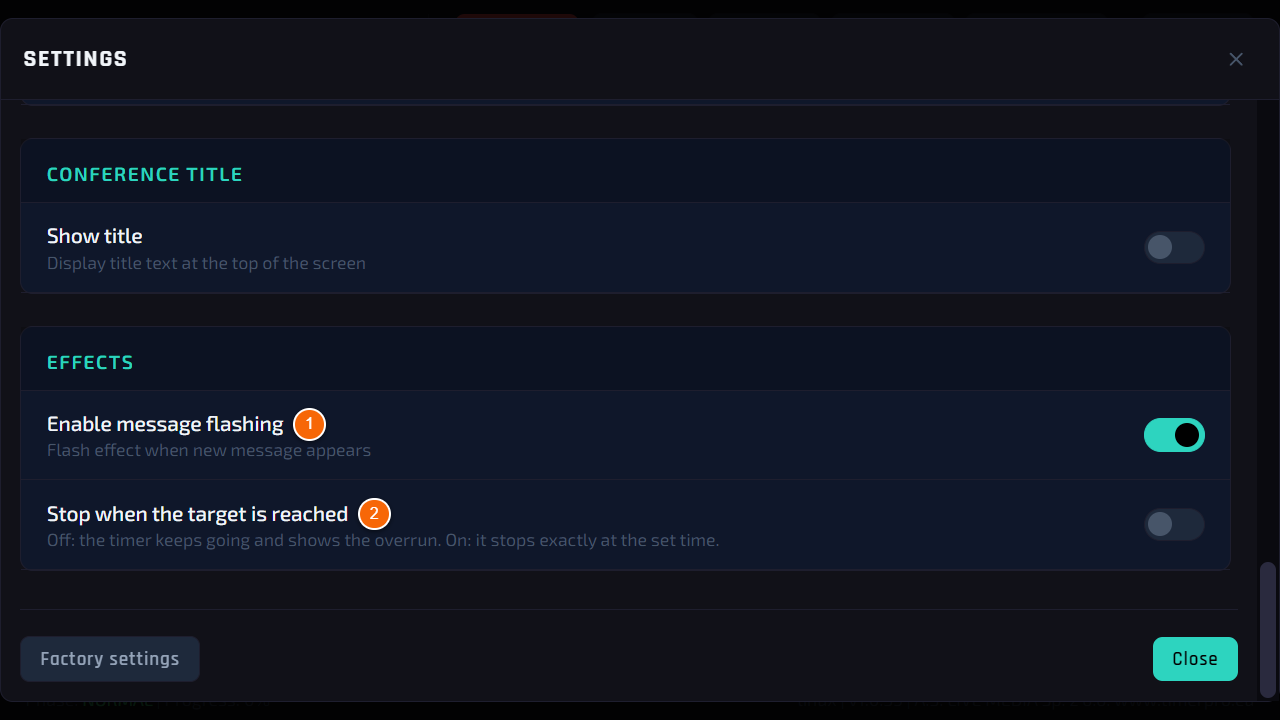
A new message can flash so that the speaker notices it — turn it on in Settings → Display → Enable message flashing.
Good to know
There is always one message on the screen — sending another one replaces the previous one.
You can also send messages from a phone (see Browser panel) and from Stream Deck (see Stream Deck).
Conference timerChapter 7
Speaker screen
What the monitor, TV or projector connected to the device shows.
What it is for
The speaker screen stands in front of the speaker (or on stage as a confidence monitor). It shows only what is needed: how much time is left, the operator’s message and the progress of the talk — readable from several metres.
Who can use it
Seen by the speaker. The operator has the same picture in the preview on the device.
Where to find it
Monitor connected to HDMI 1 — the picture appears by itself after the device starts.
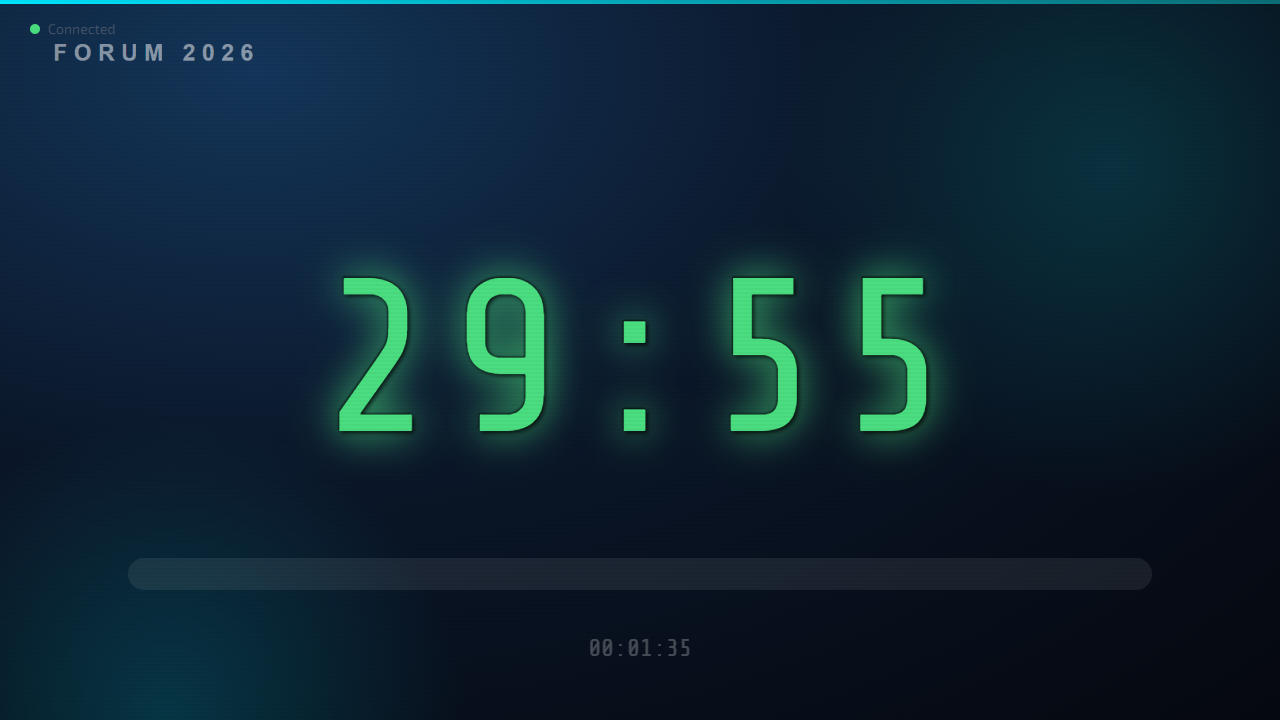
Step 1
The screen during a talk
- Time — large digits in the middle: how much is left (or how much has passed if you count up).
- Message — under the time, when you send it from the message list (see Messages for the speaker).
- Progress bar — how much of the talk has passed.
- Clock — current time at the bottom of the screen.
- Connected — in the corner: a green dot means the screen is connected to the program and shows the current time.
Step 2
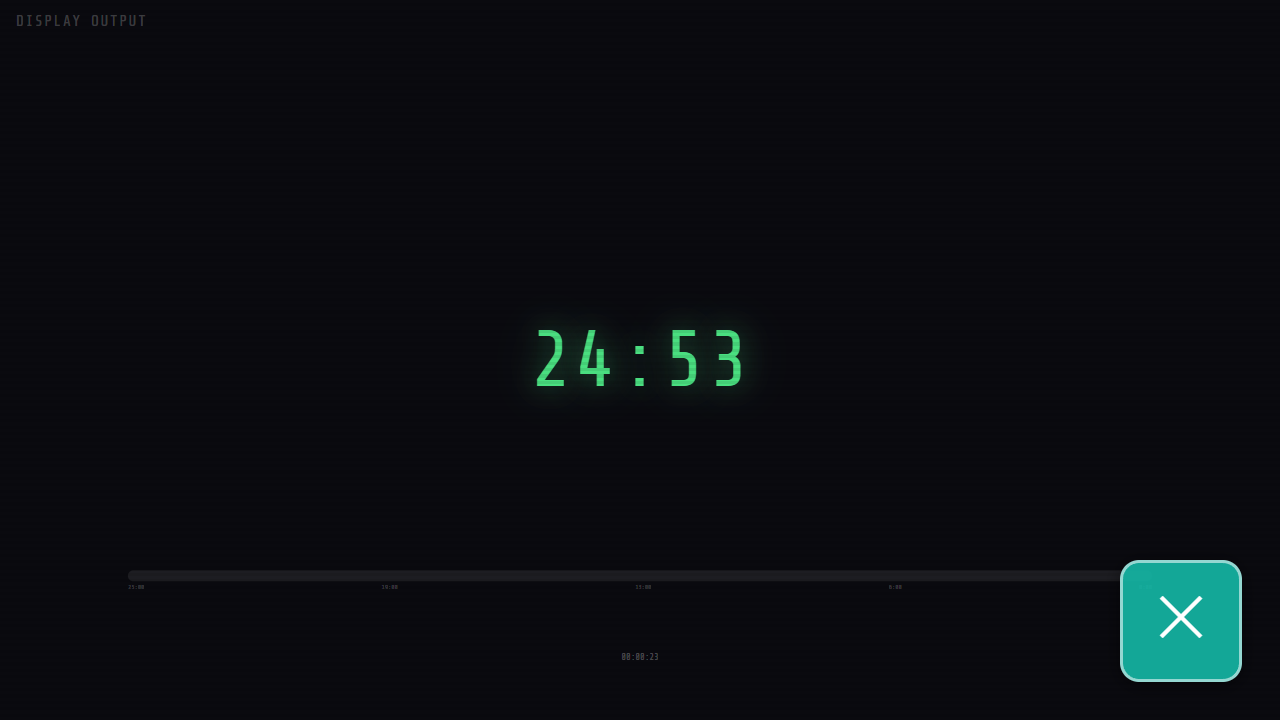
Preview on the full device screen
- On the main screen tap the enlarge button in the corner of the preview — the preview fills the whole touchscreen.
- The ✕ button in the bottom right corner goes back to the main screen.
Tip
Useful when the device stands in front of the speaker instead of a monitor — then the touchscreen itself is the speaker screen.
Conference timerChapter 8
Signals and sounds
How to set a sound and screen-flash warning when the end of the talk is near.
What it is for
A signal reminds the speaker that time is running out — with a gong from the speakers or a frame flashing at the edges of the screen. You have two independent signals, e.g. “half time” and “last 5 minutes”.
Who can use it
Operator at the device.
Where to find it
Settings → Signals.
Step 1
When the signal fires
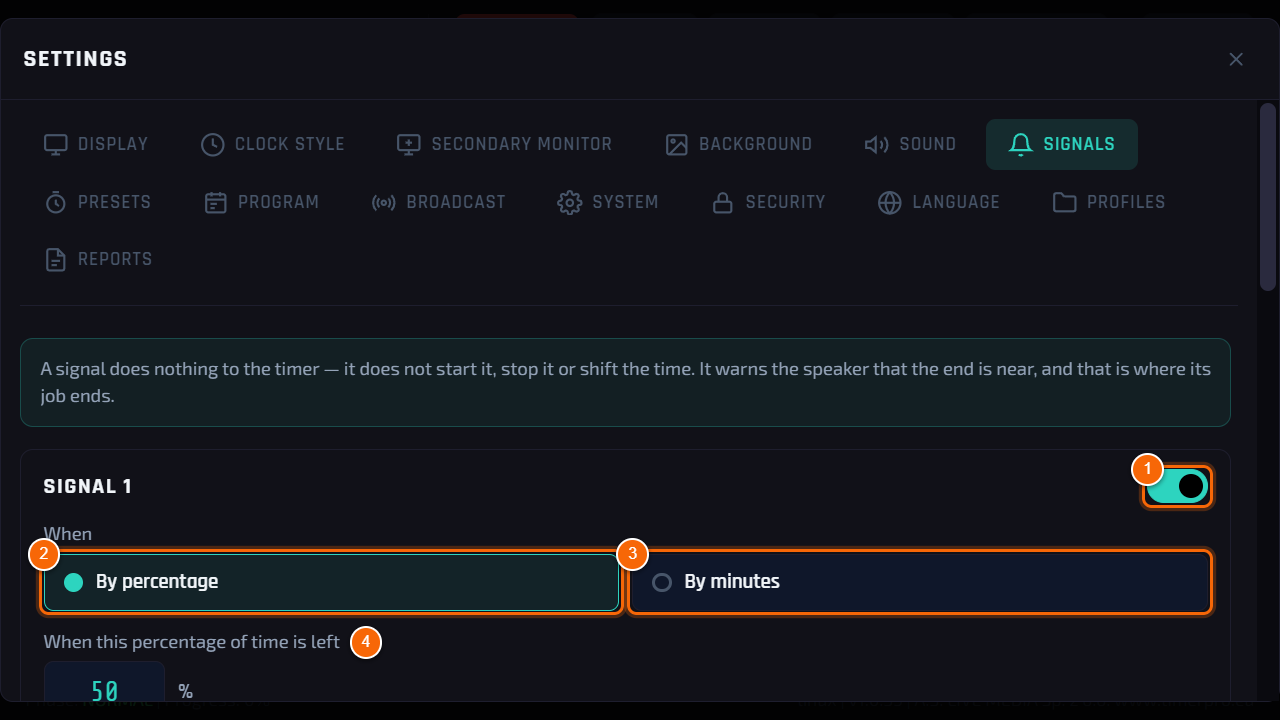
- 1 Switch next to Signal 1 — the signal works only when it is on.
- 2 By percentage — e.g. “when 50% of the time is left”: it fires halfway through every talk, whatever its length.
- 3 By minutes — e.g. “when 5 minutes are left”: always 5 minutes before the end.
- 4 Value — percentage or number of minutes. Below the field the program shows what it means in practice.
Step 2
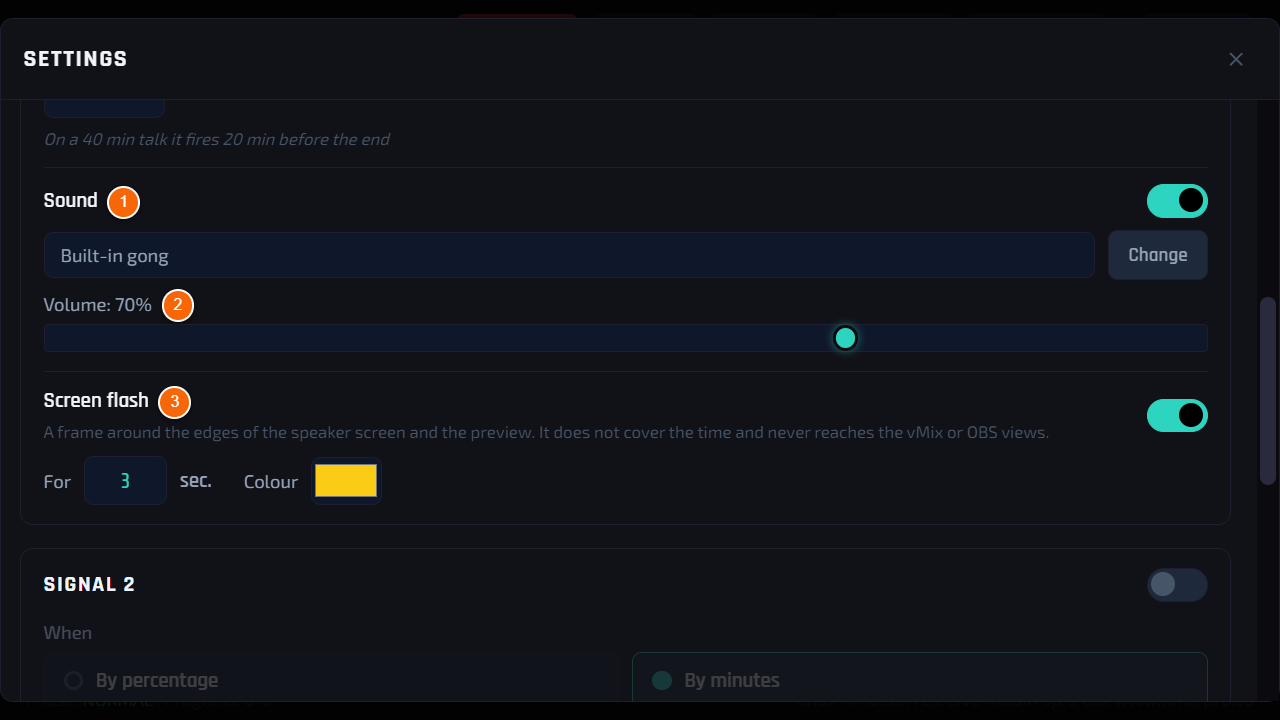
Sound and flash
- 1 Sound — Built-in gong works out of the box. Change loads your own file (WAV, MP3, OGG, M4A), Built-in goes back to the gong.
- 2 Volume — volume of this signal.
- 3 Screen flash — a coloured frame at the edges of the speaker screen and the preview. Its duration and colour are set next to it.
Tip
The frame does not cover the time — the middle of the screen stays clear. It does not appear in the views for vMix and OBS either, so it never goes on air.
Good to know
A signal does nothing to the timer: it does not start it, stop it or move the time.
The sound goes out through the output selected in Sound (HDMI or a USB sound card).
AppearanceChapter 9
Display
Settings of the touchscreen and of what the speaker screen shows besides the time itself.
What it is for
Here you rotate the device touchscreen and set the progress bar, the corner clock on the speaker screen and what the timer does when it reaches zero.
Who can use it
Operator at the device.
Where to find it
Settings → Display.
Step 1
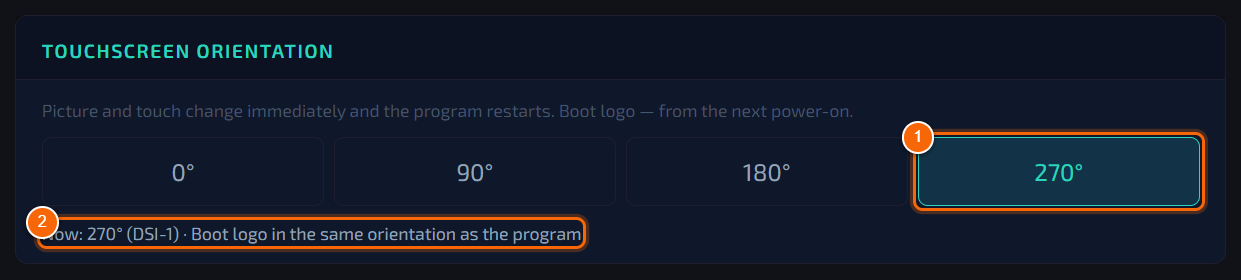
Touchscreen orientation
- 1 0° / 90° / 180° / 270° — rotation of the touchscreen. Picture and touch rotate at once and the program restarts in the new layout (a few seconds).
- 2 Status — the current rotation and the state of the logo shown while the device starts. The logo rotates together with the program from the next start.
Tip
The device remembers the orientation after a power cut and after an update. Change it only when the case stands differently than before.
Step 2
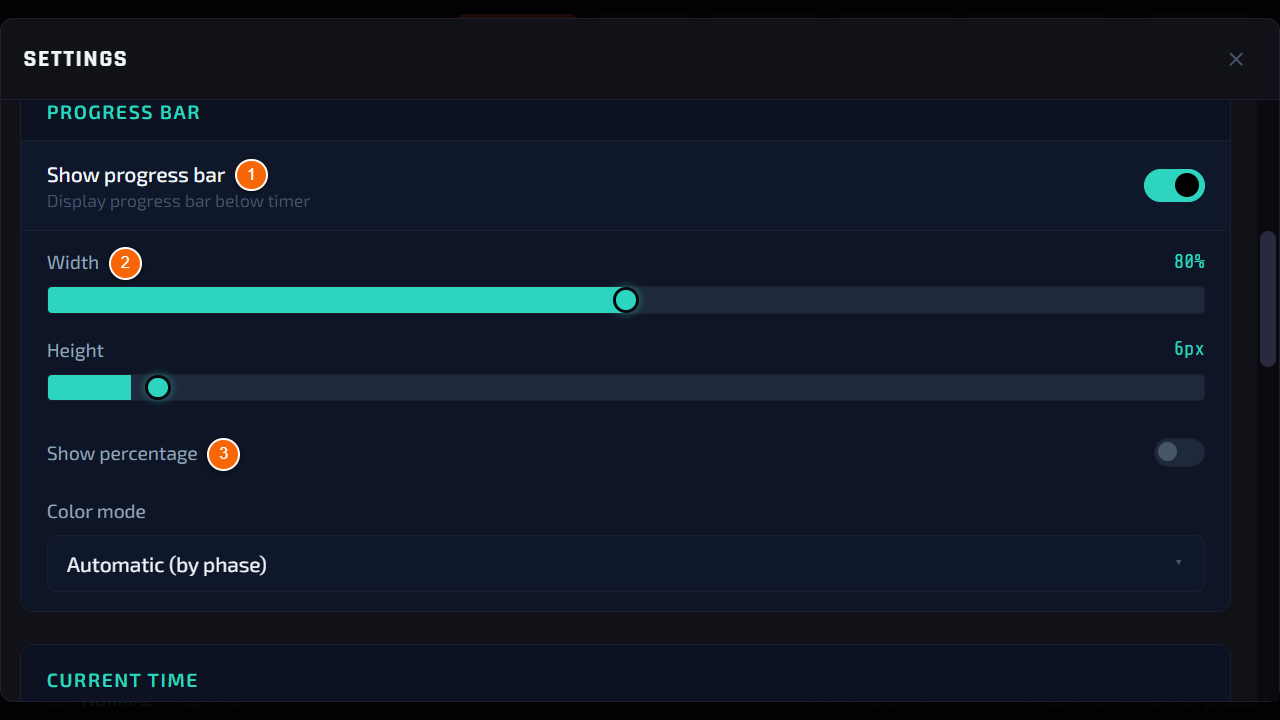
Progress bar
- 1 Show progress bar — the bar under the time on the speaker screen.
- 2 Width and Height — length (in percent of the screen width) and thickness of the bar.
- 3 Show percentage — the percentage next to the bar.
Step 3
Bar colours
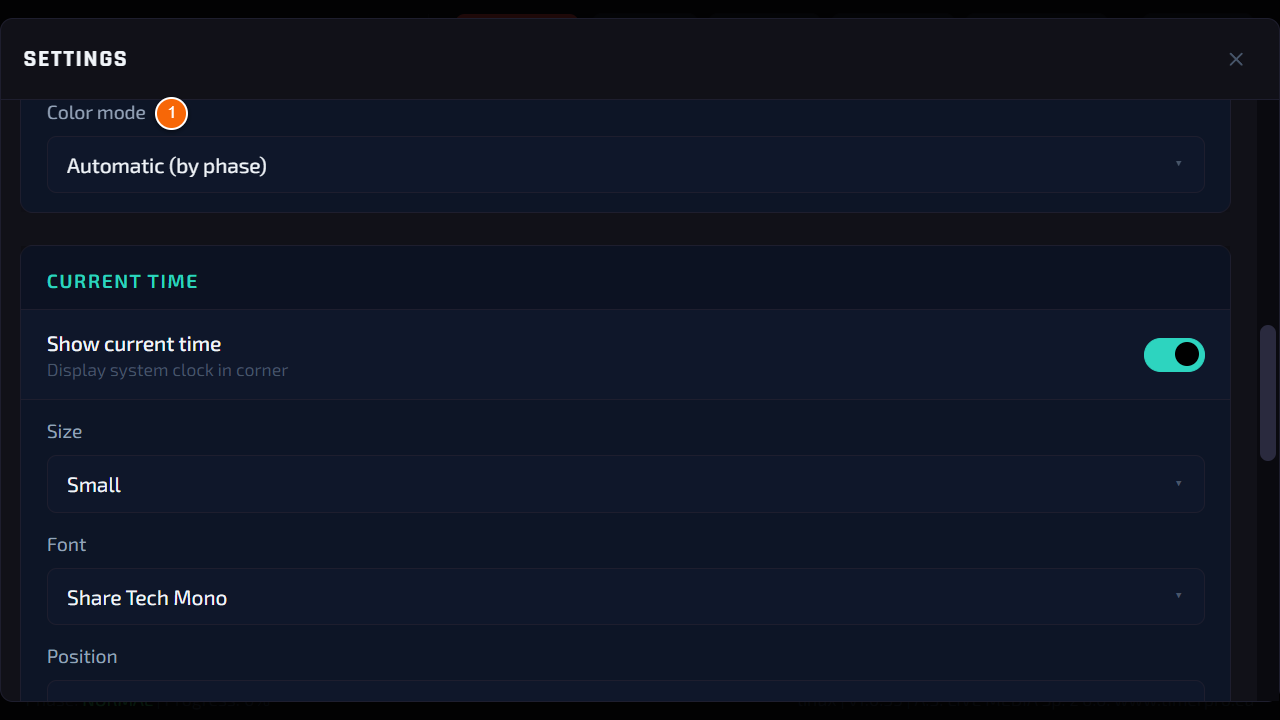
- 1 Color mode: Automatic (by phase) — colours change by themselves; Custom color — one colour all the time; Custom thresholds — two thresholds of your own after which the bar and the digits change colour.
Step 4
Corner clock on the speaker screen
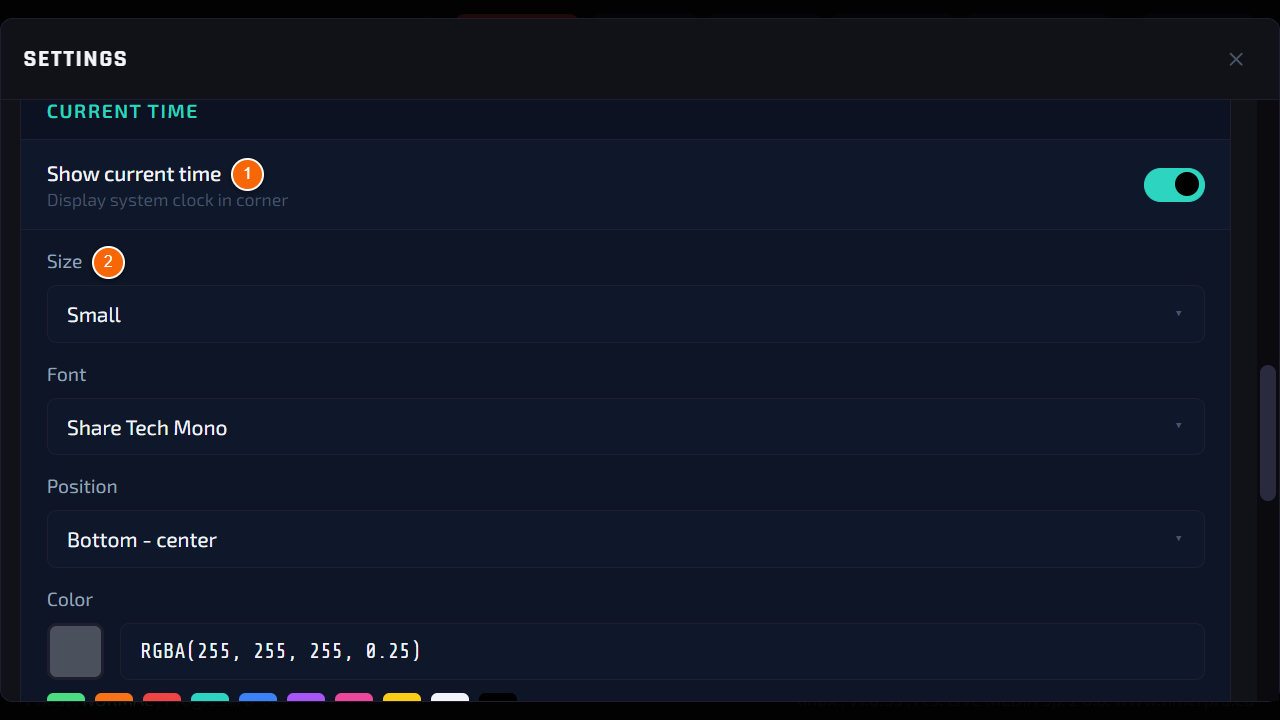
- 1 Show current time — the current time on the speaker screen, next to the countdown.
- 2 Size, Font, Position and Color — look and place of the clock (six positions: top or bottom, left, centre, right).
Step 5
Effects and stopping at zero
- 1 Enable message flashing — a new message flashes on the speaker screen.
- 2 Stop when the target is reached — off: after zero the timer counts the overrun; on: it stops exactly at the set time.
Step 6
Digits blinking after zero
- 1 Overtime blink strength — 0% - the digits do not blink, 100% - they go fully dark. Default 20% — a gentle blink.
- 2 Blink speed — the length of one blink: from 0.3 s (fast) to 2 s (slow).
- The blinking looks the same on the speaker screen, in the preview on the device and in the browser views.
Tip
In a large room the speaker notices the overrun more easily at 60–100%. On a stage with cameras choose a slower speed — fast blinking can be tiring in a broadcast.
Good to know
Changes are saved at once — saved appears next to the tab name. Close the window with Close.
The large clock instead of the timer and the event title are further down in the same tab — see Clock mode and event title.
AppearanceChapter 10
Clock style
How to match the look of the time digits to the room and the stage design.
What it is for
The time digits are the most important thing on the speaker screen. Here you change their format, size, typeface, glow and colours — so that they are readable from the back row and fit the event branding.
Who can use it
Operator at the device.
Where to find it
Settings → Clock Style.
Step 1
Format, size and typeface
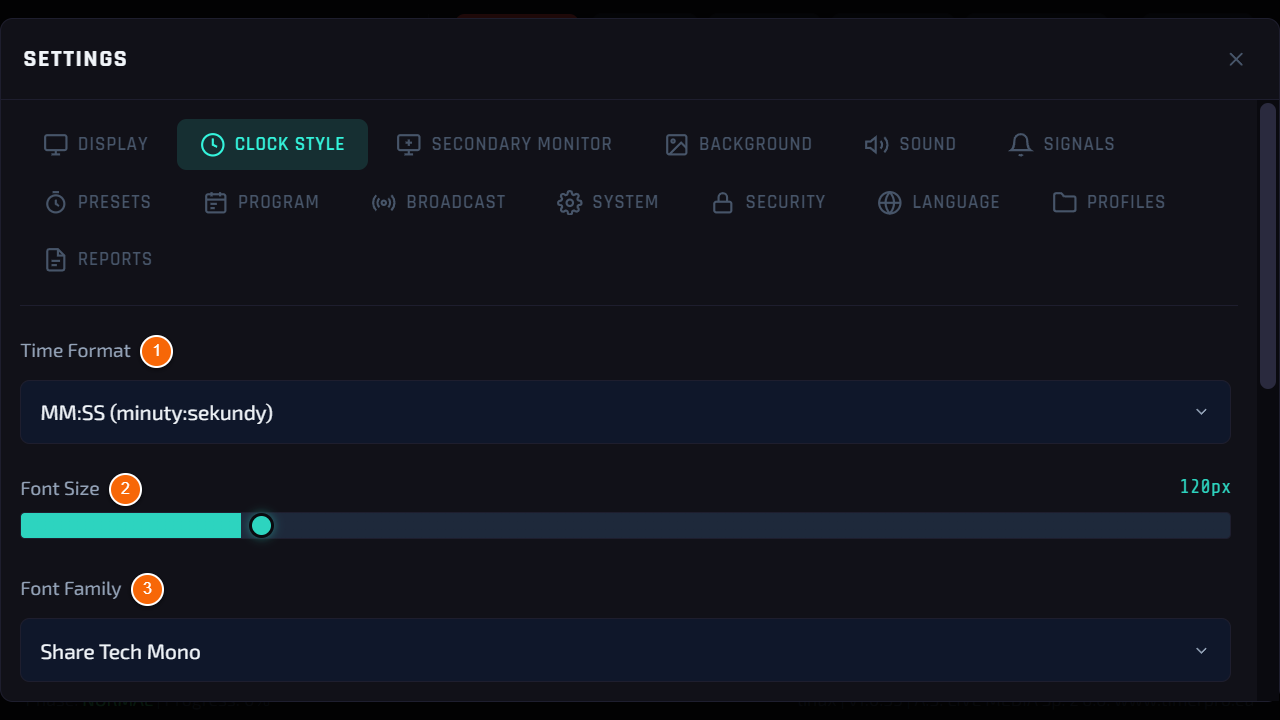
- 1 Time format — MM:SS (minutes and seconds; a one-hour talk is 60:00) or HH:MM:SS (always with hours, e.g. 00:05:00). The same format shows on the speaker screen, in the preview on the device and in the browser.
- 2 Font size — size of the digits on the speaker screen (move the slider).
- 3 Font family — typeface, 21 to choose from: from technical ones (e.g. Share Tech Mono, Orbitron) to classic ones. The same list is in messages, Display and Broadcast. Georgia, Helvetica, Verdana and Tahoma are not installed on the device — a similar substitute font appears instead.
Step 2
Glow, colours and preview
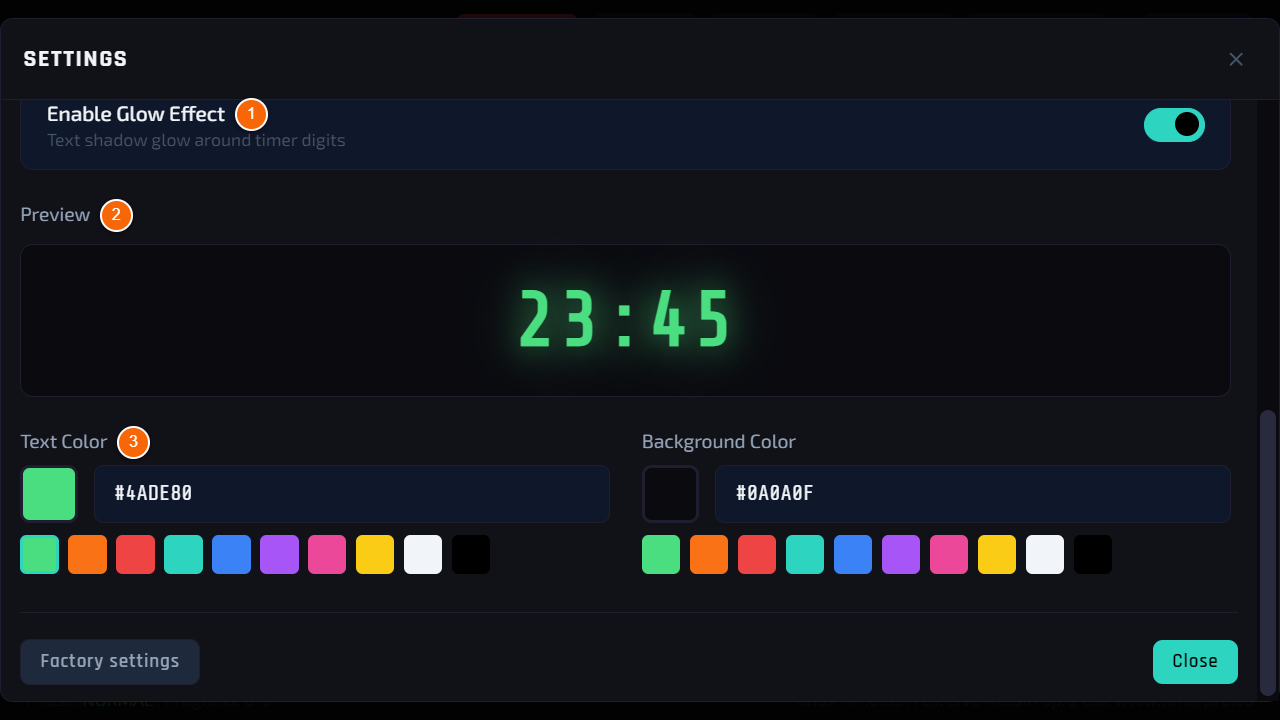
- 1 Enable Glow Effect — a soft glow around the digits, like on a studio display.
- 2 Preview — shows at once how the digits will look.
- 3 Text color and Background color — colour of the digits and of the speaker screen background: ready colours or any from the picker.
Step 3
The result on the speaker screen
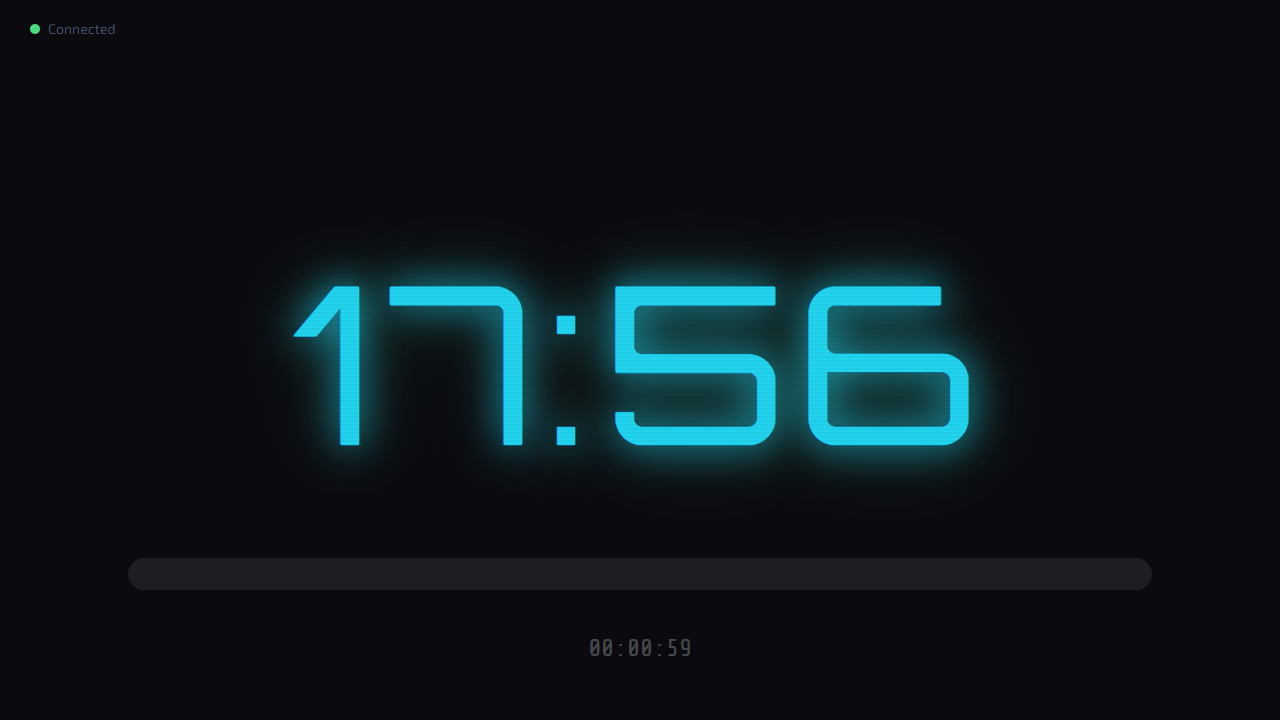
- Example: the Orbitron typeface in turquoise. The change shows at once on the speaker screen and in the preview on the device.
Tip
In a large room choose a bold typeface and a bright colour on a dark background — the digits will be readable from afar. Towards the end of a talk the digits change colour according to the time phase anyway (see Time controls).
AppearanceChapter 11
Clock mode and event title
How to show a plain clock during a break and how to put the event name on the speaker screen.
What it is for
During breaks the screen does not have to show a stopped timer — clock mode replaces it with a large current time. The event title is a fixed text on the speaker screen: conference name, slogan or room number.
Who can use it
Operator at the device.
Where to find it
Settings → Display → sections Clock mode and Conference title.
Step 1
Turning on clock mode
- 1 Enable clock mode — the speaker screen shows the current time instead of the timer.
- 2 Time format — 24- or 12-hour clock.
- 3 Show seconds and Show date — seconds and the date under the time. Further down: Date format, Font and Color.
- Size — a slider from 60 to 400 px (digit size on a Full HD screen). The clock always fits completely: on a smaller monitor or in the 12-hour format it shrinks by itself.
Tip
Turn clock mode off with the same switch when talks resume.
Step 2
The clock on the speaker screen
- A large current time instead of the timer — during a break the room sees what time it is. The timer does not disappear: when you turn the mode off, it comes back exactly where it was.
Step 3
Event title
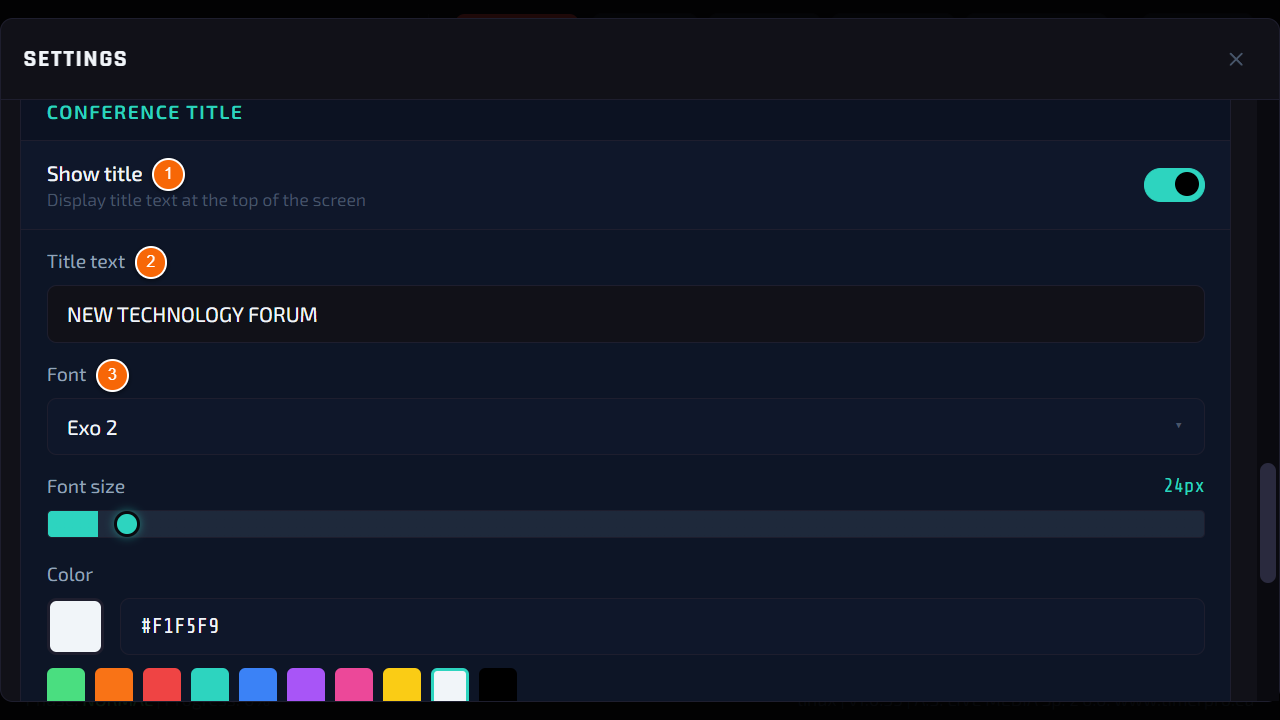
- 1 Show title — turns the text on the speaker screen on.
- 2 Title text — tap the field, type the text on the on-screen keyboard and confirm with ✓.
- 3 Font — typeface of the text. Further down: size, colour and position (top or bottom, left, centre, right).
Step 4
The title on the speaker screen
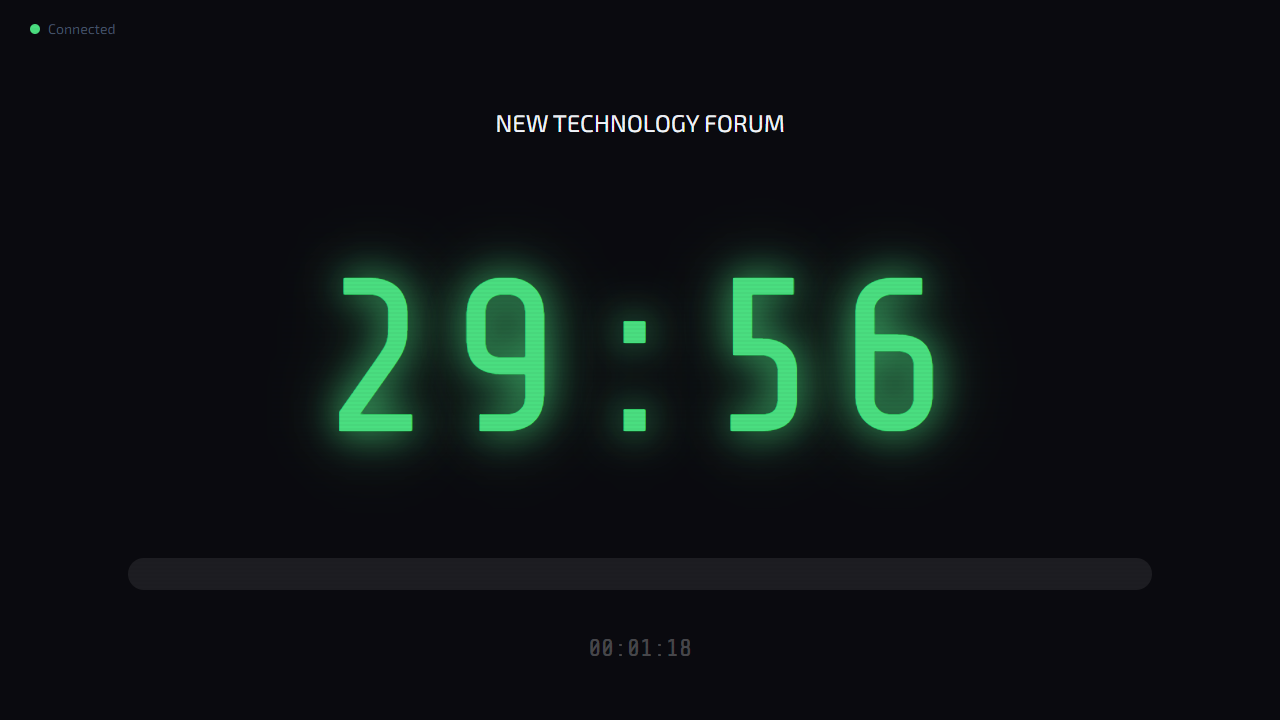
- The text stays above the time for the whole event — also during the countdown.
AppearanceChapter 12
Background image
How to set an image with the event branding as the background of the speaker screen.
What it is for
Your own background — event artwork, organiser logo, sponsor slide — makes the speaker screen look like part of the stage design.
Who can use it
Operator at the device.
Where to find it
Settings → Background.
Step 1
Turning the background on and choosing an image
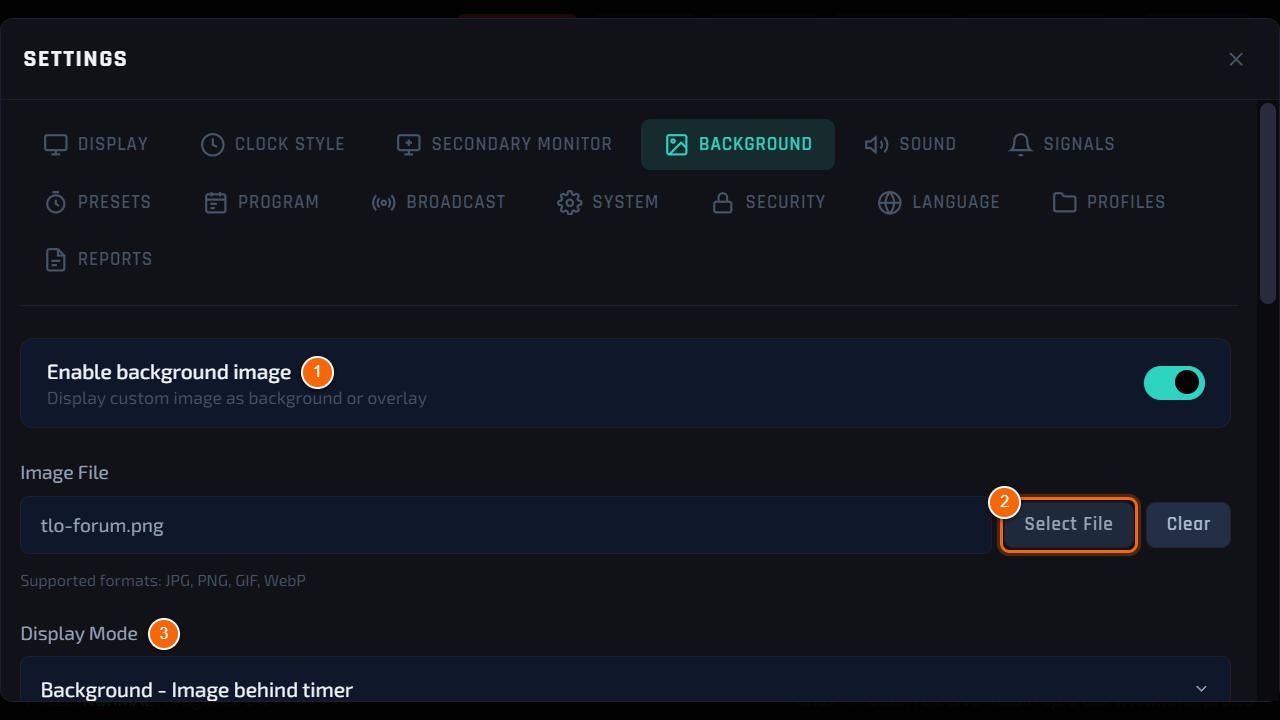
- 1 Enable background image — turns the image on on the speaker screen.
- 2 Select File — pick the file on a USB stick (JPG, PNG, GIF, WebP). The program copies it to the device, so you can remove the stick afterwards. Clear removes the image.
- 3 Display Mode — Background - Image behind timer or Overlay - Image over timer (e.g. a frame with a transparent middle).
Step 2
Where to show the background
- 1 Show on Secondary Display — the background on the speaker monitor (HDMI).
- 2 Show on Web Timer — the background also in the browser view (e.g. a second screen over the network).
Tip
16:9 images at 1920×1080 or more work best. Dark artwork does not compete with the time digits.
Step 3
The background on the speaker screen
- This is the speaker screen with sample event artwork behind the time.
AppearanceChapter 13
Second monitor and two HDMI outputs
How to set what the monitors connected to HDMI 1 and HDMI 2 display.
What it is for
The device has two HDMI outputs. Each can show the speaker timer, a mirror of the operator screen or the Broadcast studio clock — e.g. the timer on stage and Broadcast for the director.
Who can use it
Operator at the device.
Where to find it
Settings → Secondary Monitor.
Step 1
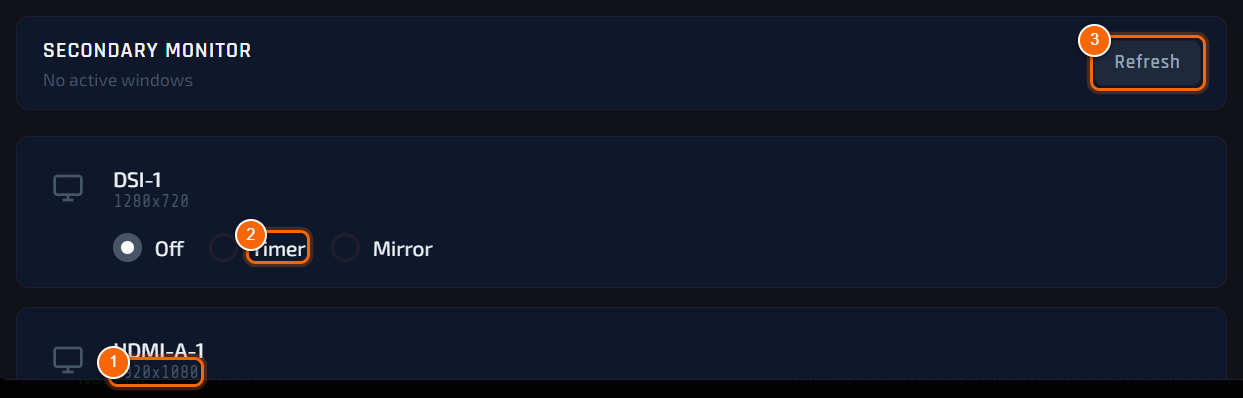
One monitor
- 1 Monitor detected on the HDMI output, with its resolution.
- 2 Mode: Off, Timer (speaker screen on the whole monitor) or Mirror (the same as the touchscreen).
- 3 Refresh — detect again after connecting a cable.
Step 2
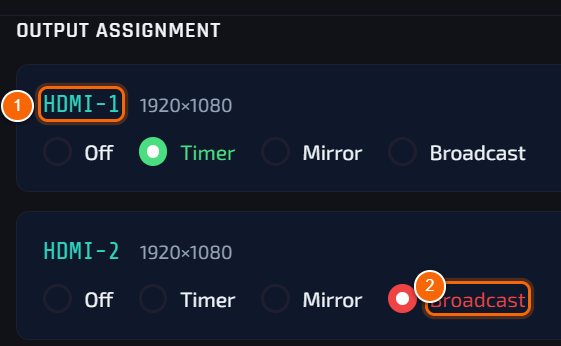
Two monitors — output assignment
- 1 HDMI-1 and HDMI-2 — with two monitors connected, each connector gets a fixed mode.
- 2 Timer, Mirror or Broadcast — the choice applies at once.
Tip
The assignment follows the connector, not the monitor: after a restart or re-plugging the cable each output returns to its role. A typical set-up: HDMI-1 — speaker timer, HDMI-2 — Broadcast for the director.
Good to know
If there is no picture, check the cable and tap Refresh. A weak power supply can switch the second screen off (see Troubleshooting).
Mirror can be active on one monitor at a time only.
Remote controlChapter 14
Browser panel
How to control the timer from a phone or computer on the same network — without installing an app.
What it is for
The browser panel is a remote for TimerProBOX: start, pause, time corrections and messages to the speaker from anywhere in the room. It works in any browser, on a phone, tablet and laptop.
Who can use it
Anyone who knows the device address and the PIN (see PIN).
Where to find it
Menu → Remote — panel address and QR code.
Step 1
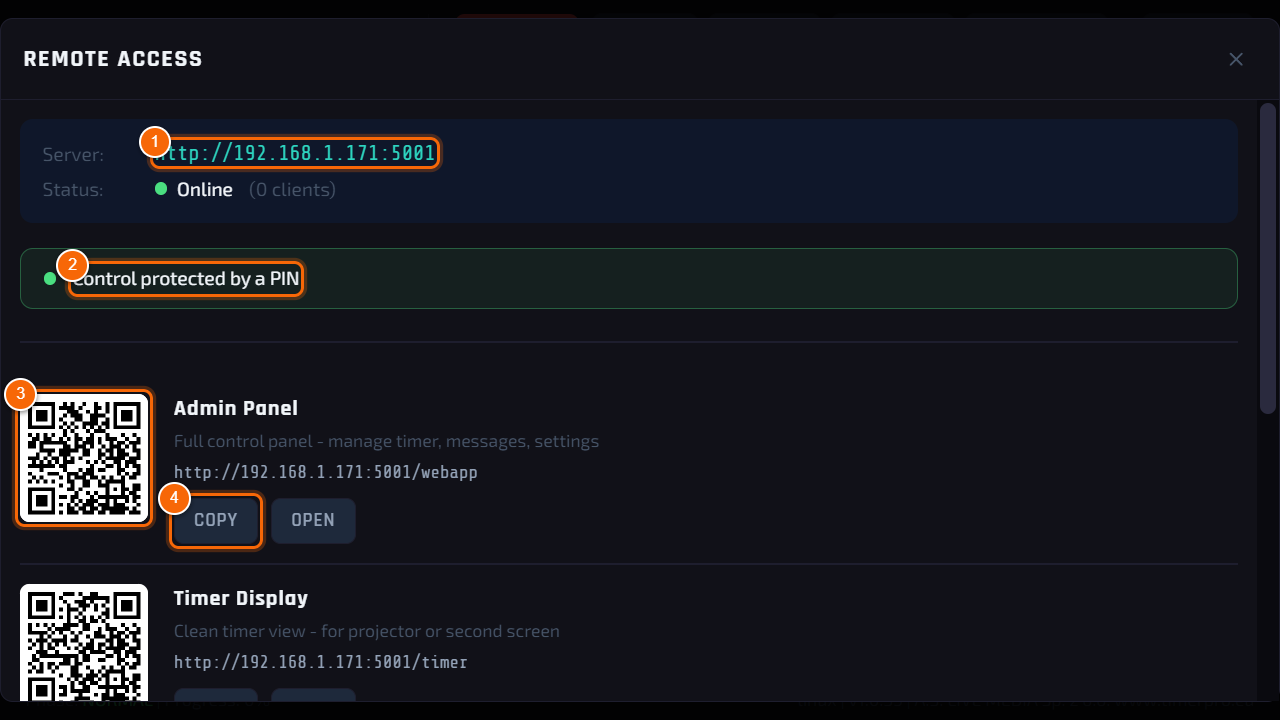
Panel address
- 1 Device address on the network — the same for all views.
- 2 Protection status — green dot: control is protected by a PIN. Without a PIN, control over the network is blocked.
- 3 Admin Panel — QR code to scan with a phone, or the address to type into a browser.
- 4 COPY copies the address, OPEN opens it on the device.
Note
The phone or computer must be on the same network (WiFi or cable) as the device.
Step 2
Logging in with the PIN
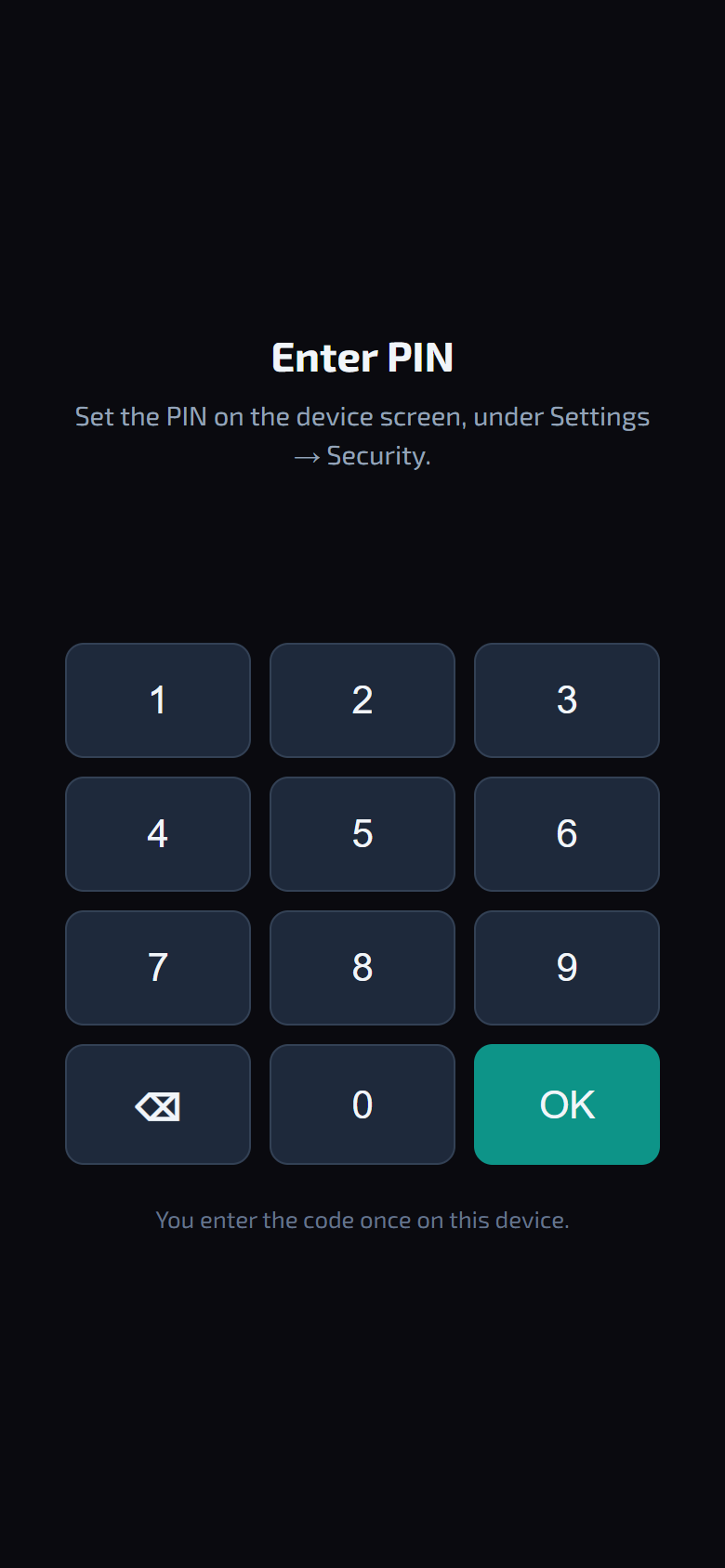
- After opening the address, the panel asks for the PIN. Type it on the keypad and tap OK.
- You type the PIN once on a given phone — the browser remembers it.
Step 3
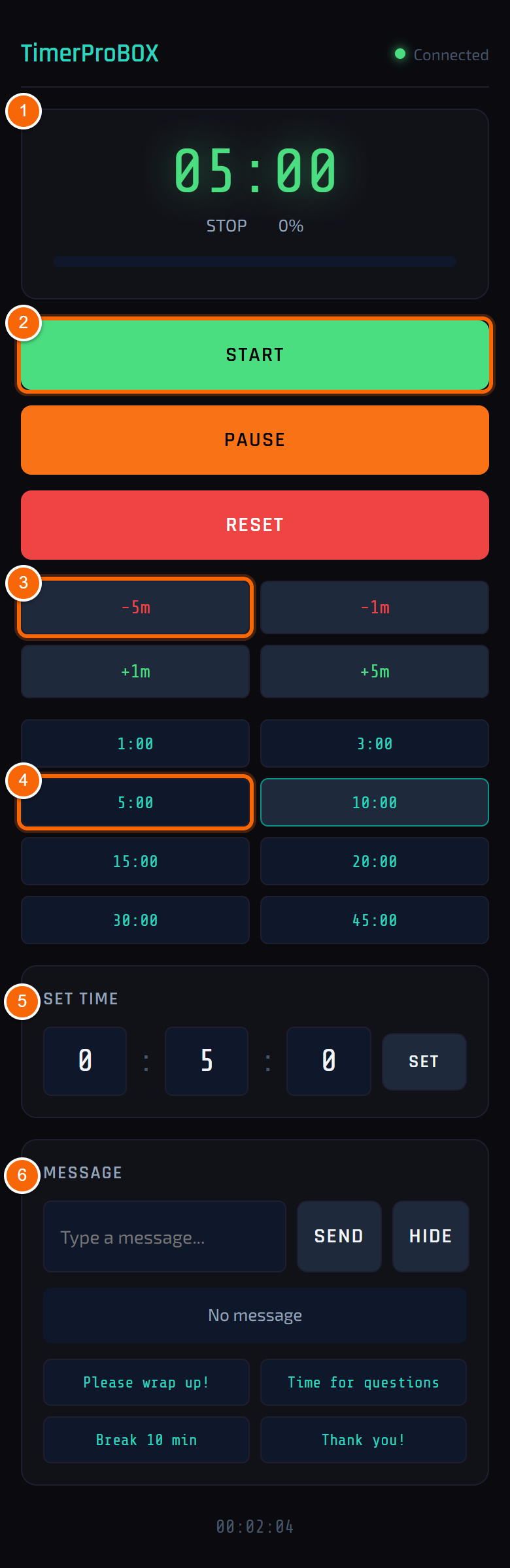
The panel on a phone
- 1 Time — live, with the phase and progress.
- 2 START / PAUSE / RESET — as on the device.
- 3 Corrections -5m -1m +1m +5m.
- 4 Quick times — one tap sets the time.
- 5 Set time — hours, minutes and seconds, then SET.
- 6 Message — type a text and send it to the speaker screen, or tap one of the messages saved in the device (starred ones ★ come first). The message looks the same as when sent from the device: same colour, typeface and size.
Tip
Everything you do in the panel shows at once on the device and the speaker screen — and the other way round.
Remote controlChapter 15
Views for vMix and OBS
How to show the TimerProBOX time in video production, on a stream or on any screen with a browser.
What it is for
The device publishes ready time views on the network. Add them to vMix or OBS as a browser source — the time on the stream is always the same as on stage.
Who can use it
Any computer on the same network. The views only display the time — they need no PIN and change nothing.
Where to find it
Menu → Remote — list of views with addresses and QR codes.
Step 1
List of views
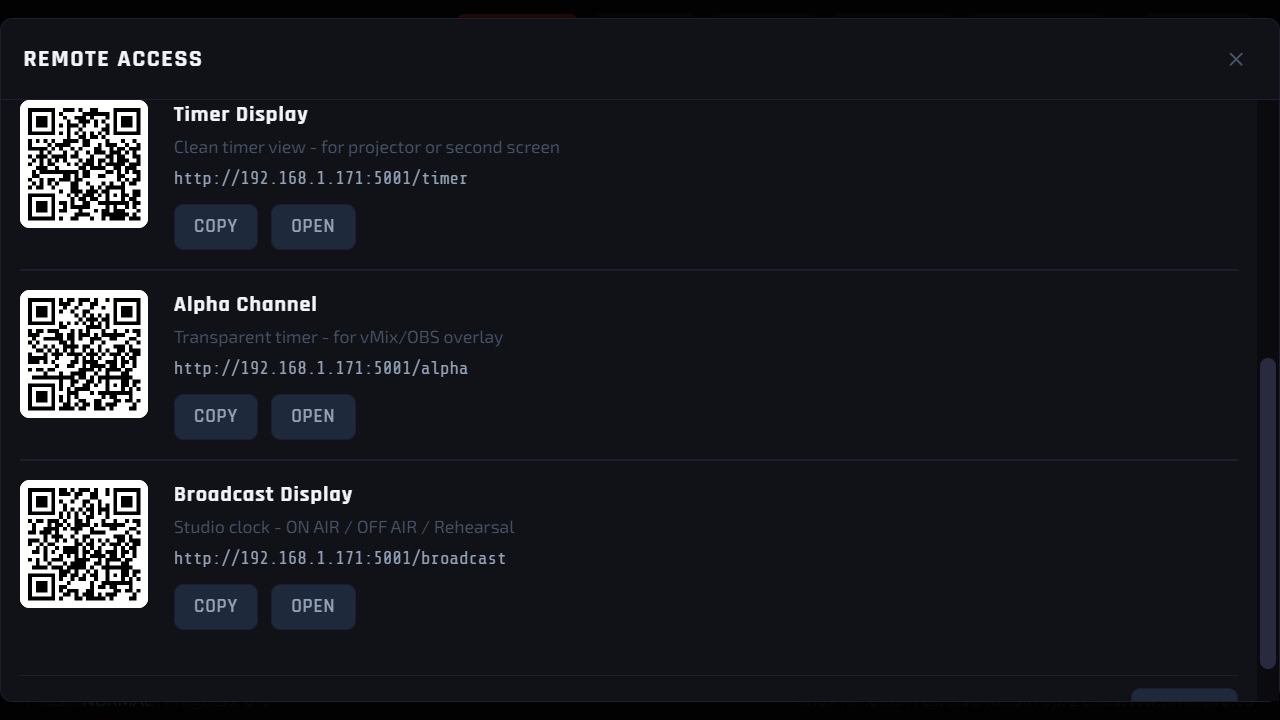
- In the Remote window, below the control panel, come further views — each with an address, a QR code and copy buttons.
- Timer Display (/timer) — the speaker screen in a browser: for a projector, a second monitor or the programme feed.
- Alpha (/alpha) — the time alone on a transparent background, to overlay on a camera picture.
- Broadcast (/broadcast…) — studio clock templates (see Broadcast templates).
Step 2
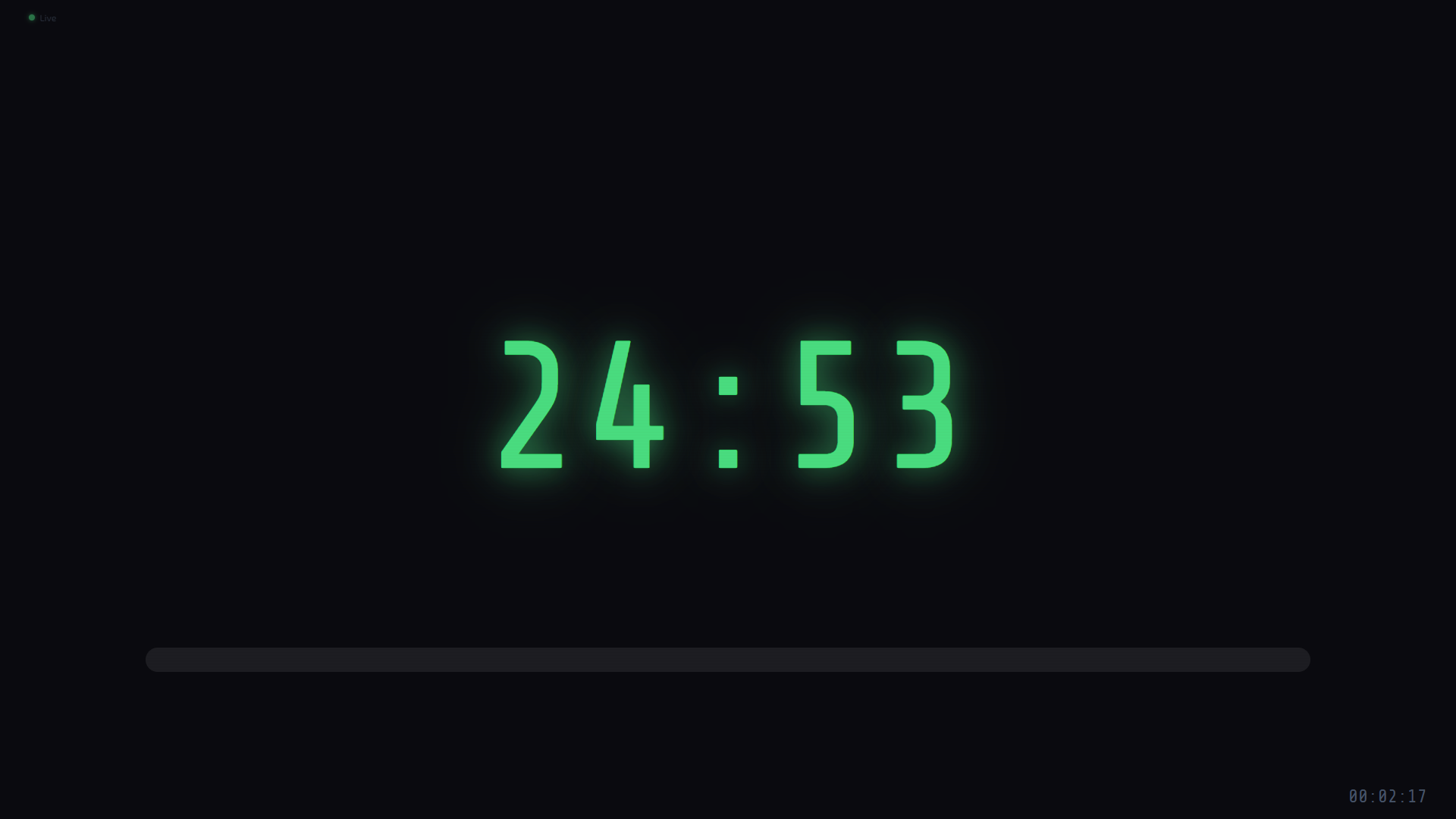
The /timer view
- The full 16:9 speaker screen — time, progress bar and clock. Good for a projector via a laptop or a screen in the control room.
Step 3
The /alpha view
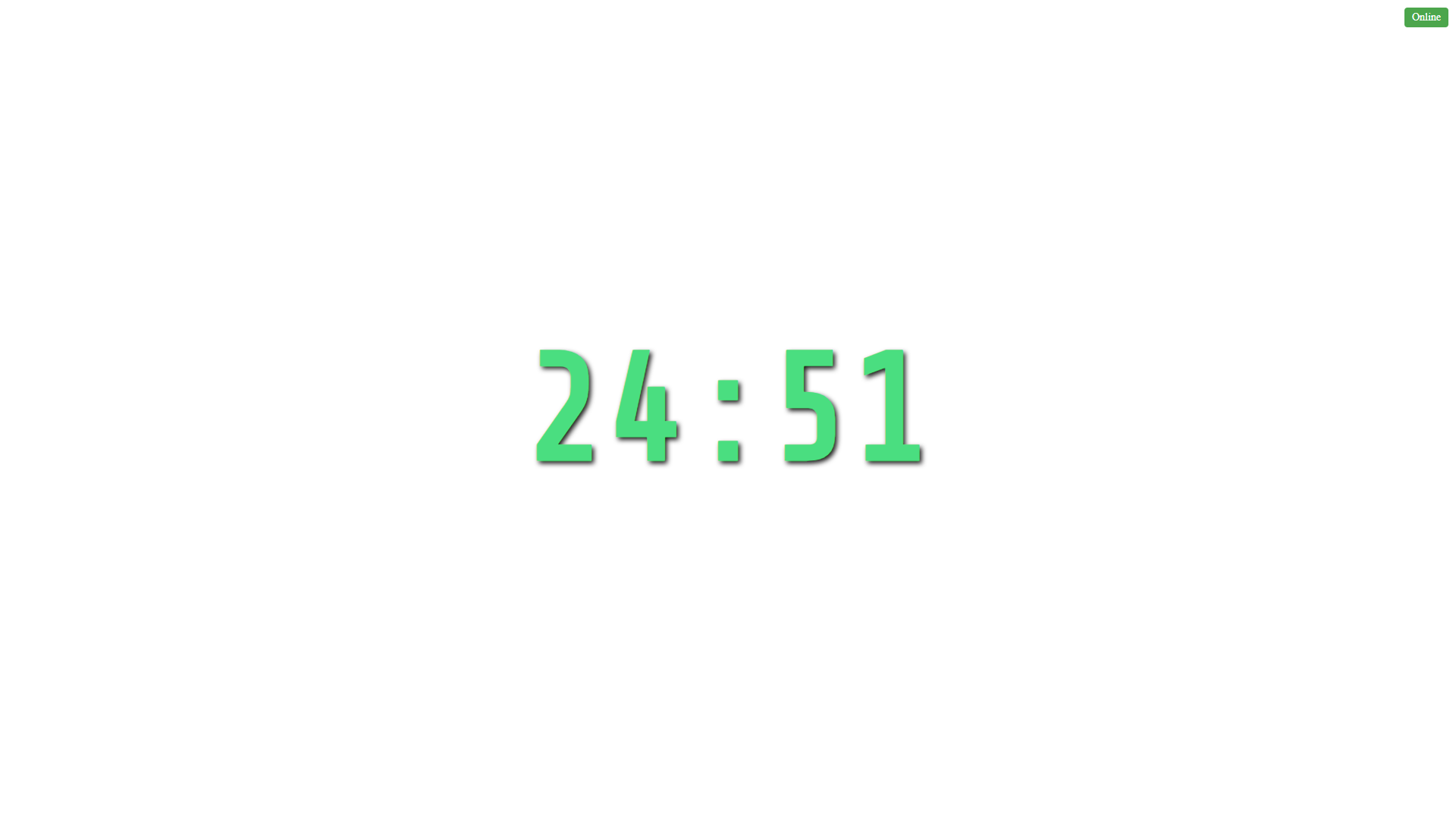
- The digits alone on a transparent background (shown on white in the screenshot). In vMix and OBS the background disappears and the time is overlaid on the picture.
Step 4
Adding a view in vMix or OBS
- vMix: Add Input → Web Browser → paste the view address (e.g. http://<device address>:5001/alpha), resolution 1920×1080.
- OBS: Sources → + → Browser → paste the address, width 1920, height 1080.
- Copy the address with COPY in the Remote window or scan the QR code.
Tip
Signal flashes (see Signals and sounds) do not appear in these views — the warning frame is for the room only, not for the broadcast.
Remote controlChapter 16
Stream Deck
How to connect an Elgato Stream Deck and set what each button does.
What it is for
Stream Deck is a pad of lit buttons. Connected to the device by cable it gives constant access to the main actions — start, pause, time corrections, quick times, messages, next speaker — without looking at the screen.
Who can use it
Operator at the device. A Stream Deck connected by cable works without a PIN.
Where to find it
Menu → StreamDeck.
Step 1
Connecting
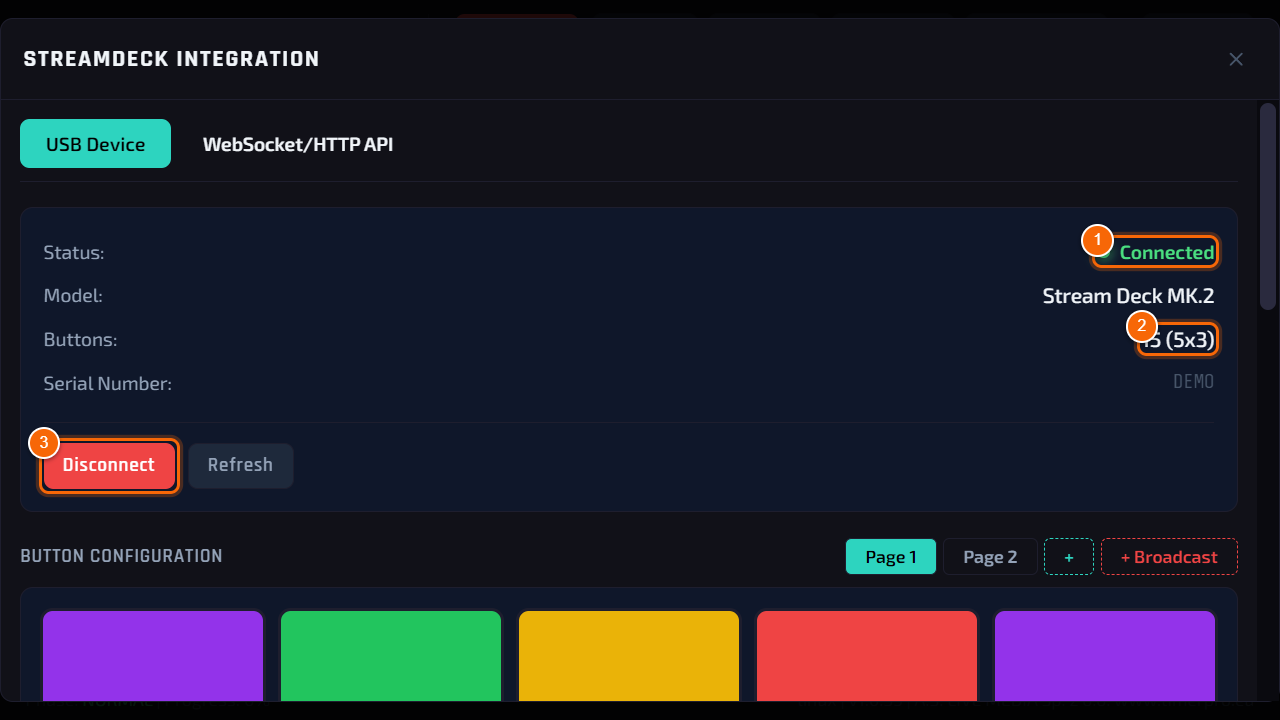
- Connect the Stream Deck to a USB port of the device. The program detects it by itself (with Auto-connect on).
- 1 Status — Connected means the buttons work.
- 2 Model and number of buttons — the program fits the layout to the model (6, 8, 15 or 32 buttons).
- 3 Disconnect / Connect and Refresh — manual disconnect and re-detection.
Step 2
Button pages
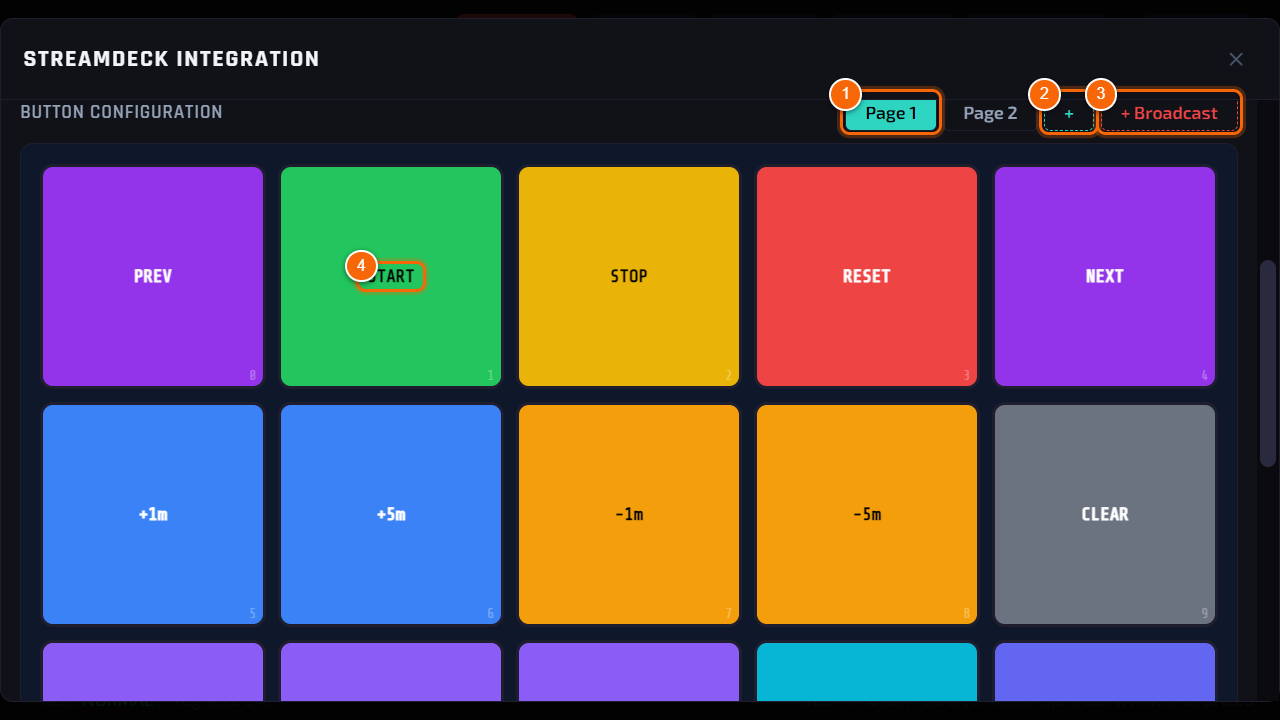
- 1 Pages — each page is a separate set of buttons; you switch pages with a button on the Stream Deck itself.
- 2 + — a new, empty page.
- 3 + Broadcast — a ready page with Broadcast actions, fitted to your Stream Deck (see Broadcast on Stream Deck).
- 4 Button — tap to change what it does and how it looks (step 3).
Step 3
Editing a button
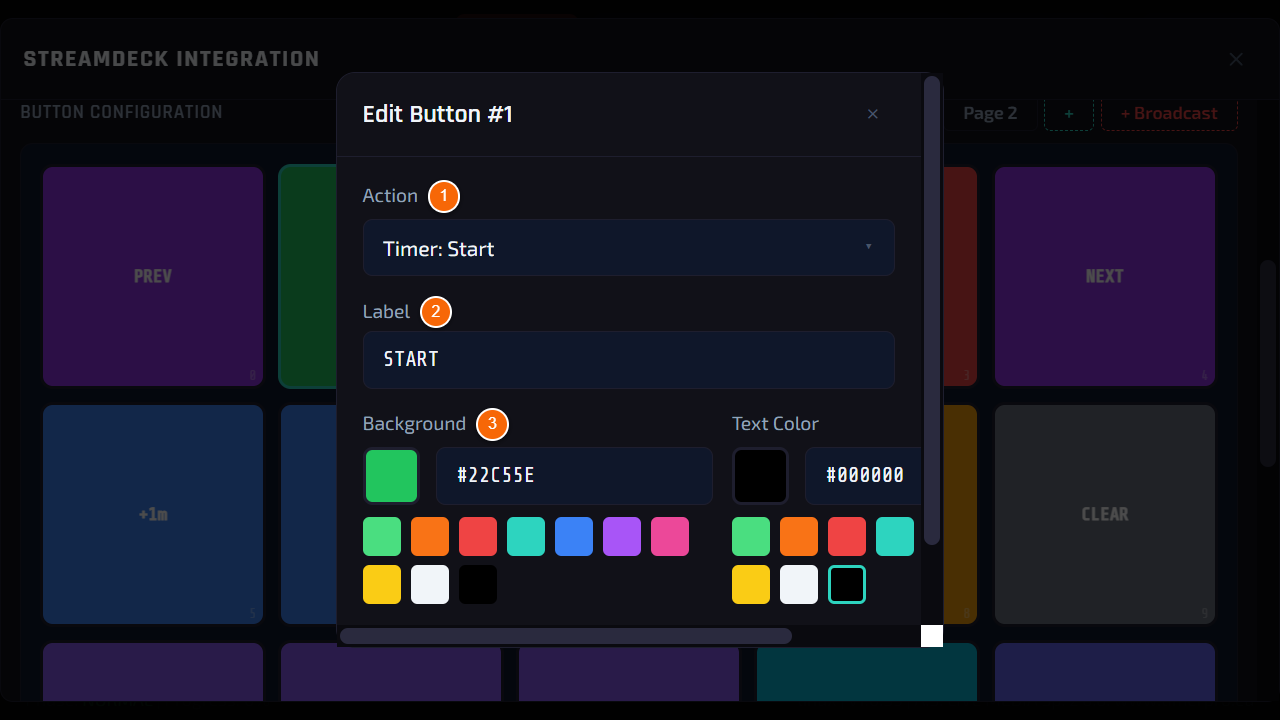
- 1 Action — what the button does: start, pause, reset, ±minutes, preset, message, next speaker, Broadcast actions and more.
- 2 Label — text on the button.
- 3 Background and Text Color — button colours.
Result: At the bottom of the panel Save — the Stream Deck button shows the new text and colour at once.
Step 4
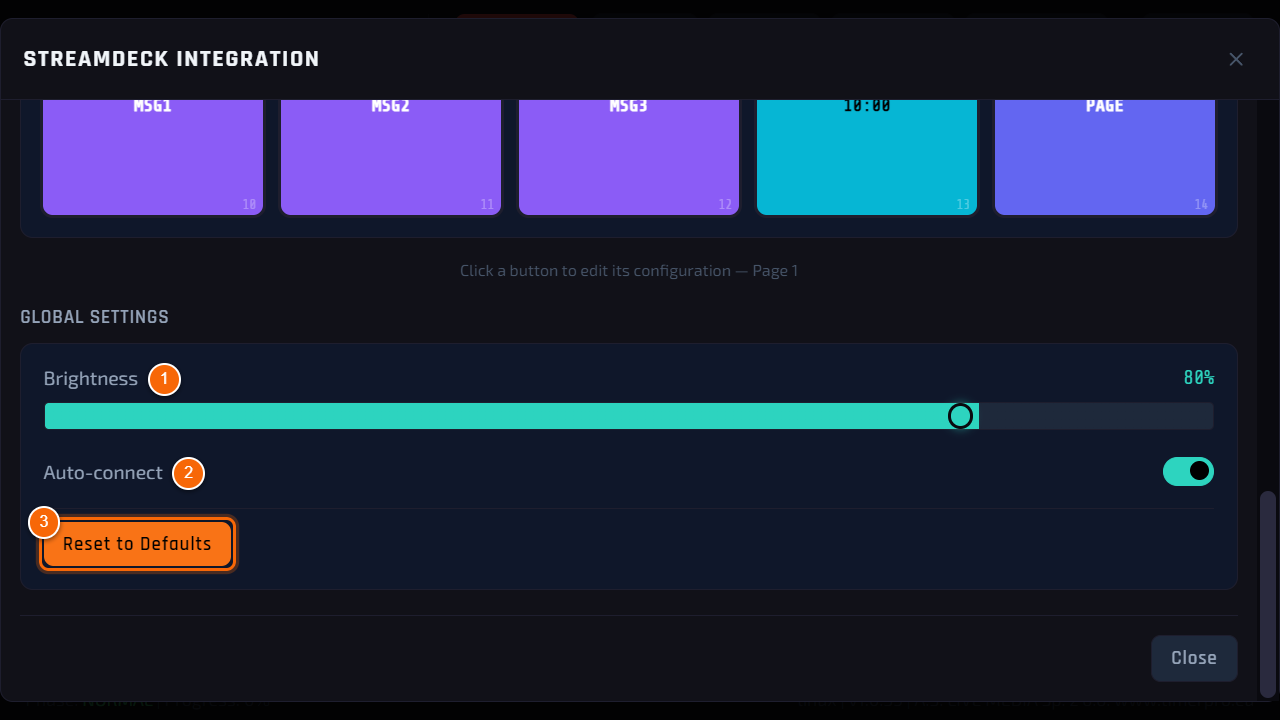
General settings
- 1 Brightness — brightness of the button backlight.
- 2 Auto-connect — the Stream Deck connects by itself when plugged in and after the device starts.
- 3 Reset to Defaults — restores the factory button layout.
Step 5
Control from another computer (Bitfocus Companion)
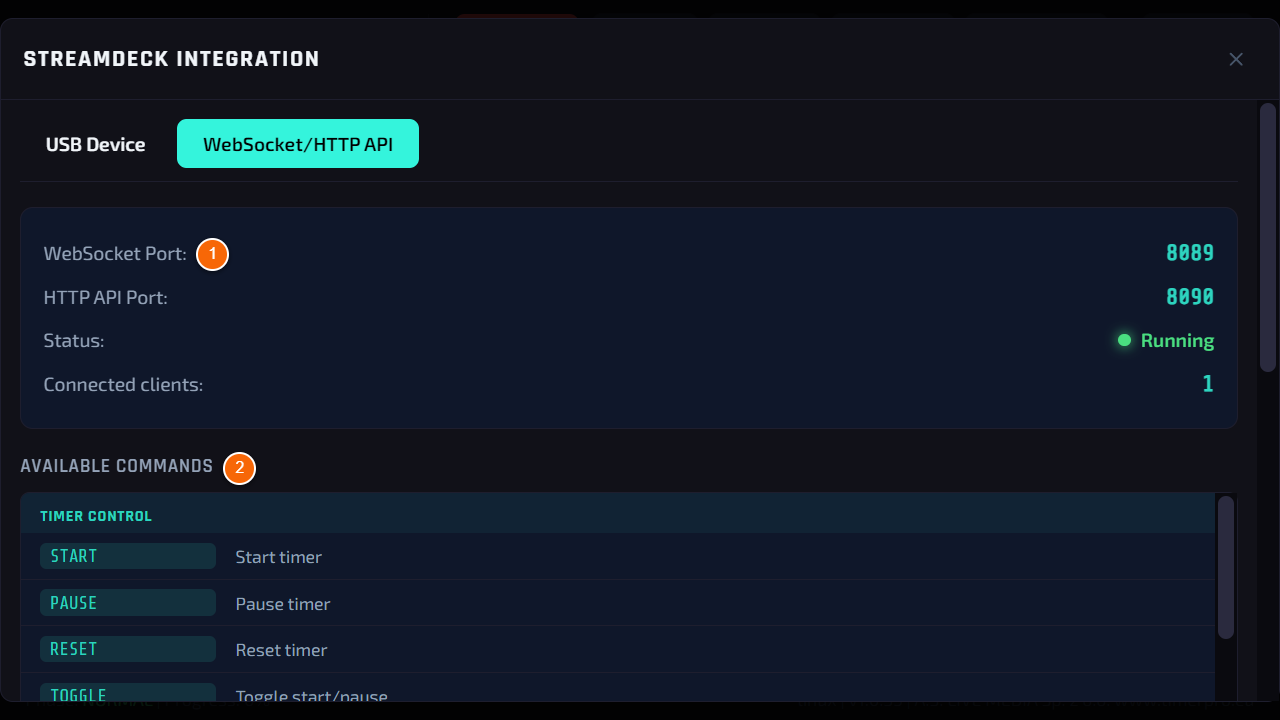
- The WebSocket/HTTP API tab describes control over the network — e.g. from Bitfocus Companion on the director’s computer (the same Stream Deck, but connected to the computer, not to the device).
- 1 Server status — WebSocket and HTTP ports and the number of connected programs.
- 2 Address for Bitfocus Companion (Generic HTTP → POST) — the ready address of this device. Replace PIN with the code from PIN.
- 3 Copy — copies the address; every command below has the same button for its ready JSON.
Note
Control over the network needs the PIN, unless you allow the Stream Deck exception in PIN.
Step 6
Commands: time, messages, speakers, Broadcast
- The commands are grouped, each with a description and a ready JSON to paste into Companion:
- 1 Messages — a message from the device list (number from 1, the same look as on the device), any text up to 200 characters with its own colour, or hiding the message.
- 2 Speakers — next and previous speaker from the programme.
- 3 Broadcast — ON AIR, OFF AIR, rehearsal, template choice and show duration.
Tip
At the bottom of the list there is Reading the state (PIN required): the address where Companion reads the current and next speaker, the message on screen and the Broadcast status — e.g. to light the ON AIR key red.
Step 7
Companion step by step
- 1. In Companion add a Generic HTTP connection.
- 2. On a key add a POST action: the address from the API tab (with your PIN), the body — JSON copied from the command list, type application/json.
- 3. An example page for 15 keys: row 1 — START/PAUSE, RESET, -1 min, +1 min, 10:00; row 2 — previous and next speaker, “5 MINUTE BREAK” (message no. 1), “MICROPHONE!” (any text), hide message; row 3 — ON AIR, REHEARSAL, next template, +5 min show, reset show.
- 4. To make the ON AIR key light up when on air, read the state address in Companion (Generic HTTP → GET) and set the key colour from the broadcast.status field.
Tip
Numbers in commands are in seconds: 10 minutes is 600, an hour is 3600. The number always goes in the data field, e.g. {"action":"SET_TIME","data":{"seconds":600}}.
Remote controlChapter 17
PIN for remote control
How to set a code without which nobody on the network can take over the timer.
What it is for
At events the WiFi is often open to the audience. The PIN makes the browser panel and control from another computer work only for those who know it. The device screen and a Stream Deck connected by cable always work, without a code.
Who can use it
Operator at the device — the PIN is set on the touchscreen only.
Where to find it
Settings → Security.
Step 1
PIN reminder
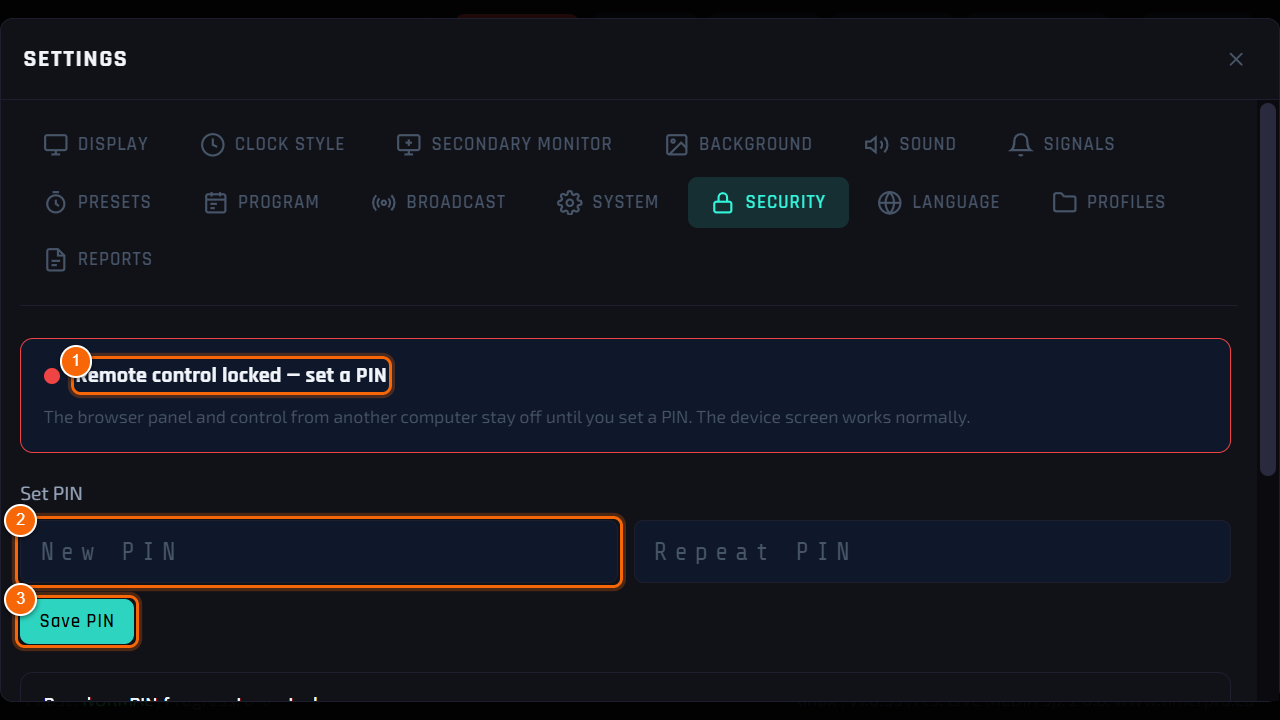
- As long as no PIN is set, the Remote control is locked bar appears when you open the timer.
- 1 Set PIN — goes straight to setting the code. Later closes the reminder.
Step 2
Setting the PIN
- 1 Status — whether remote control is protected by a PIN.
- 2 New PIN and Repeat PIN — 4 to 8 digits, the same twice.
- 3 Save PIN — saves it. All logged-in phones and computers must then enter the new code.
Step 3
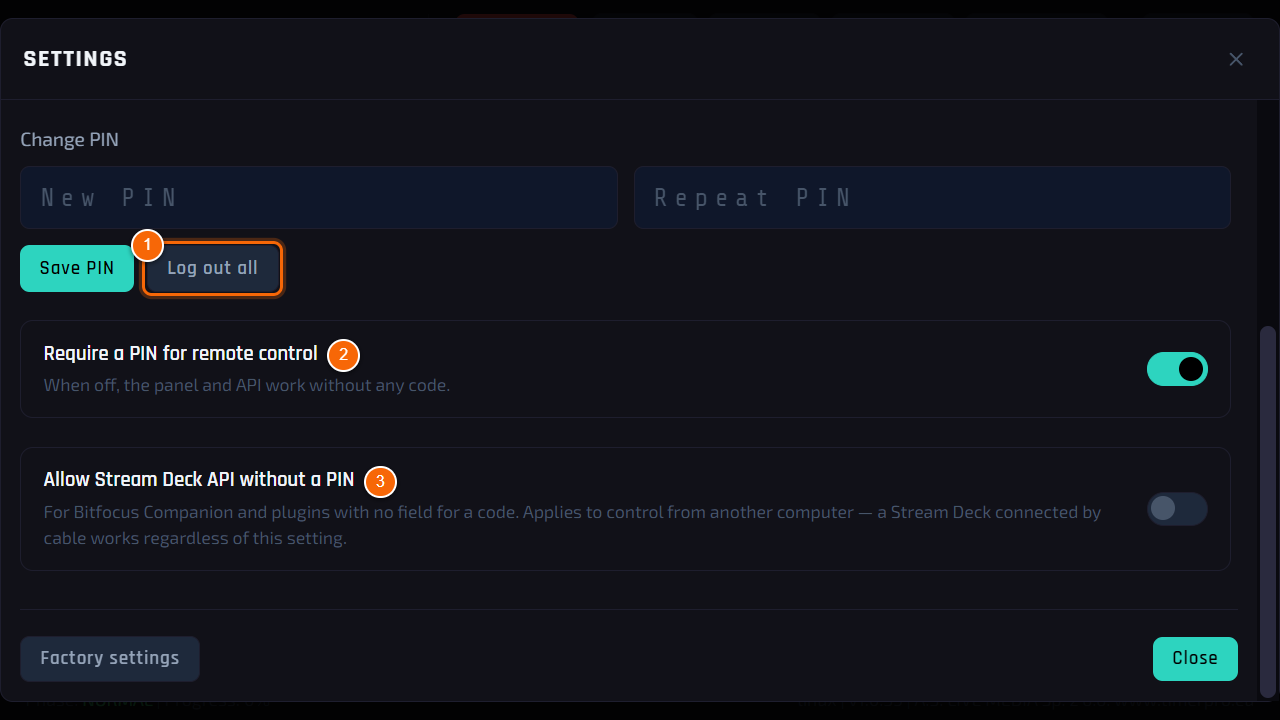
Extra options
- 1 Log out all — logs out all phones and computers (e.g. after the event).
- 2 Require a PIN for remote control — turn off only on a closed, trusted network: the panel then works without a code.
- 3 Allow Stream Deck API without a PIN — for Bitfocus Companion and plug-ins without a PIN field.
Note
The views for vMix and OBS (/timer, /alpha, Broadcast templates) always work without a code — they only display the time and give no control.
BroadcastChapter 18
Broadcast mode
How to run a radio or TV show or a podcast with the TimerProBOX studio clock.
What it is for
In Broadcast mode the device is a studio clock: it shows the ON AIR / OFF AIR / rehearsal status, how long the show has run and how much is left, and the monitor shows the chosen clock template (see Broadcast templates).
Where to find it
Mode selection screen → Broadcast → SELECT.
Step 1
Broadcast panel
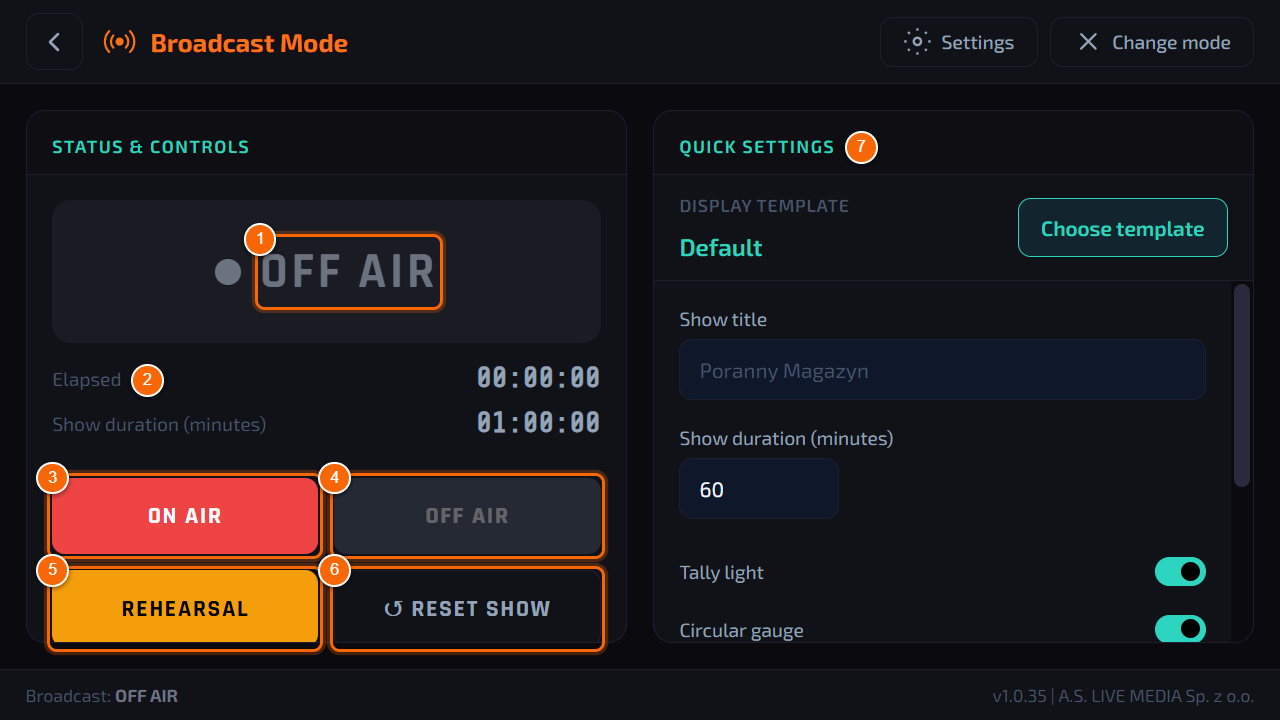
- 1 Status — large text: OFF AIR, ON AIR (in red) or rehearsal.
- 2 Elapsed and Show duration (minutes) — how long the show has run and how long it should take.
- 3 ON AIR — start of the show: the countdown starts, the monitor and the tally go ON AIR.
- 4 OFF AIR — end of the show.
- 5 REHEARSAL — rehearsal: the time runs, but without the ON AIR status.
- 6 Reset Show — resets the show time (the program asks for confirmation).
- 7 Quick Settings — template, title, duration and elements on the screen (step 3).
Tip
Settings in the top right corner opens all settings, and Change mode returns to the mode selection (Conference Timer / Broadcast).
Step 2
On air
- After tapping ON AIR the status turns to red ON AIR and the show time starts running.
- The monitor (HDMI) with the chosen template shows the same — step 4.
Step 3
Quick settings
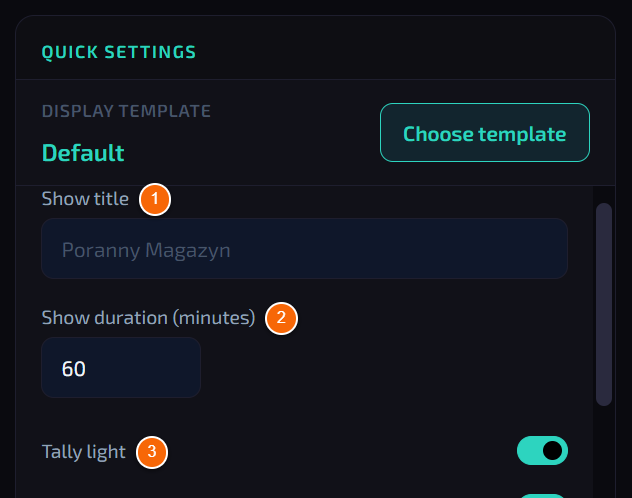
- 1 Show title — name of the show, visible in the templates.
- 2 Show duration (minutes) — planned length of the show; the time to the end is counted from it.
- 3 Switches — what the monitor shows: Tally light (red ON AIR frame), Circular gauge, Show progress bar, Elapsed time, System clock, Duration timer.
Note
The set of switches depends on the template — Ring LED, Flip and ClasicTime have their own settings (see Broadcast templates).
Step 4
Studio monitor
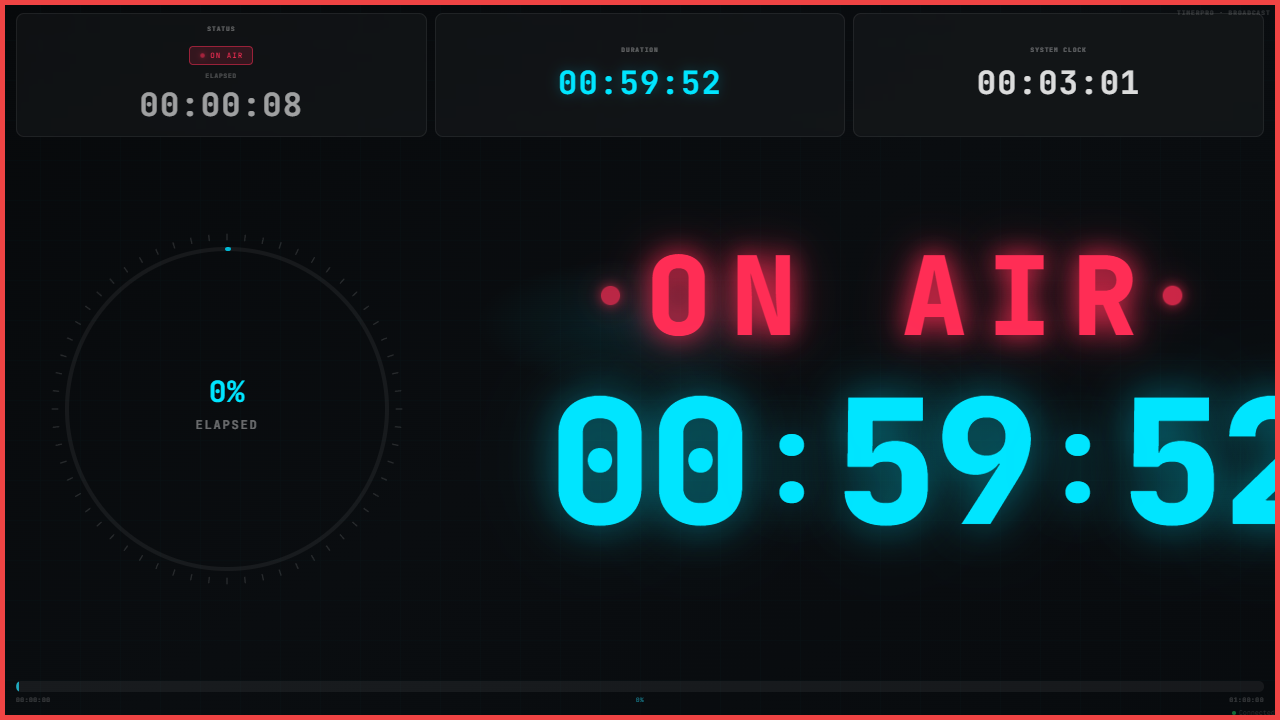
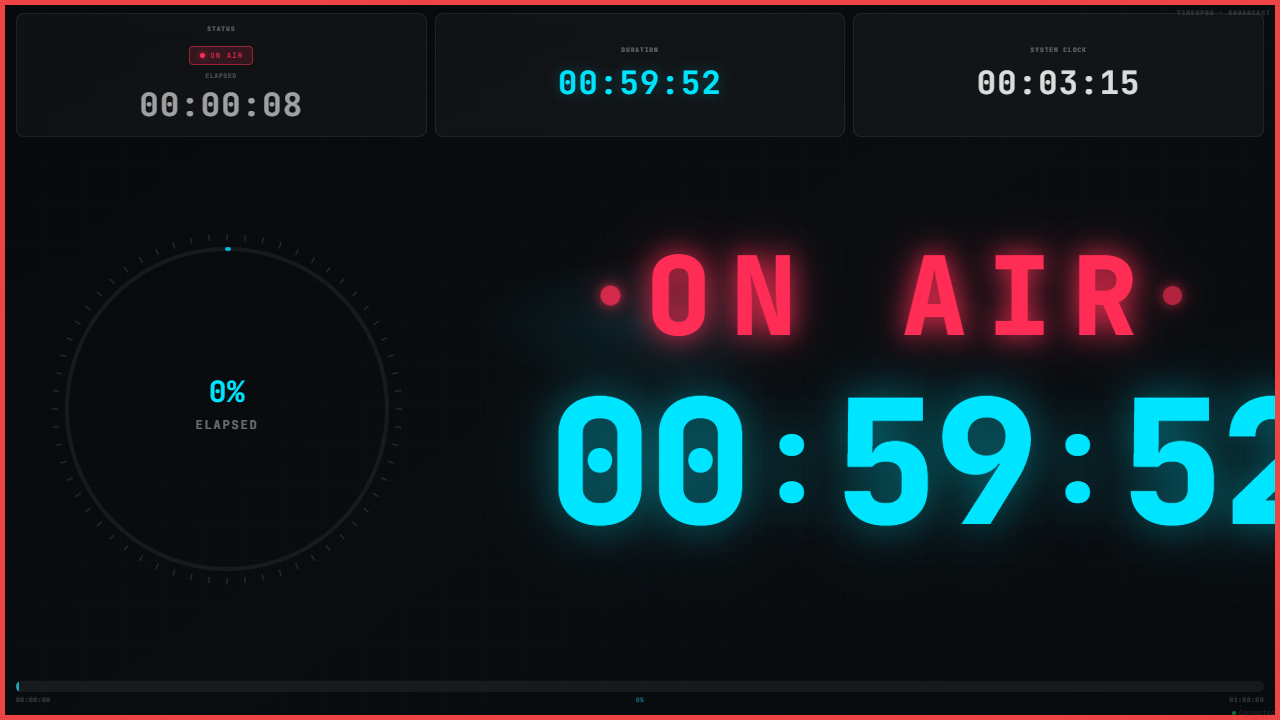
- The Default template on air: ON AIR status, time to the end of the show, elapsed time, clock and progress gauge.
BroadcastChapter 19
Broadcast templates
How to choose and adjust the look of the studio clock on the monitor and in the broadcast.
What it is for
A template is the look of the studio monitor. Each shows the ON AIR status and the show time, but in a different style — from a director’s dashboard to a classic wall clock. Ring LED, Flip and ClasicTime have their own colour and layout settings.
Who can use it
Operator at the device; Stream Deck (switching templates).
Where to find it
Broadcast panel → Quick Settings → Choose template.
Step 1
Choosing a template
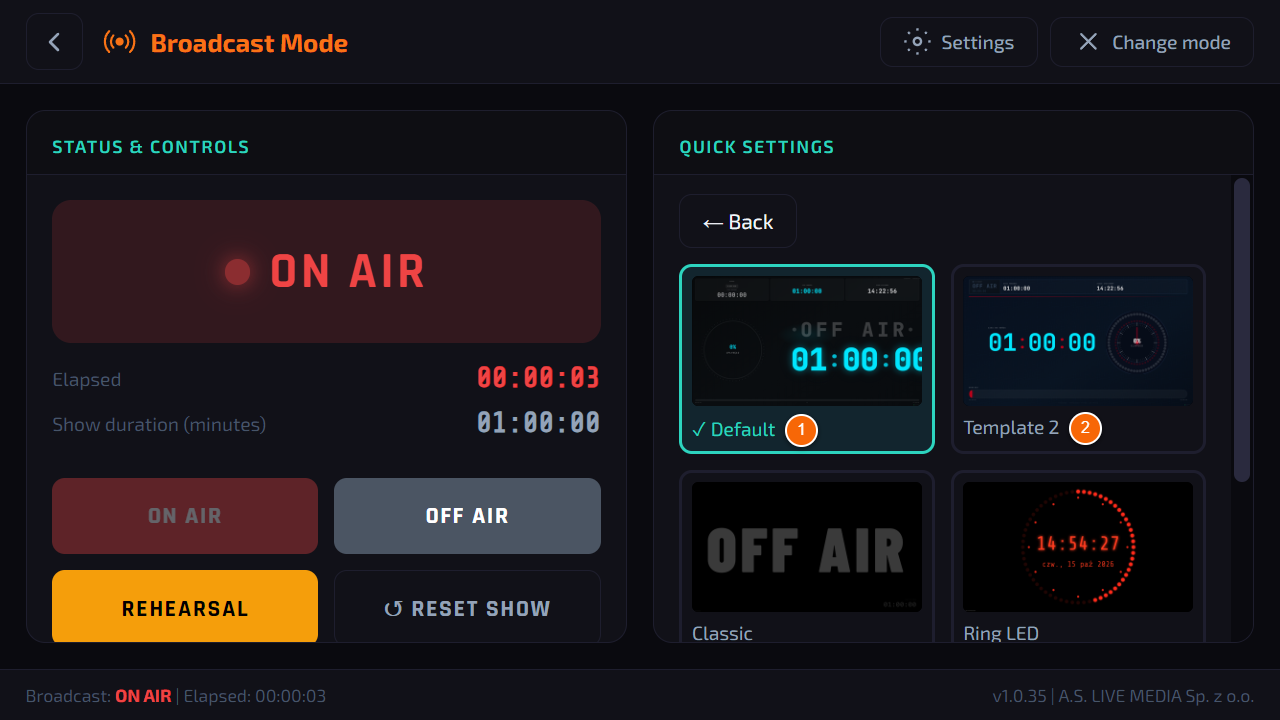
- 1 Current template — marked with ✓.
- 2 Thumbnails — tap to choose. The monitor changes at once.
- Back returns to the quick settings.
Step 2
Default
- Director’s dashboard: status, elapsed time, duration, clock, progress gauge and a large ON AIR with the time to the end. The digits adjust their size to the screen by themselves — they always fit on any monitor.
Step 3
Template 2
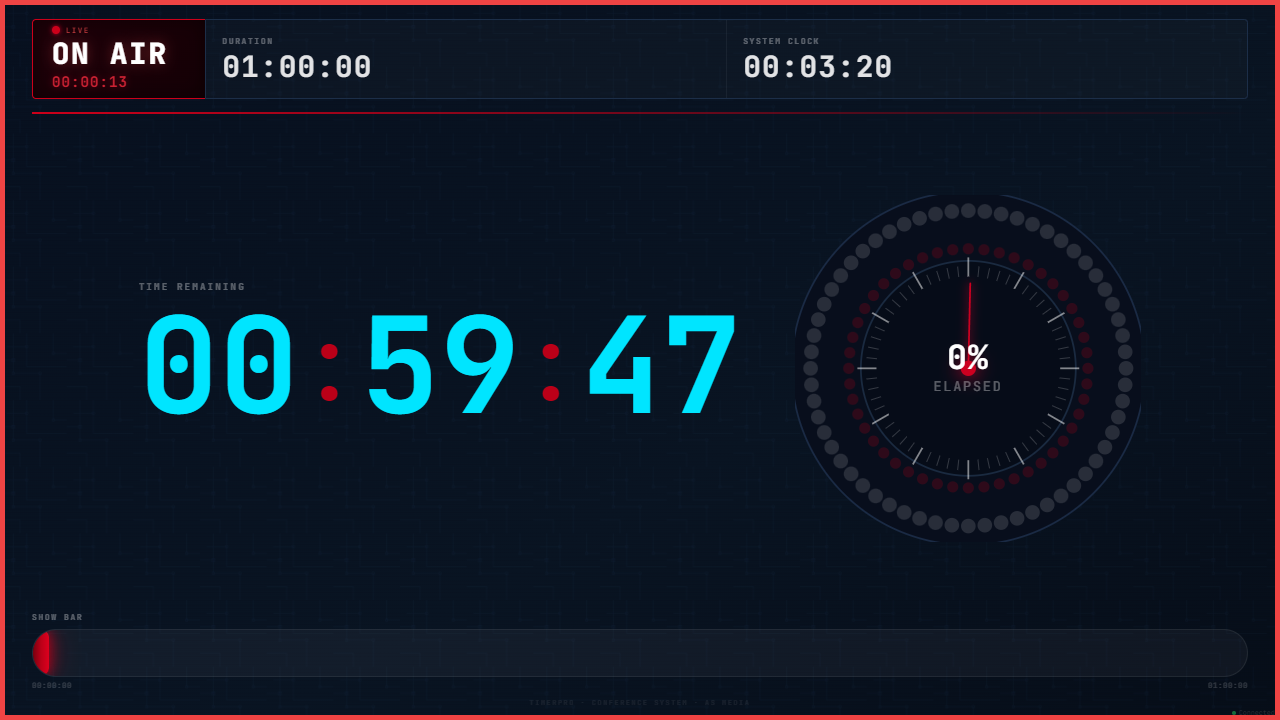
- A dark layout with a large time to the end, a progress dial and a status bar.
Step 4
Classic
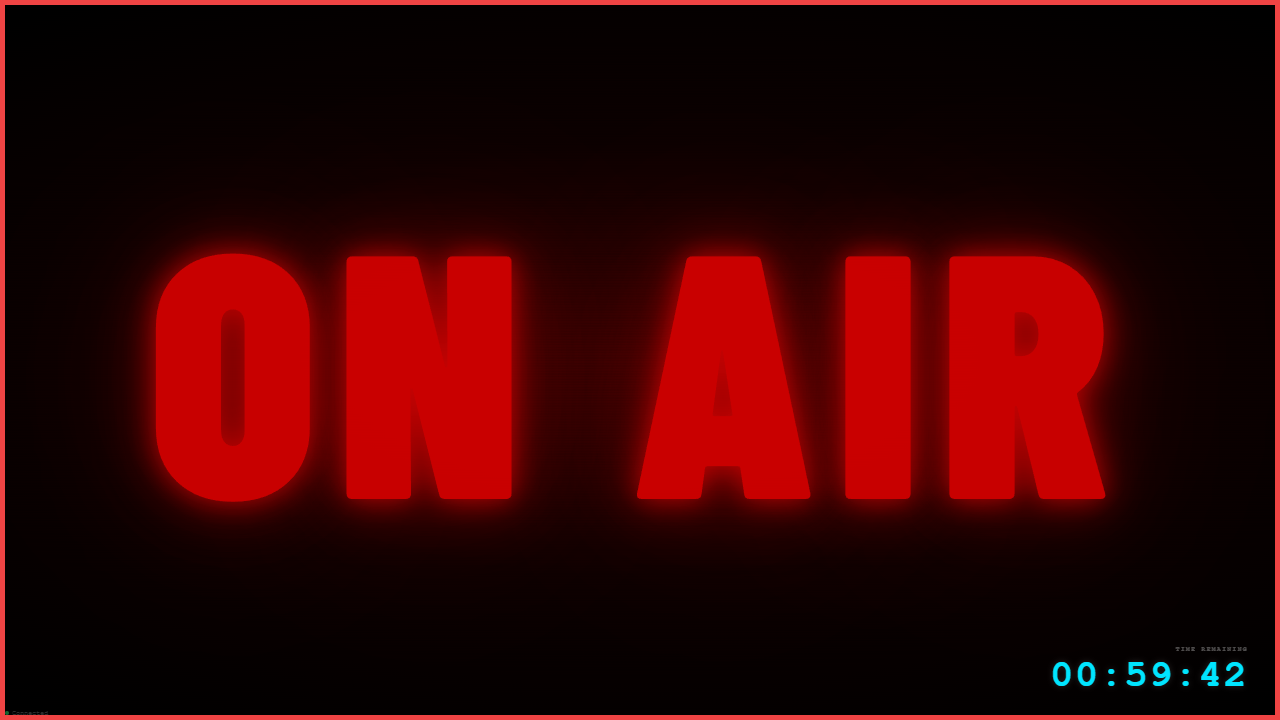
- Minimal: just ON AIR / OFF AIR on the whole screen — like the light above a studio door. In the quick settings Show OFF AIR decides whether to show OFF AIR when off air.
Step 5
Ring LED — clock with a ring of LEDs
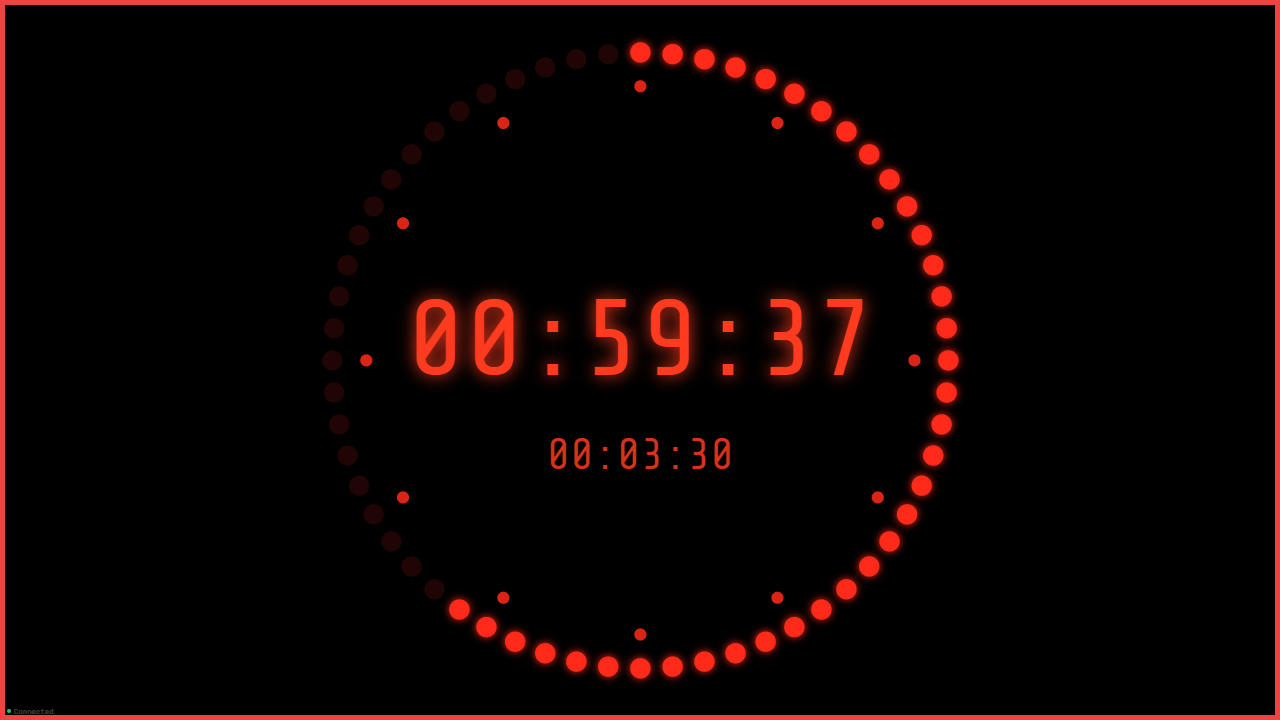
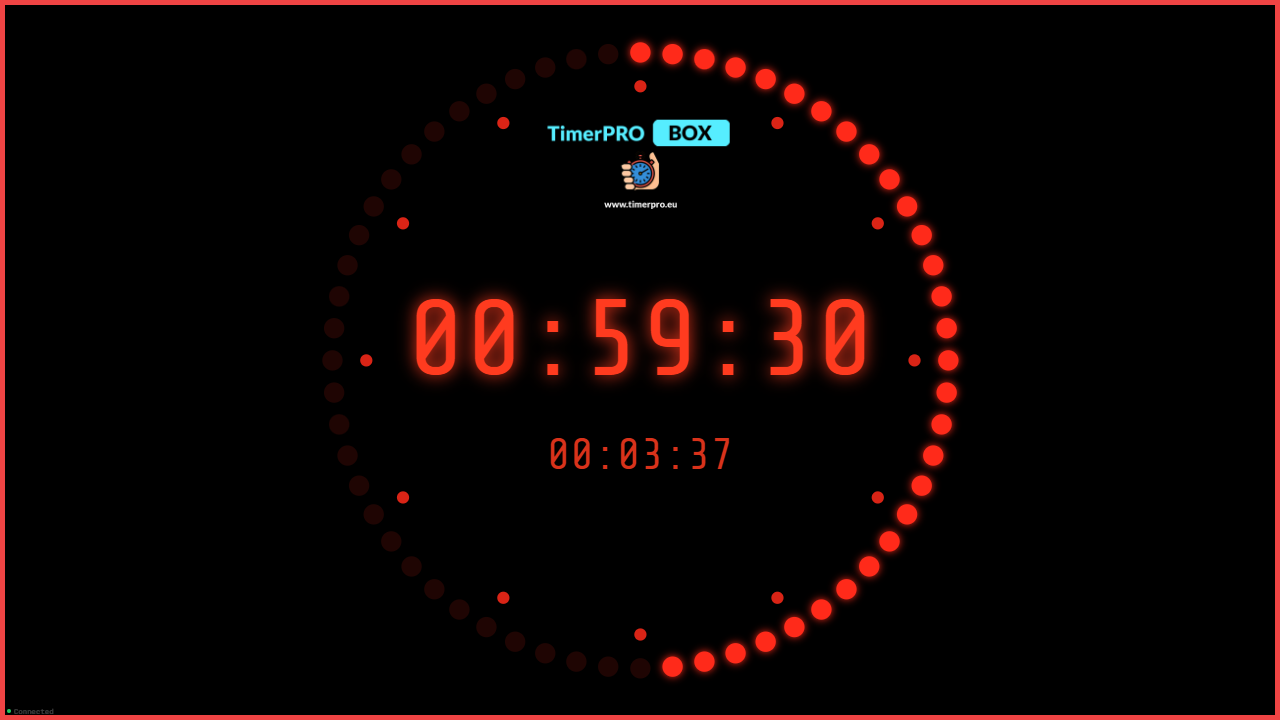
- A round studio clock: 60 LEDs around the digits. Off air — time and date, on air — time to the end of the show.
- Your logo can sit under 12 o’clock (step 6).
Step 6
Ring LED settings
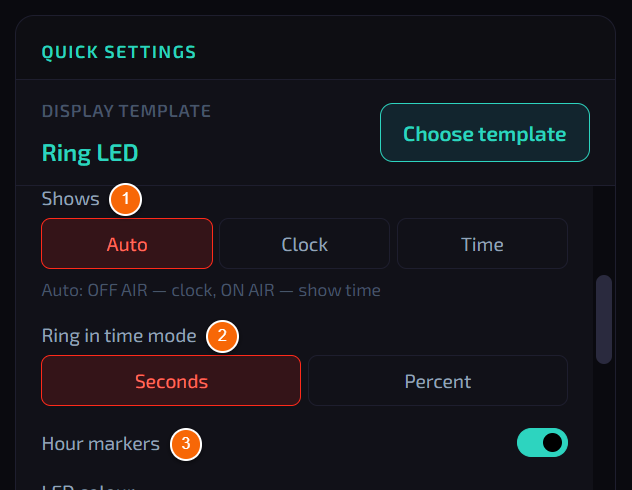
- 1 Shows — Auto (clock off air, show time on air), Clock or Time.
- 2 Ring in time mode — the LEDs count Seconds or show the Percent of the show elapsed.
- 3 Hour markers — 12 dots at the hours.
Tip
Further down: LED, digit and background colours, Hour dots (Same as LEDs or Custom colour) and the logo.
Step 7
Logo in Ring LED
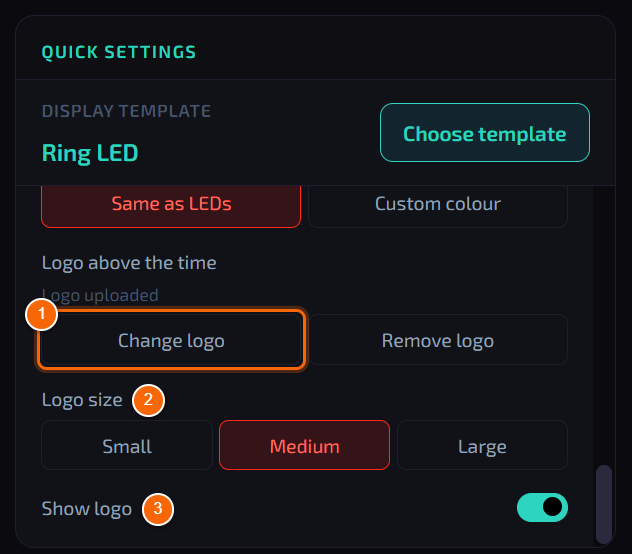
- 1 Choose logo — pick a PNG file on a USB stick (up to 5 MB, transparency is kept). The logo appears under 12 o’clock.
- 2 Logo size — Small, Medium or Large.
- 3 Show logo — hides the logo without deleting the file. Remove logo deletes it from the device.
Note
The program checks the file content — a JPG image renamed to .png is rejected with a message.
Step 8
Ring LED with a logo on the monitor
- The logo in medium size, right under 12 o’clock.
Step 9
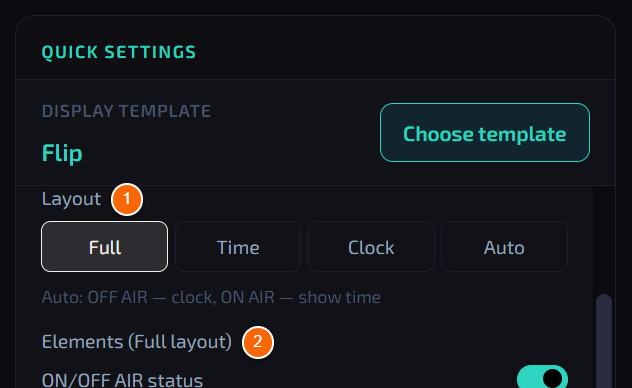
Flip — flip clock
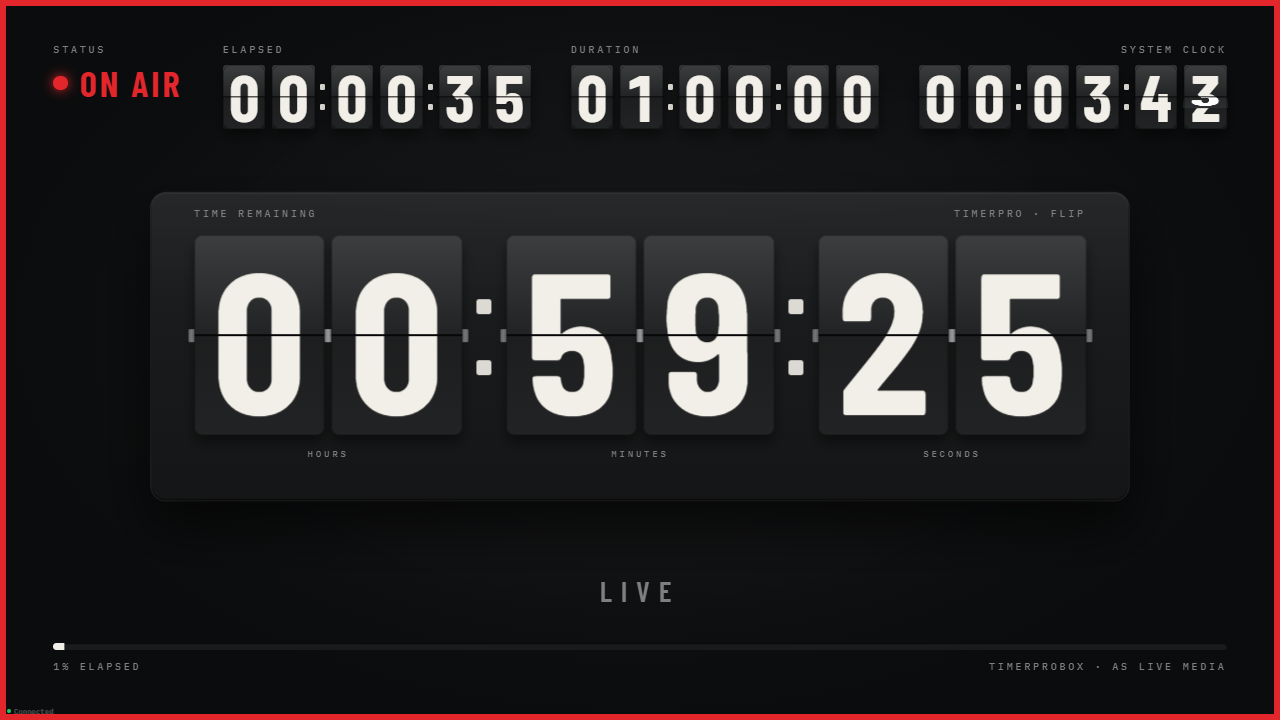
- A mechanical clock like an airport board: the flaps flip at every change. At the top the status, elapsed time, duration and clock; under the flaps a message and a progress bar.
Step 10
Flip settings
- 1 Layout — Full, Time (time flaps only), Clock or Auto.
- 2 Elements (Full layout) — which elements to show in the full layout.
Tip
Further down: warning thresholds (Amber from, Red from), Flap animation, Custom message (up to 40 characters) and colours.
Step 11
ClasicTime — analogue clock
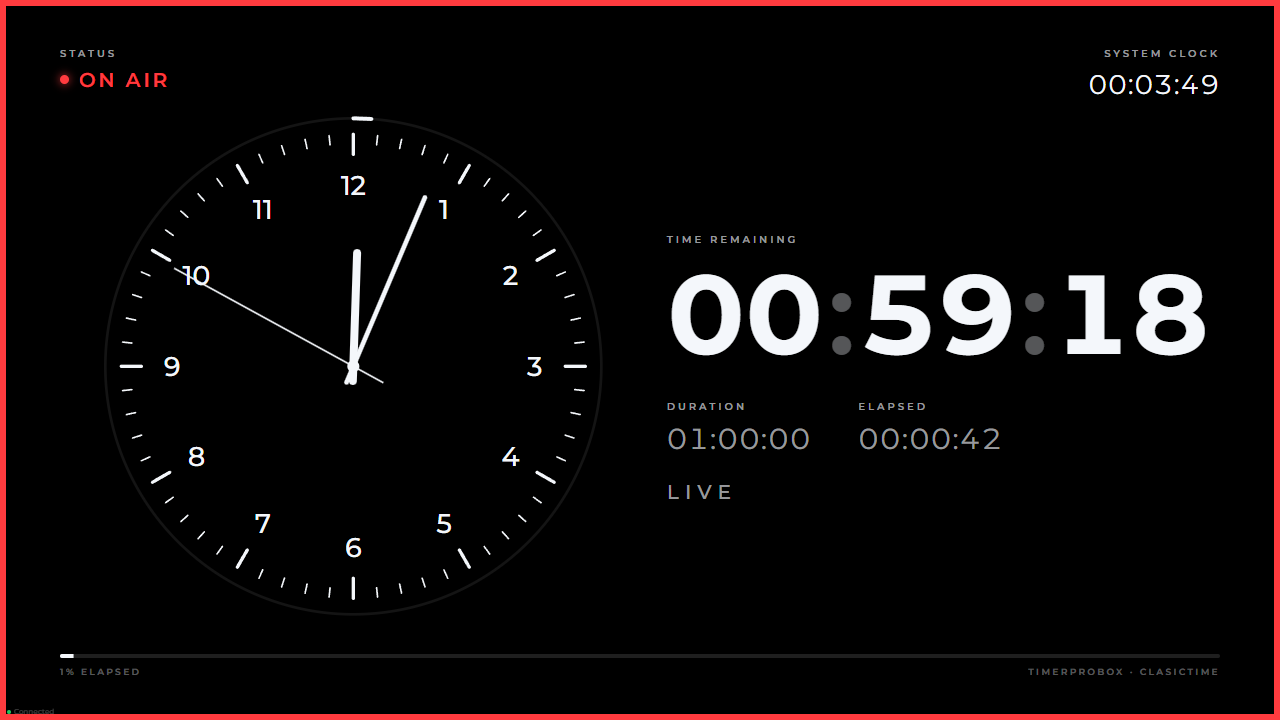
- A clock dial with hands (device time) next to the time to the end of the show, the duration, the elapsed time and a message.
Step 12
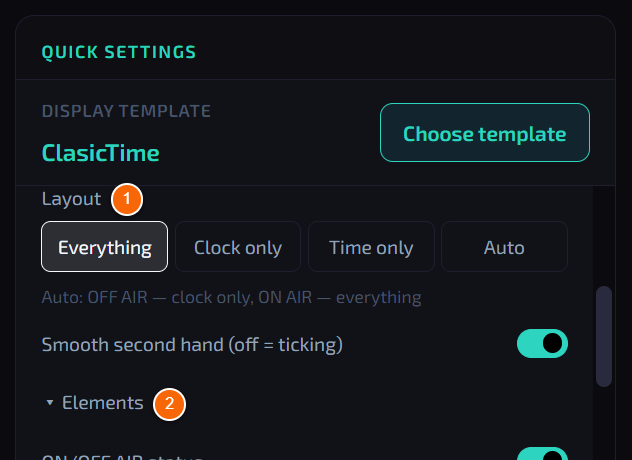
ClasicTime settings
- 1 Layout — Everything, Clock only, Time only or Auto.
- 2 Elements — tap to expand the list of ten elements to switch on or off (status, clock, frame, dial numerals, second hand…).
Tip
Further down: Smooth second hand (off = ticking), warning thresholds and colours — separately for the hands, second hand, ticks, numerals and bar.
BroadcastChapter 20
Broadcast on Stream Deck
How to create a Stream Deck page with studio clock actions in one tap.
What it is for
In the studio your hands are busy. The Broadcast page on Stream Deck gives physical buttons: going on and off air, rehearsal, show reset, switching templates and changing the show duration.
Who can use it
Operator at the device (Stream Deck connected by cable).
Where to find it
Menu → StreamDeck → + Broadcast.
Step 1
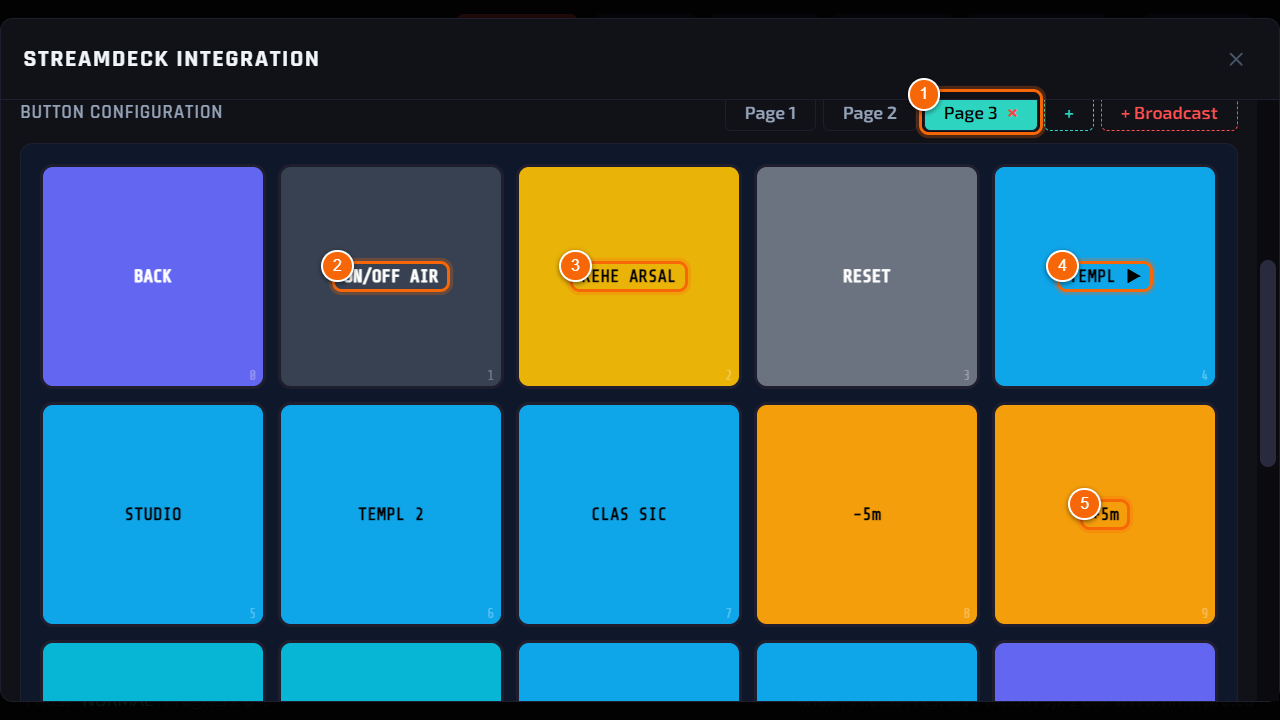
Ready Broadcast page
- Tap + Broadcast — the program adds a new page fitted to the Stream Deck model (6, 8, 15 or 32 buttons).
- 1 New page — appears next to the others; ✕ next to its name removes it.
- 2 ON/OFF AIR — going on and off air with one button (like ON AIR / OFF AIR).
- 3 REHEARSAL and RESET — rehearsal and resetting the show time.
- 4 TEMPL ▶ — next template; the buttons with template names (STUDIO, TEMPL 2, CLASSIC…) choose a specific one.
- 5 -5m +5m — shorten or extend the show while it runs.
Tip
On larger Stream Decks the page also holds the show length (30 min, 60 min…) and buttons for the Ring LED mode, the Flip layout and the ClasicTime layout. BACK and PAGE switch pages.
Good to know
You can change any button on this page like any other (see Stream Deck) — the Broadcast actions are in the Action list.
The Broadcast buttons work when the device is in Broadcast mode (see Choosing the operating mode).
DeviceChapter 21
WiFi and Bluetooth
How to connect the device to a WiFi network and pair a Bluetooth keyboard or clicker.
What it is for
The network is needed for control from a phone, views for vMix/OBS and updates. Bluetooth lets you connect a keyboard or a presenter clicker without cables.
Who can use it
Operator at the device.
Where to find it
Settings → System → WiFi / Bluetooth → Configure.
Step 1
Connecting to WiFi
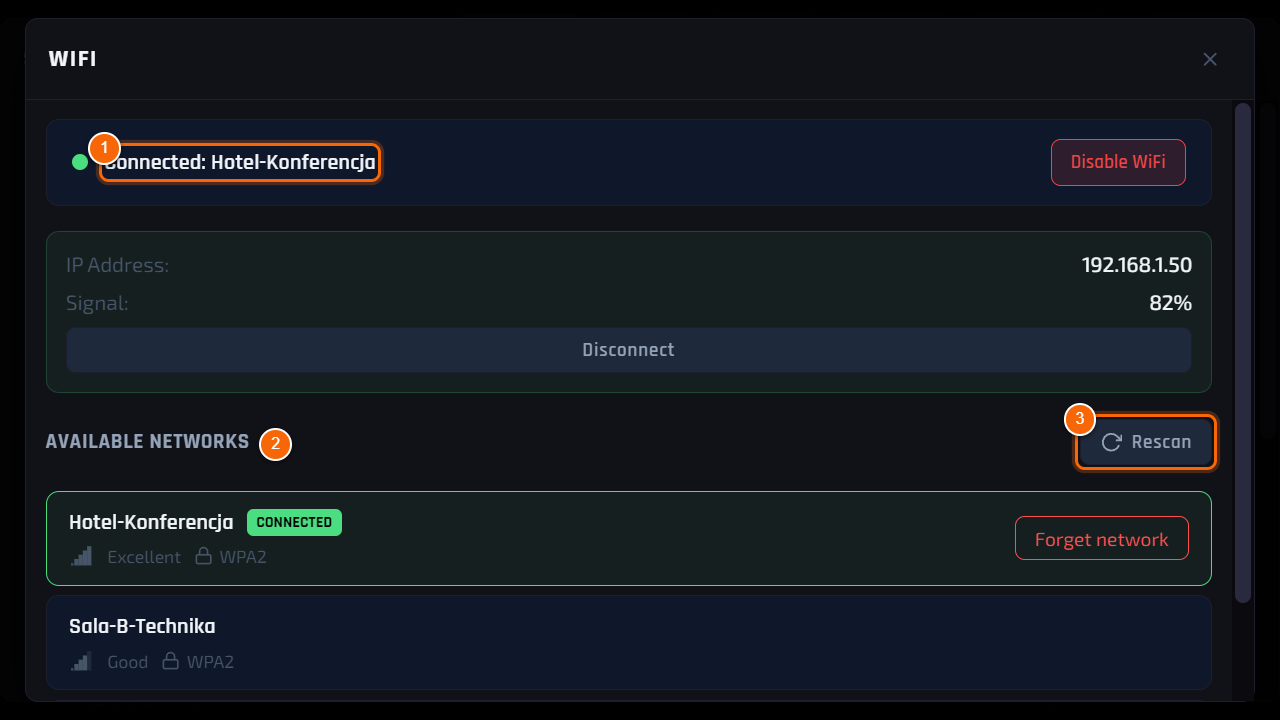
- 1 Status — network name, IP address of the device and signal strength. Disconnect disconnects.
- 2 Available networks — tap a network, type the Password on the on-screen keyboard and Connect.
- 3 Rescan — search for networks again.
Tip
The IP address in this window is the device address on the network — the same as in the Remote window. A LAN cable works without any setup.
Step 2
Bluetooth
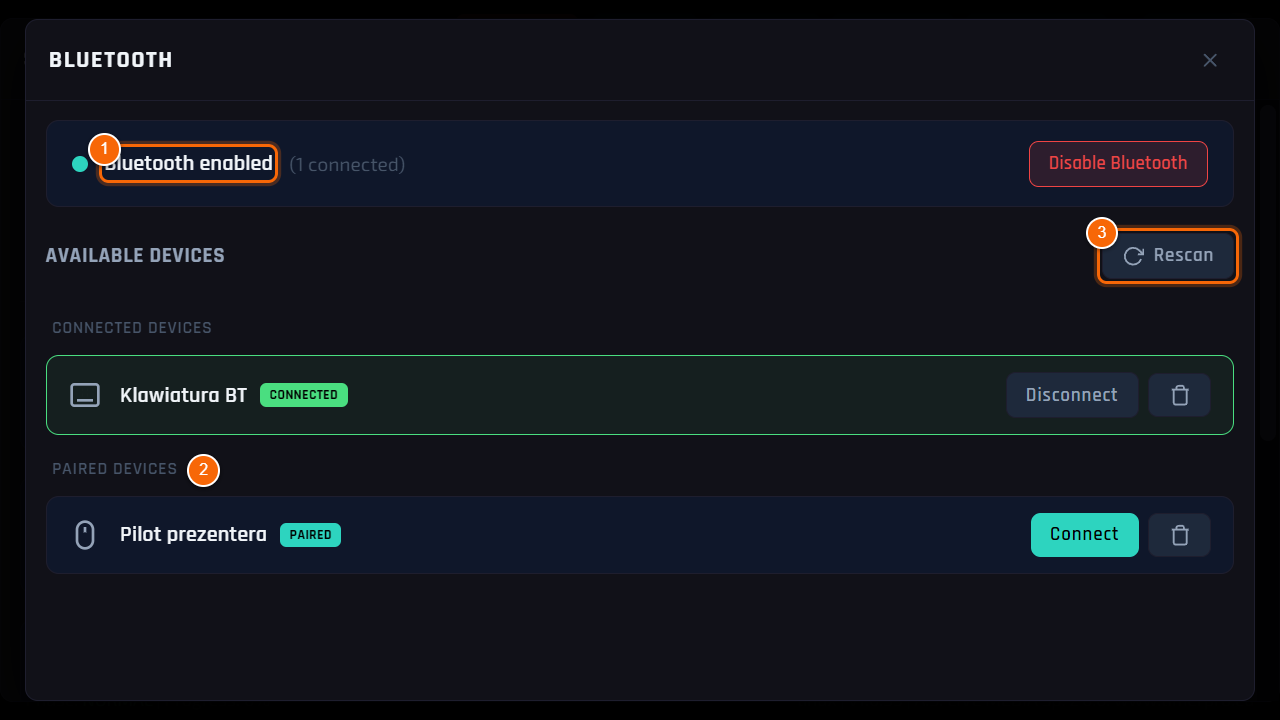
- 1 Status — Bluetooth on and the list of connected devices.
- 2 Paired devices — devices remembered by the unit; Connect / Disconnect.
- 3 Rescan — search for new devices; tap a new one and choose Pair.
Tip
Before pairing, put the keyboard or clicker into pairing mode (usually by holding the button with the Bluetooth symbol).
DeviceChapter 22
Sound
Where the sound goes out and which sounds the device plays.
What it is for
The device plays signal sounds, the end of time and a countdown of the last seconds. The sound goes out through the HDMI monitor (its speakers) or a USB sound card connected to the mixer.
Who can use it
Operator at the device.
Where to find it
Settings → Sound.
Step 1
Audio output
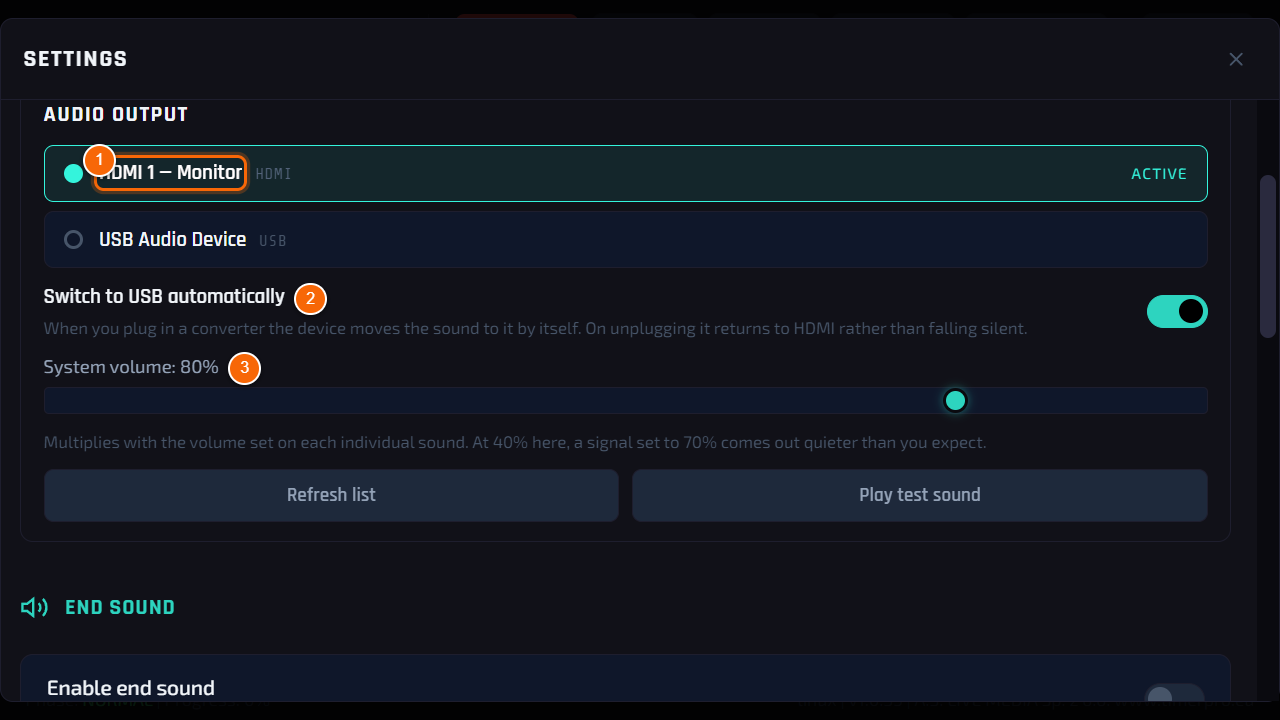
- 1 Output list — HDMI (monitor speakers) and a USB sound card, if connected. The active output is marked active; tap another one to switch.
- 2 Switch to USB automatically — when a USB card is plugged in, the sound moves to it by itself and returns to HDMI when it is unplugged.
- 3 System volume — volume of the whole device. It multiplies with the volume of each sound.
Tip
Play test sound plays a test sound — check before the event that it can be heard in the room.
Step 2
End sound and countdown
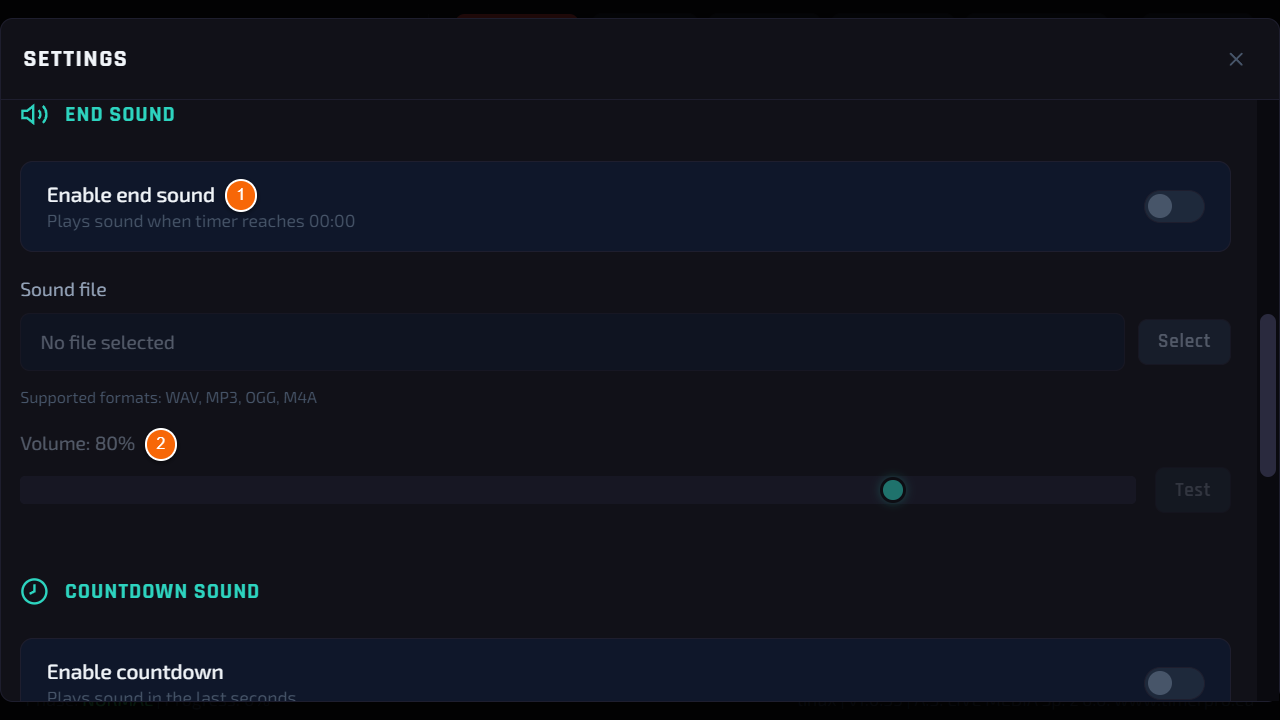
- 1 Enable end sound — a sound when the timer reaches 00:00. Select loads your own file (WAV, MP3, OGG, M4A).
- 2 Volume and Test — volume and preview.
Tip
Further down: Enable countdown — a short sound in the last seconds (Countdown from). Earlier warnings, e.g. 5 minutes before the end, are set in Signals.
DeviceChapter 23
Updates
How to check for and install a new version of the program.
What it is for
New features and fixes reach the device over the internet. An update is never installed by itself — you always decide when (e.g. not during an event). Updates are free for life.
Who can use it
Operator at the device. The device needs internet access (WiFi or cable).
Where to find it
Settings → System → Check for updates.
Step 1
Checking and installing
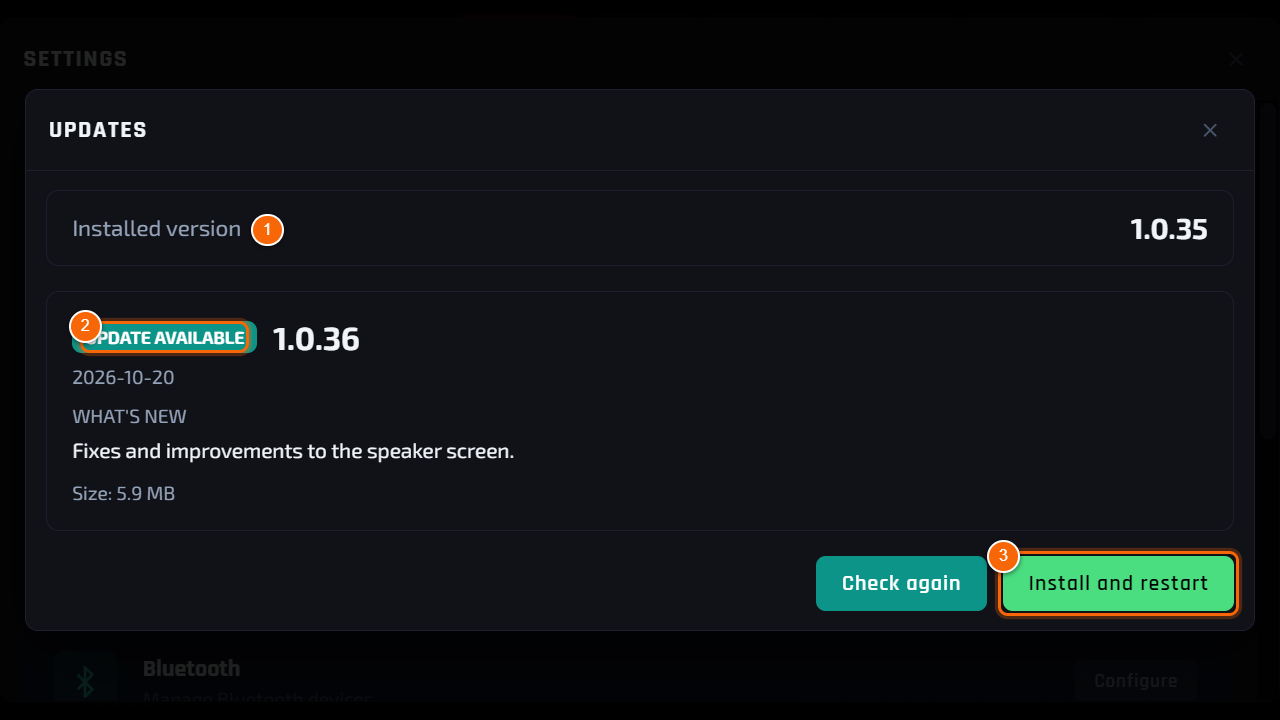
- 1 Installed version — the version you have now.
- 2 Update available — the number of the new version and the list of changes (What's new).
- 3 Install and restart — the device downloads the package, checks its signature, installs it and restarts the program (usually a few dozen seconds).
Note
Do not switch the power off during installation. If the new version did not start correctly, the device goes back to the previous one by itself.
Good to know
When you have the latest version, the window shows You have the latest version..
Settings, the event programme and the PIN stay unchanged after an update.
DeviceChapter 24
Licence
What the USB stick delivered with the device is for and what to do when the program does not see it.
What it is for
The TimerProBOX licence is stored on the USB stick delivered with the device. The key matches your unit only — the stick must stay connected all the time.
Who can use it
Anyone at the device.
Where to find it
A USB port of the device.
Step 1
The “No USB key” screen
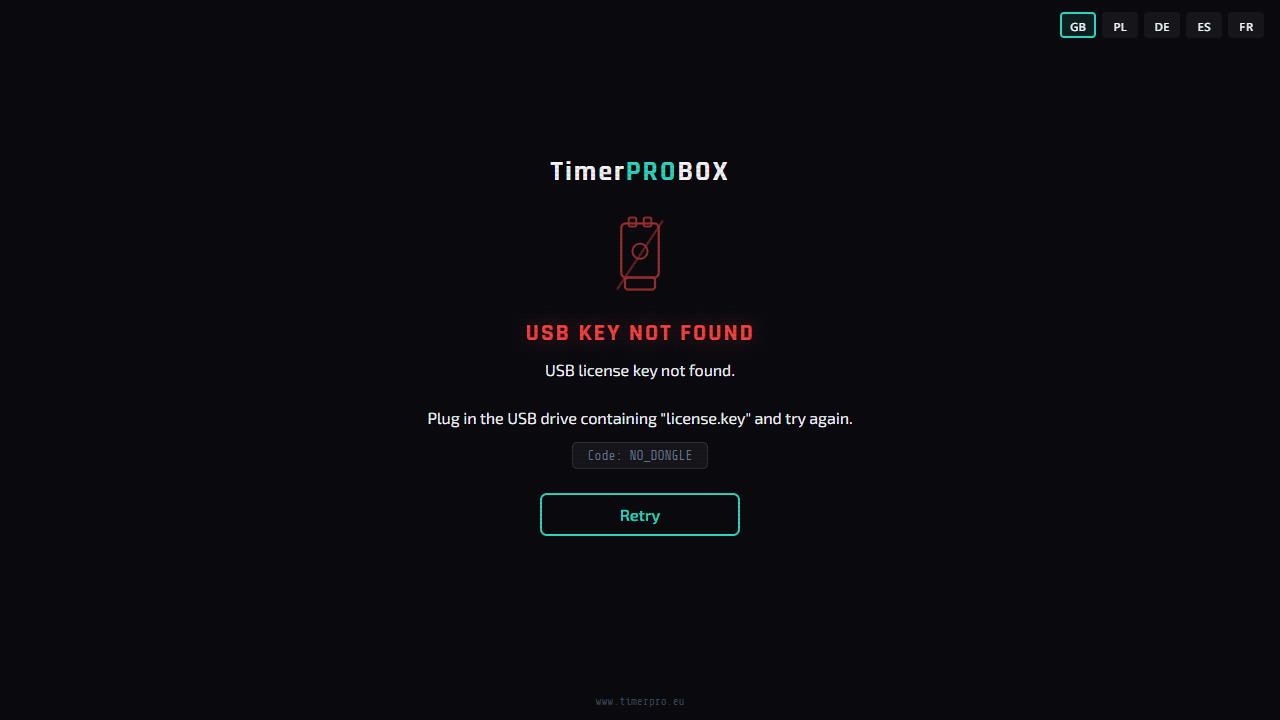
- If the program does not find the licence stick at start-up, it shows this screen instead of the timer.
- What to do: connect the licence stick (or take it out and put it back, preferably into another USB port) and tap Retry.
- If that does not help — shut the device down (see Shutting down and restarting), check the stick and switch the device on again.
Note
Do not delete or change the license.key file on the stick. Keep the stick with the device — without it the program does not start.
Good to know
Choose the language of this screen with the buttons in the top right corner.
You can use the licence stick for other files too (e.g. logo, backgrounds, agenda) — just do not delete the licence file.
The screen also appears when the power supply is too weak and the USB ports do not work properly (see Troubleshooting).
DeviceChapter 25
Settings profiles
How to save all settings under a name and come back to them with one tap.
What it is for
If you run different events — a different logo, colours, signals, programme — save each one as a profile. Before the next event you load the profile and the device is ready.
Who can use it
Operator at the device.
Where to find it
Settings → Profiles.
Step 1
Profile list
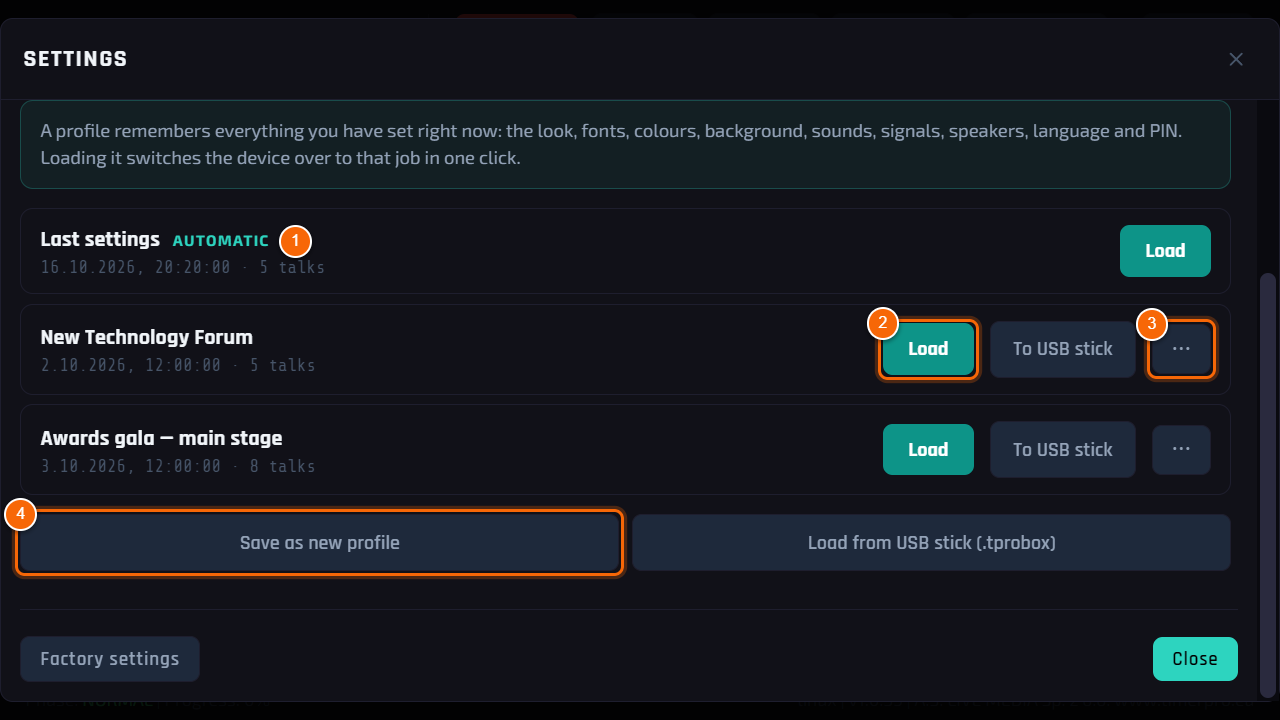
- 1 Last settings — a profile created automatically. Before every profile load and before factory settings, the device saves what was there, so you can always go back.
- 2 Load — switches the device to that profile. To USB stick saves it as a .tprobox file to move it to another device.
- 3 ⋯ (More) — Rename, Overwrite with current, Delete.
- 4 Save as new profile — type a name on the on-screen keyboard and confirm with ✓. Next to it: Load from USB stick (.tprobox).
Tip
A profile remembers everything you have set right now: the look, fonts, colours, background, sounds, signals, speakers, language and PIN. Loading it switches the device over to that job in one click.
Step 2
Loading a profile
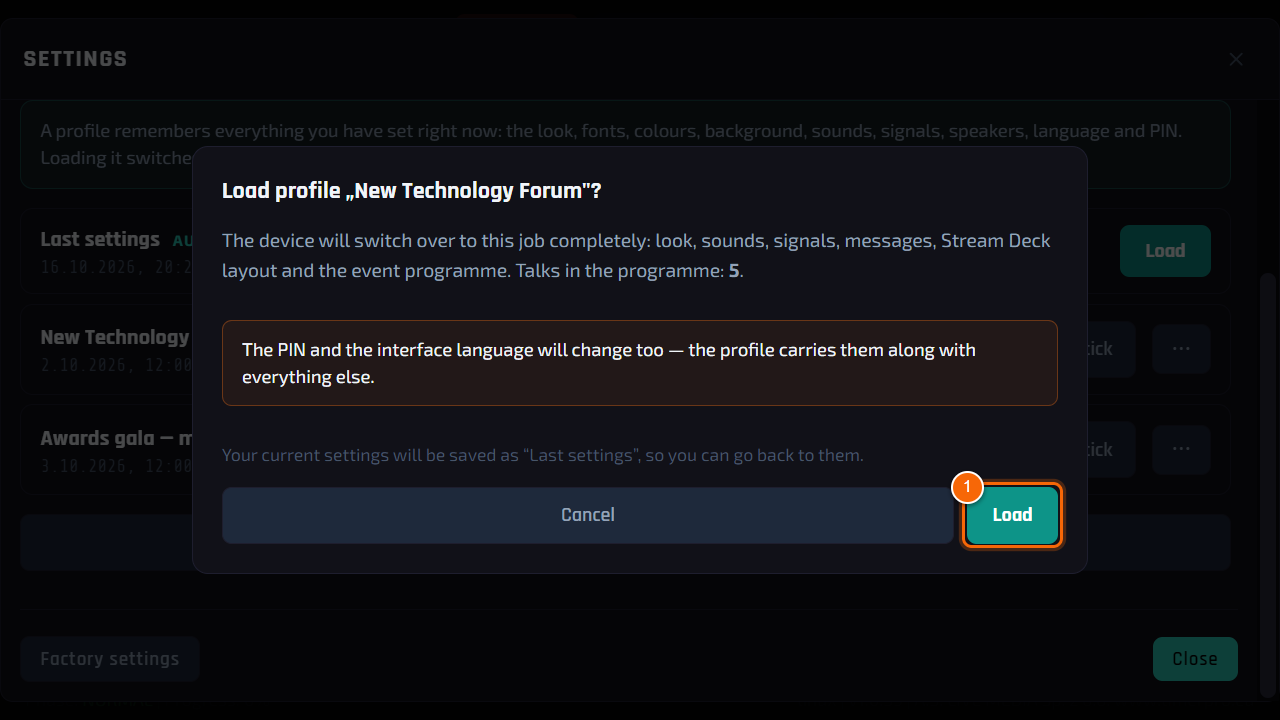
- After tapping Load the device asks for confirmation and shows how many talks the profile programme contains.
- 1 Load — loads the whole profile.
Note
Settings of hardware that is not there (e.g. a USB sound card or a second monitor) are skipped — the device tells you what it skipped.
DeviceChapter 26
Event reports
How to view the course of the day and save a report for the organiser.
What it is for
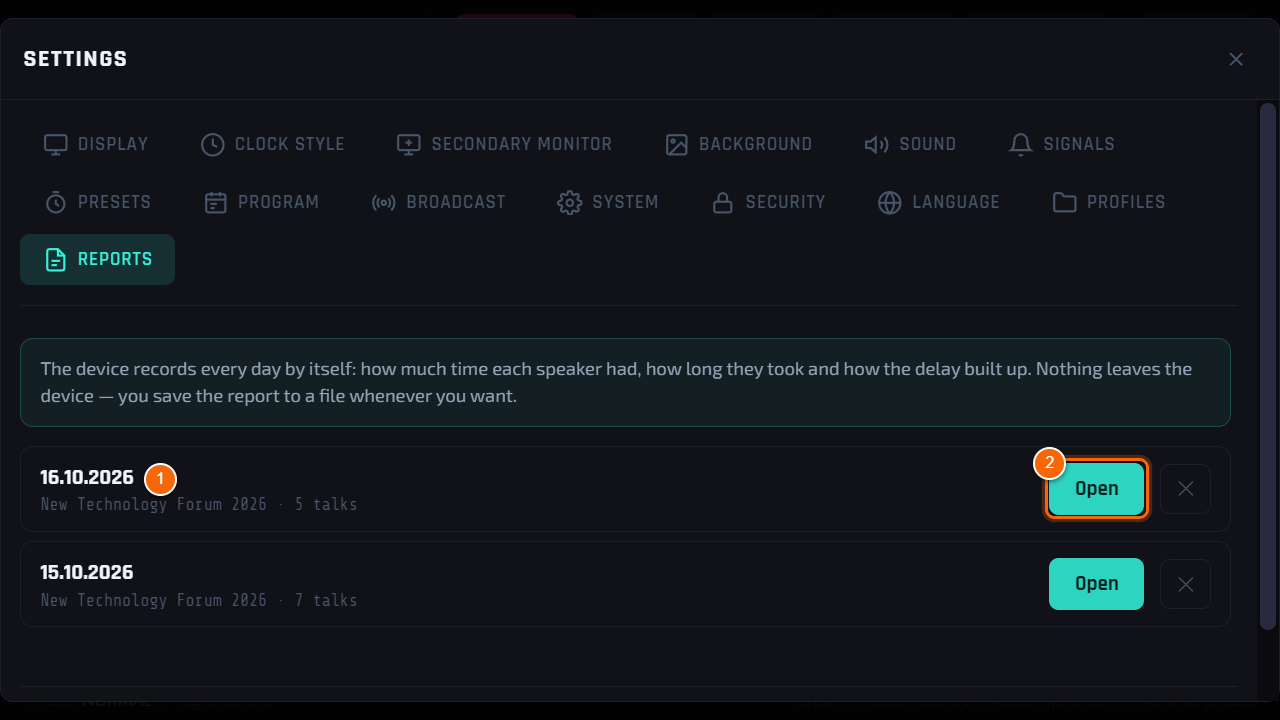
The device records every day by itself — there is nothing to switch on. After the event you have a ready summary for the organiser: plan, actual time, overruns and the growing delay.
Who can use it
Operator at the device.
Where to find it
Settings → Reports.
Step 1
List of days
- 1 Every working day is a separate report: date, event name and number of talks.
- 2 Open — report preview. The bin icon deletes the report.
Tip
The device records every day by itself: how much time each speaker had, how long they took and how the delay built up. Nothing leaves the device — you save the report to a file whenever you want.
Step 2
Preview and saving
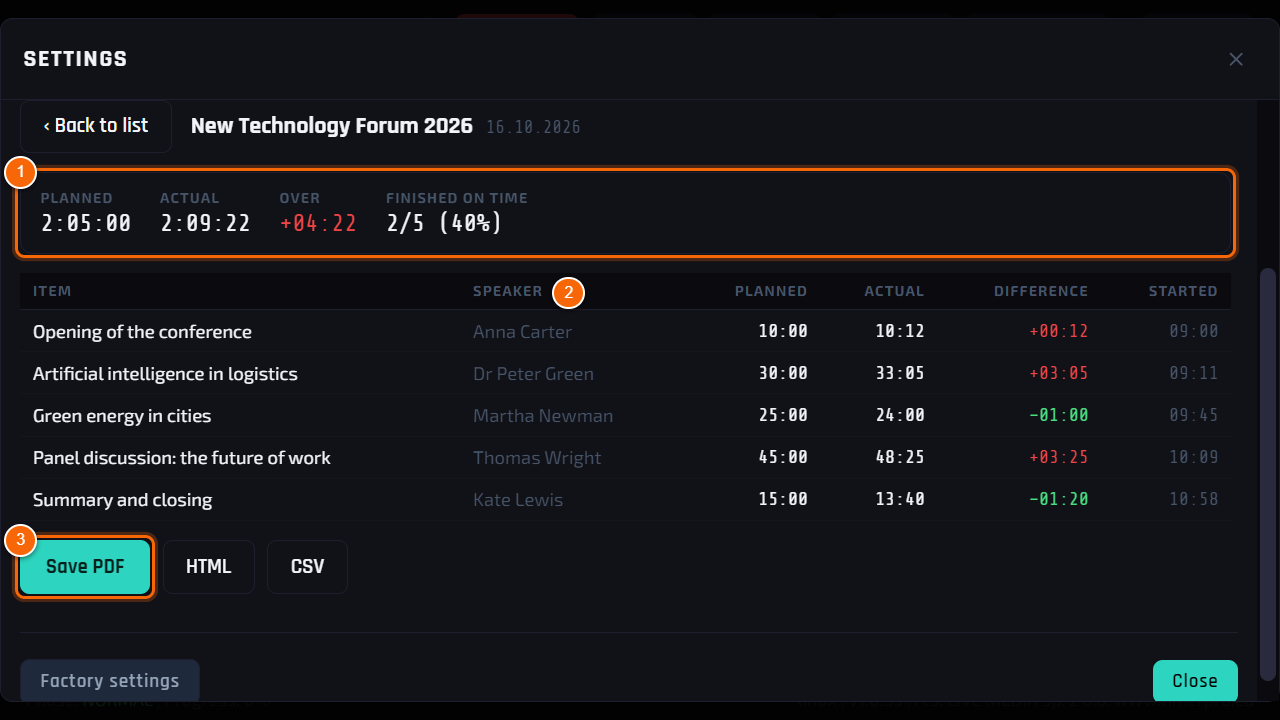
- 1 Summary — how much was planned, how long it really took, the overrun and how many talks kept to time.
- 2 Table — every talk: plan, actual time, difference, start and end time, delay against the programme.
- 3 Save PDF / HTML / CSV — save to a USB stick. PDF to send to the organiser, CSV for a spreadsheet.
Tip
Reports do not go into profiles and never leave the device — a list of speakers can be confidential.
DeviceChapter 27
Factory settings
How to restore factory settings and what stays unchanged.
What it is for
When something has been changed and nobody knows what — restore the factory settings. Appearance, sounds and signals go back to how they came out of the box.
Who can use it
Operator at the device.
Where to find it
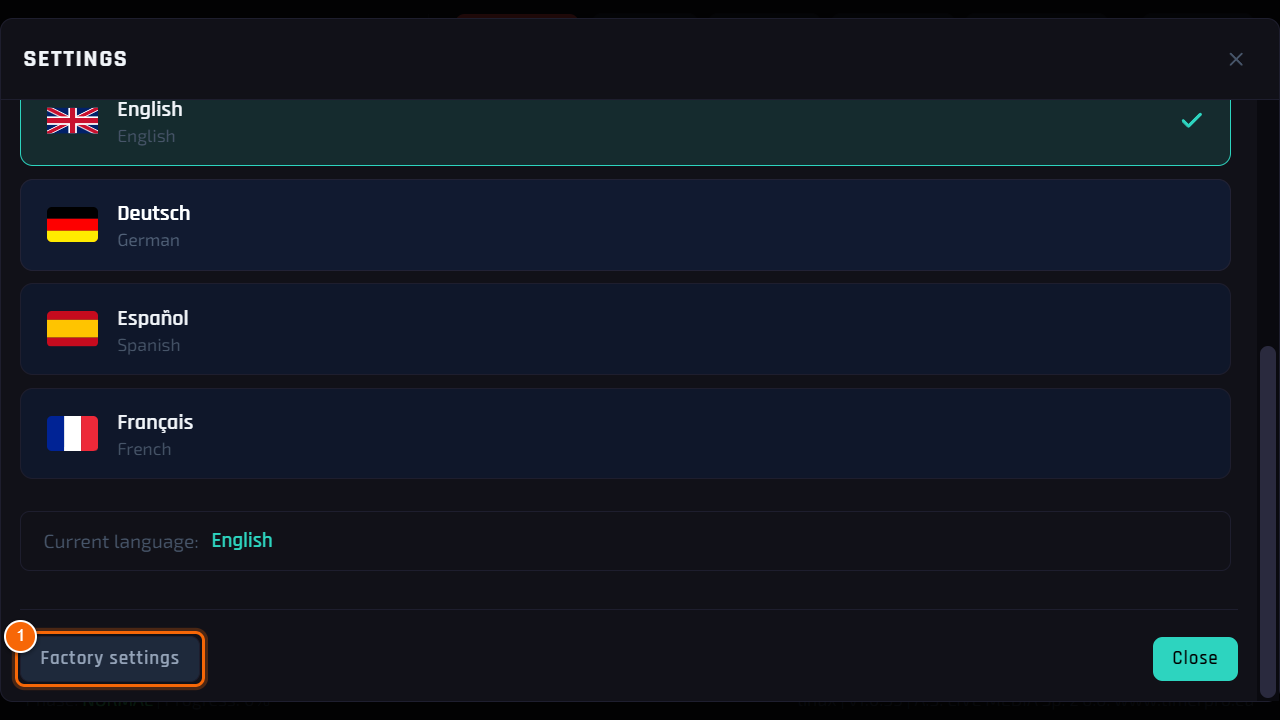
Settings → any tab → button at the bottom of the window.
Step 1
Restoring
- 1 Factory settings — the device asks for confirmation and restores the settings right away.
Tip
These stay unchanged: the PIN, the audio output and the event programme. The current settings are saved as the Last settings profile — undo a mistake with one tap in Profiles.
DeviceChapter 28
Shutting down and restarting
How to switch the device off without losing settings.
What it is for
The device is a small computer. Switch it off with the button in the program and only then disconnect the power — just like a computer.
Who can use it
Operator at the device.
Where to find it
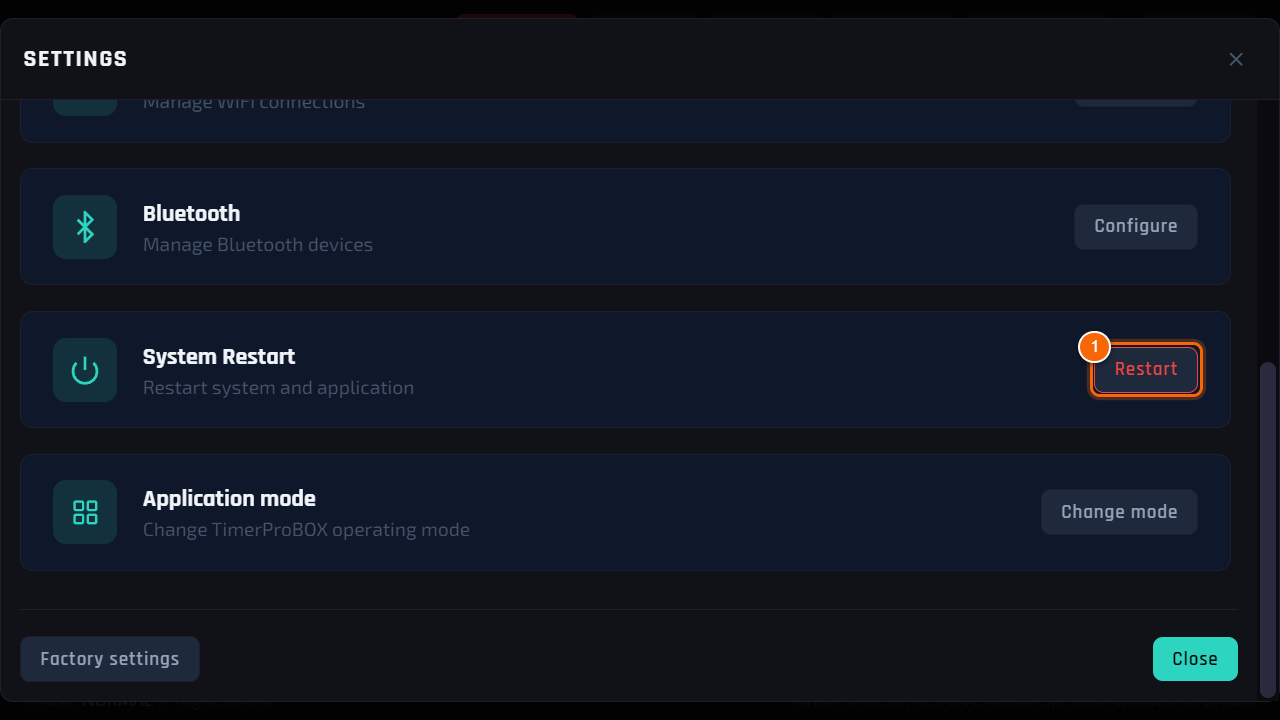
Top bar → Shutdown; restart: Settings → System.
Step 1
Shutting down
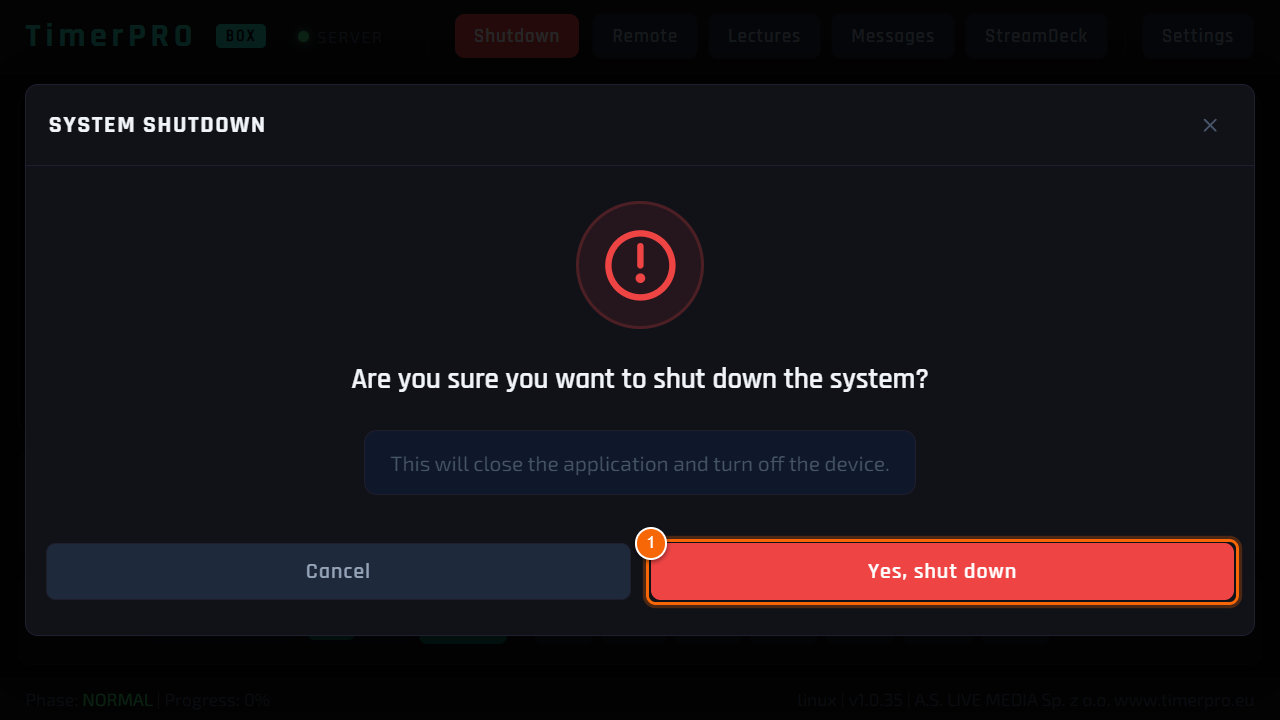
- Tap Shutdown on the top bar.
- 1 Yes, shut down — the program closes and the device switches off. Wait a few seconds until the screen goes dark and only then disconnect the power.
Note
Pulling the plug during work usually breaks nothing, but the last settings change may be lost. Never disconnect the power during an update.
Step 2
Restarting
- 1 System Restart → Restart — the device starts again (about half a minute). Useful when something stopped responding or after connecting new hardware.
Tip
To switch on a device that is off, disconnect and reconnect the power.
DeviceChapter 29
Troubleshooting
What to check before you call support.
What it is for
Most problems have a simple cause: power, a cable or the network. Below are the most common symptoms and solutions.
Who can use it
Anyone at the device.
Step 1
Power
- Symptoms: the second monitor goes dark or is not detected, the licence stick “disappears”, a USB sound card or Stream Deck works intermittently, the device restarts by itself.
- What to do: use the power supply delivered with the device. A regular phone charger does not have enough power when a monitor, Stream Deck and USB stick are connected at once.
Step 2
The “No USB key” screen
- Take out the licence stick, put it back (preferably into another port) and tap the retry button. Details: Licence.
Step 3
Picture rotated or touch hits the wrong place
- Set the right orientation in Settings → Display — see Display.
Step 4
No picture on the second monitor
- Check the HDMI cable and the monitor power, then Refresh in the second monitor settings. A monitor connected after the device started is sometimes detected only after a restart. See Second monitor.
Step 5
A phone or computer does not open the panel
- The phone must be on the same network as the device. Check the panel address in the Remote window (QR code). If the hotel network blocks connections between devices, use your own router or a hotspot. See Browser panel.
Step 6
No sound
- Check which output is active, the system volume and the monitor volume, then Play test sound. See Sound.
Step 7
Forgotten PIN
- The device touchscreen always works without the PIN — set a new code in Settings → Security. See PIN.
Step 8
The program stopped responding
- Restart the device — see Shutting down and restarting. If that does not help, disconnect the power for 10 seconds and reconnect it. Settings and the event programme are kept.
Good to know
If a problem keeps coming back, note what was on the screen and what you did just before — it helps support a lot.
Nothing matches the search.